Mining Help
How to connect Osprey Electronics to NiceHash?
Follow the steps below to connect your FPGA to NiceHash.
Step 1 - Connect and power on
Plug in the internet and power cables and turn on the FPGA.
Step 2 - Locate the ASIC IP
Find the FPGAs IP on your local network. This can be done by connecting to your router, navigating to DHCP, and looking up the FPGA IP or by using dedicated tools like NiceHashTools.
Detailed instructions can be found here.
Copy/paste the IP address in your browser.
Step 3 - Log in to the ASIC dashboard
Log in to the FPGA dashboard by entering the username and password.
The default username is ‘root’ and the default password is ‘password’.
Step 4 - Open the Configuration tab
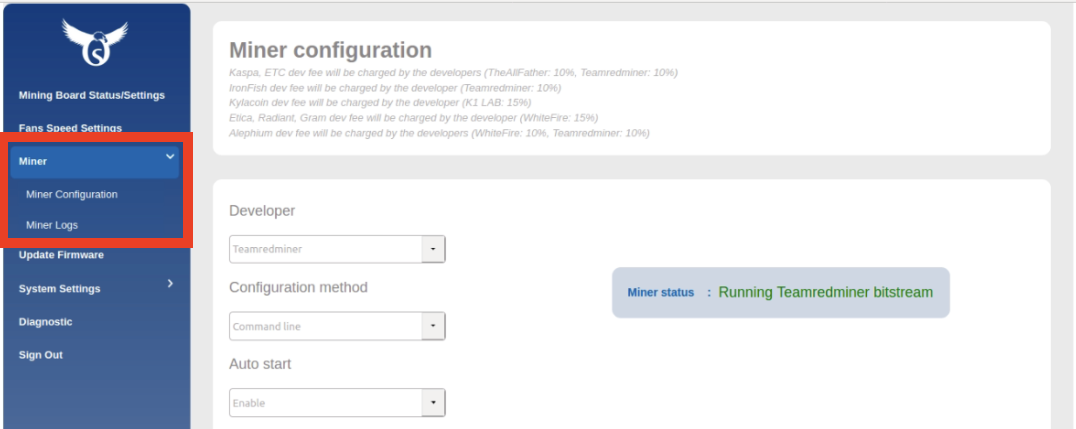
Navigate to the Miner Configuration tab.
Step 5 - Find the algorithm stratum address
NiceHash supports over 30 different mining algorithms, including SHA256, Scrypt, Equihash, and others. You can find the list of all algorithms here.
To find a suitable stratum address for your FPGA miner, please use our stratum generator:
Step 6 - Enter the stratum, mining address, and password
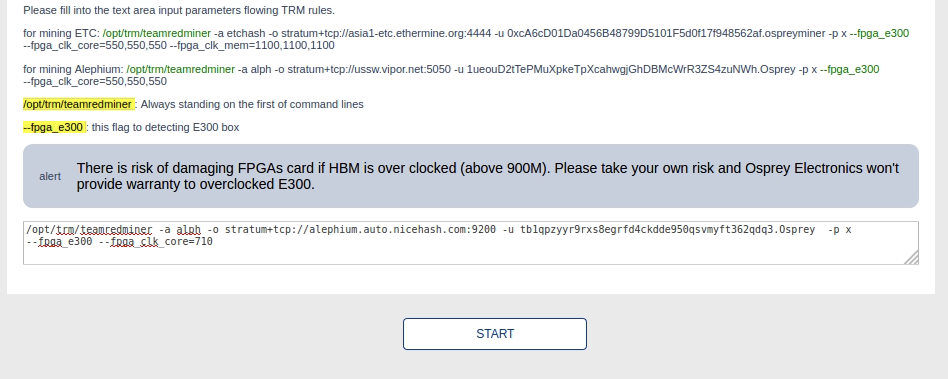
Copy the stratum data into the FPGA configuration (step 5).
In this case, we will use stratum+tcp://alephium.auto.nicehash.com:9200 or stratum+ssl://alephium.auto.nicehash.com:443 (if SSL is supported).
Note: In case of connectivity issues or rejected shares, try using #xnsub. It should be used at the end of the stratum line in the Mining Address URL text-field (stratum+tcp://scrypt.auto.nicehash.com:9200#xnsub). You can learn more about #xnsub here.
Use your Nicehash Mining Address for the Wallet/Worker text field.
You can use it like this: MiningAddress.WorkerName to name your worker.
The password should always be ‘x’ or ‘123’.
Step 7 - Save
Click START.
Note: some FPGAs need a restart for the changes to take effect.