Mining Help
Miner speed fluctuations detected notification
NiceHash Miner uses benchmarks to determine what miner and algorithm is the most profitable at a given time. The benchmark results must be accurate in order for NiceHash Miner to effectively use the profit switching feature.
If the benchmarks are not accurate, NiceHash Miner might be mining a less profitable algorithm.
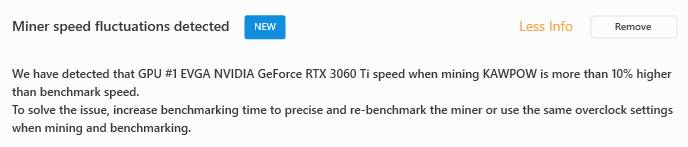
How to fix Miner speed fluctuation in NiceHash Miner?
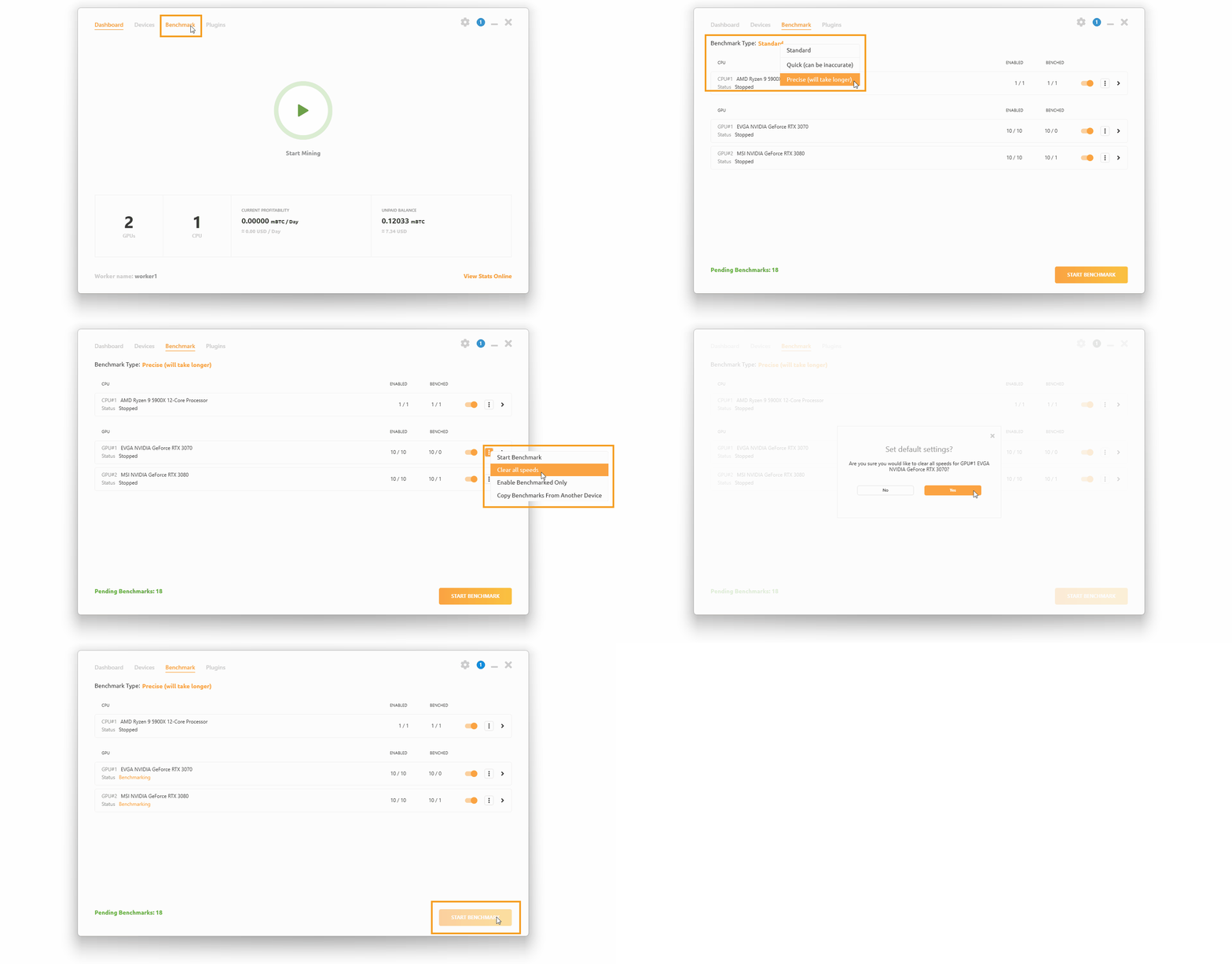
Solution 1 - Re-benchmark
- Stop mining
- Navigate to Benchmark tab inside NiceHash Miner
- Change Benchmark type to Precise
- Find the GPU with speed fluctuation
- Click on the 3 dots on the far right side of the GPU tile
- Select Clear all speeds
- Start benchmarking
Precise benchmarking time will take longer but will be more precise.
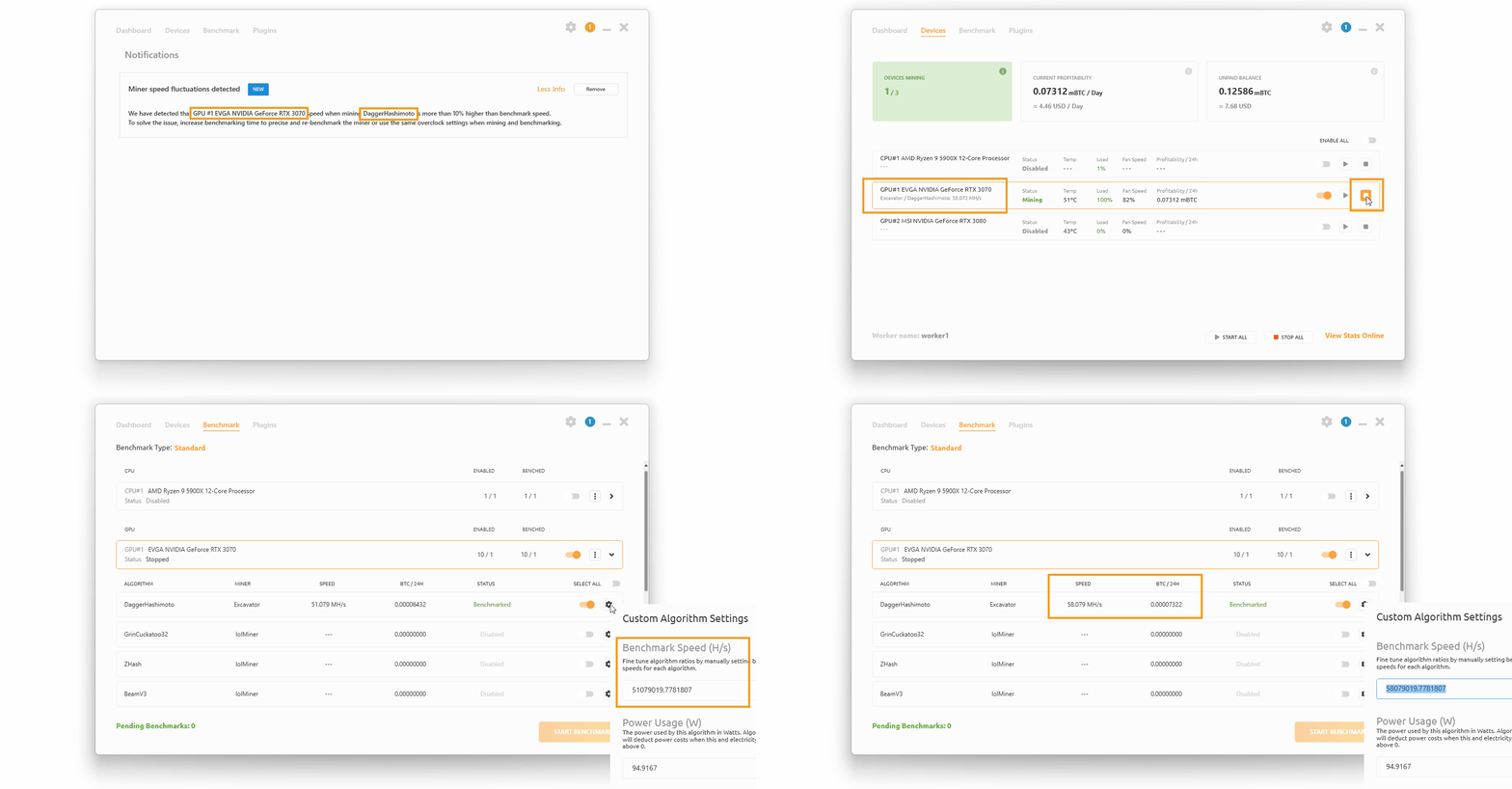
Solution 2 - Manually change benchmark speed
- Start mining and wait for the Miner speed fluctuation notification to appear
- Write down the hashing speed of the GPU and the troubled miner and algorithm combination
- Stop mining
- Navigate to the Benchmark tab and locate the GPU and miner/algorithm combination
- Click on the setting icon on the far right side of the miner tile
- Manually change the hashing speed of the miner in the Benchmark speed text field
Note that the values are in base unit. You need to convert MH/s to H/s for example.
Mining
This website uses cookies to ensure you get the best experience on our website.