Mining Help
How to update NiceHash Firmware?
NiceHash Firmware can be updated using NiceHashTools or via the ASIC Dashboard.
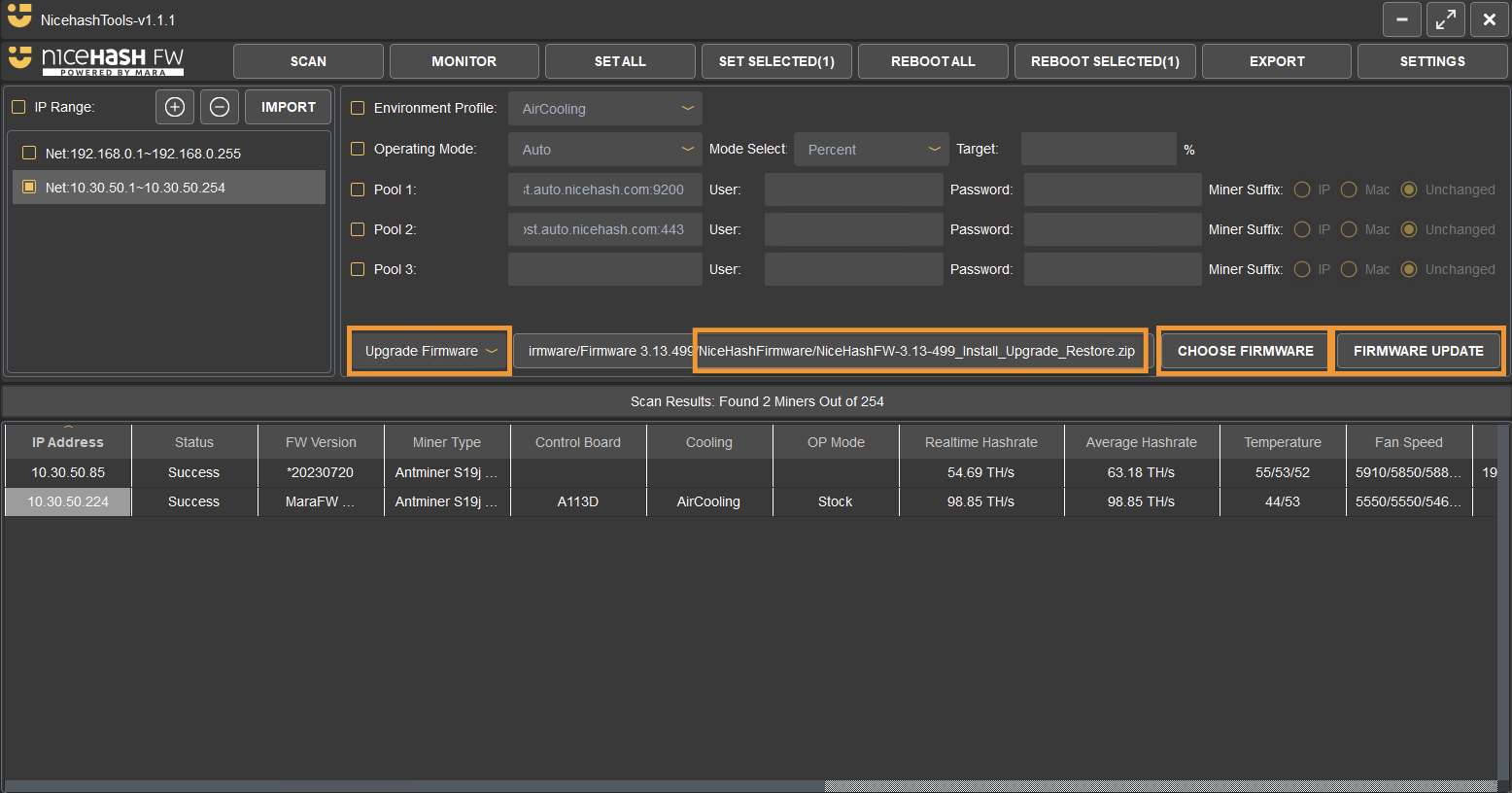
Updating firmware with NiceHashTools
Follow these steps to update the NiceHash Firmware using NiceHashTools:
- Download the latest version of NiceHashTools and NiceHash Firmware from the Download Center.
- Run NiceHashTools and scan the network.
- Select Update Firmware operation in the dropdown menu.
- Click Choose Firmware and select the newly extracted NiceHashFW-xyz_Install_Upgrade_Restore located in the NiceHashFirmware folder.
- Click Firmware Update and select the ASICs to be updated.
- Select Update Chosen.
Updating Firmware via the ASIC Dashboard
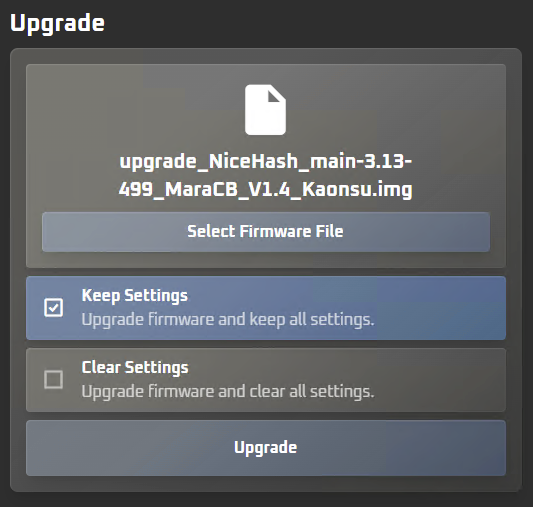
Follow these steps to update the NiceHash Firmware from the ASIC Dashboard.
- Download the latest NiceHash Firmware version from the Download Center.
- Extract the NiceHashFirmware.zip file.
- Extract the NiceHashFW-3.13-499_Install_Upgrade_Restore.zip(or newer) file found in the previously extracted NiceHashFirmware folder.
- Log into the ASIC dashboard.
Note: the ASIC IP can be found in NiceHashTools or by navigating to your router/modem and looking for the IP there or directly in your NiceHash Rig Manager when using NiceHash ASIC Monitor. - Navigate to the Upgrade tab.
- Click Select Firmware File and select the newly extracted upgrade_NiceHash_main-3.13-499_MaraCB_V1.4_Kaonsu(or newer) file that matches the ASICs control board.
- Choose to Keep Setting or to Clear Settings.
Note: for most cases, it is recommended to keep the settings. - Click Update.
Mining
This website uses cookies to ensure you get the best experience on our website.