Mining Help
How to run NiceHash Docker Miner
Getting started with NiceHash Docker Miner image
To get started, ensure you have a NiceHash Mining Address and a system equipped with an AMD or NVIDIA Graphics Card. The installation is as easy as running two simple commands:
NVIDIA Example:
$ docker pull dockerhubnh/nicehash:latest
$ docker run -it --rm --env MINING_ADDRESS="mining-address" --env MINING_WORKER_NAME="worker-name" --gpus=all dockerhubnh/nicehash:latest
AMD Example:
$ docker pull dockerhubnh/nicehash:latest
$ docker run -it --rm --env MINING_ADDRESS="mining-address" --env MINING_WORKER_NAME="worker-name" --device=/dev/kfd --device=/dev/dri dockerhubnh/nicehash:latest
Additional notes for executing the commands:
- Replace "your-mining-address" with your NiceHash Mining Address and "your-worker-name" with an arbitrary worker name.
- To select a specific GPU for NiceHash Miner Docker:
- for NVIDIA: change
--gpus=allto a chosen GPU UUID or index, as per NVIDIA's guidelines - for AMD: change
--device /dev/drito a chosen GPU index, as per AMD's guidelines> - Docker must be installed on your OS to execute above commands.
- NVIDIA drivers must be installed on the system to ensure proper functionality, even if no NVIDIA GPUs are currently installed.
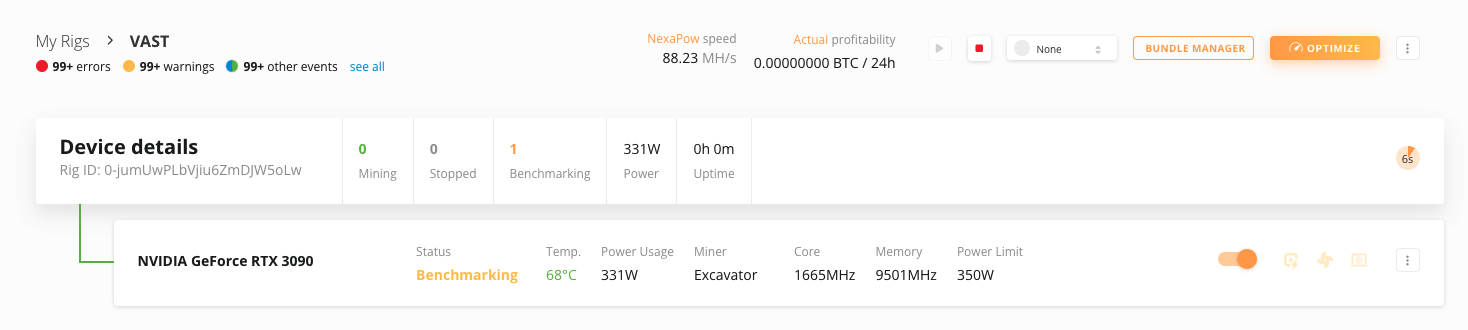
Once the Docker is started, you should see the machine online inside your NiceHash Rig Manager after a couple of minutes and in the Benchmarking state.
How to test if requirements are met?
Run the following command to test if Docker engine is working:
docker run --rm hello-world
Run the following command to test if Docker miner is detecting GPUs:
- Nvidia: docker run --rm --gpus=all --entrypoint=/usr/bin/nvidia-smi dockerhubnh/nicehash:latest
- AMD: docker run --rm --device /dev/kfd --device /dev/dri --entrypoint=/usr/bin/clinfo dockerhubnh/nicehash:latest
How to Run NiceHash Docker Miner with Vast?
You can run NiceHash Docker Miner as an idle job inside the Vast.ai platform. The process is relatively simple as all you have to do is Create a Job inside Vast platform. Find Docker Miner on DockerHub.com.
Ensure that you modify the VAST template commands according to the provided guidelines for either AMD or NVIDIA systems.
Option #1 - Duplicate & modify the template
Follow this link to copy the Docker Image Template from vast to your template automatically.
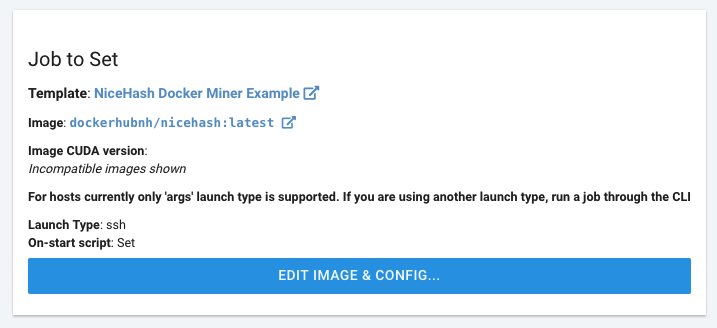
Once copied, SELECT the job and SET JOB on your machines via CREATE A JOB tab.
Additional notes for duplicating a job template:
- Replace "your-mining-address" with your NiceHash Mining Address and "your-worker-name" with an arbitrary worker name.
- To select a specific GPU for NiceHash Miner Docker:
- NVIDIA systems: add
--gpus=allto Docker Options field to choose GPU UUID or index, as per NVIDIA's guidelines - AMD systems: add
--device=/dev/kfd --device=/dev/drito Docker Options field to choose GPU index, as per AMD's guidelines - Ensure your idle job is priced high to maximize its chances of running quickly.
Option #2 - Create a new Job from scratch
Follow these steps to create an idle mining job with NiceHash Docker Miner on Vast.ai:
- Have at least 1 machine online on Vast.ai
- Navigate to CREATE A JOB tab
- Click on EDIT IMAGE & CONFIG... button
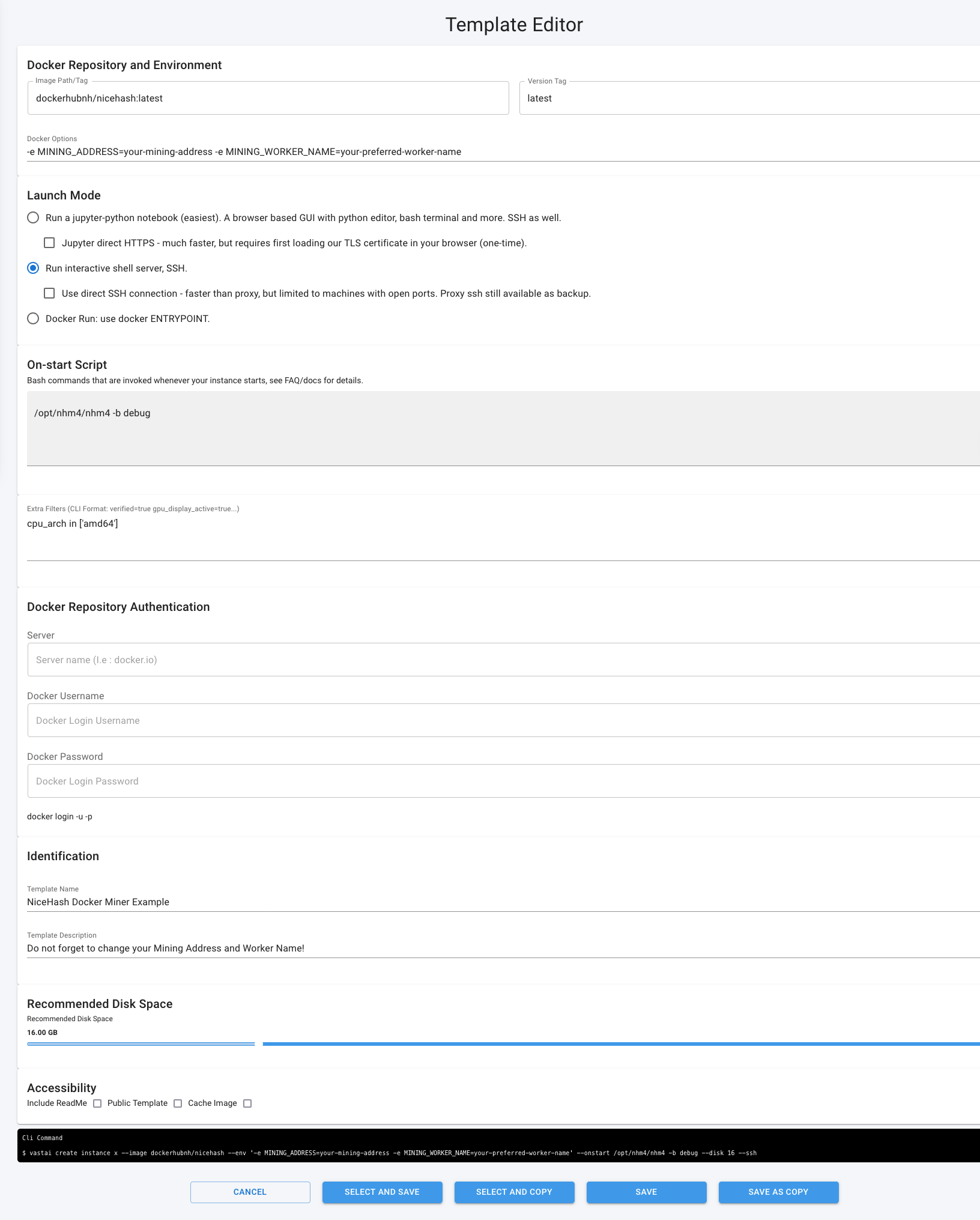
- Click on + CREATE TEMPLATE to create a new template
- Input these fields:
Image Path/Tag:dockerhubnh/nicehash:latest
Version Tag:latest
Docker Options:-e MINING_ADDRESS=your-mining-address -e MINING_WORKER_NAME=your-preferred-worker-nameLaunch Mode:Run interactive shell server, SSHOn-Start Script (Bash commands):/opt/nhm4/nhm4 -b debug
Template Name:NiceHash Docker Miner - SELECT AND SAVE the template
- Click SET JOB... button on each of your machines to apply the idle job
Additional notes for setting up a job template:
- Replace "your-mining-address" with your NiceHash Mining Address and "your-worker-name" with an arbitrary worker name.
- To select a specific GPU for NiceHash Miner Docker:
- NVIDIA systems: add
--gpus=allto Docker Options field to choose GPU UUID or index, as per NVIDIA's guidelines - AMD systems: add
--device=/dev/kfd --device=/dev/drito Docker Options field to choose GPU index, as per AMD's guidelines> - Ensure your idle job is priced high to maximize its chances of running quickly.
Option #3 - CLI
By using the CLI option, you can operate multiple rigs with more ease since you can programmatically name each of the workers instead of manually setting multiple templates in the Vast platform GUI. To run the above example in CLI, use this example:
--image dockerhubnh/nicehash --env '-e MINING_ADDRESS=your-mining-address -e MINING_WORKER_NAME=your-preferred-worker-name' --onstart /opt/nhm4/nhm4 -b debug --disk 16 --ssh
Additional notes:
- Replace "your-mining-address" with your NiceHash Mining Address and "your-worker-name" with an arbitrary worker name.
- To select a specific GPU for NiceHash Miner Docker:
- NVIDIA systems: add
--gpus=allto your command to choose GPU UUID or index, as per NVIDIA's guidelines - AMD systems: add
--device=/dev/kfd --device=/dev/drito your command to choose GPU index, as per AMD's guidelines> - Ensure your idle job is priced high to maximize its chances of running quickly.