General Help
Lost 2FA? How to restore or reset 2FA codes?
If you have lost, changed, or reset your mobile device with the 2FA authenticator, please follow these steps:
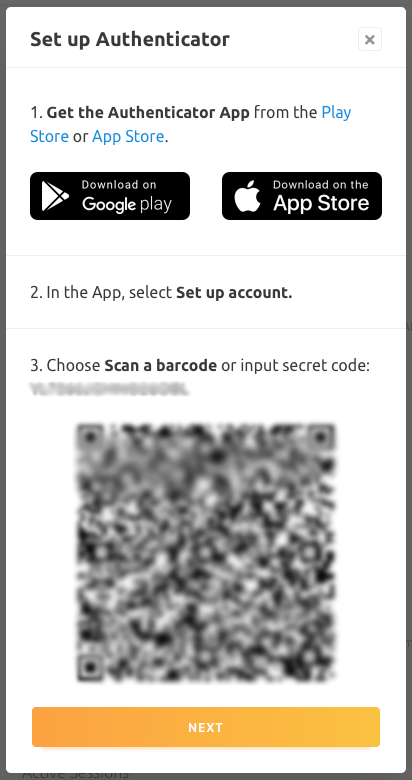
If you have stored a sixteen-character secret key or a QR code you can restore 2FA codes by following these steps:
1. Install the Google Authenticator application from the Google Play Store or App Store.
2. In the application add a new account.
3. Choose Scan a QR code or Enter a setup key (16-character secret key).
If you didn't store your sixteen-character secret key or a QR code you can reset 2FA codes by using backup codes.
How to reset 2FA using backup codes?
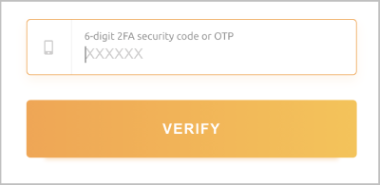
If you lose access to your authentication device, you can use one of the 8-digit backup codes in the 2FA input field when you login or disable 2FA. Enter the backup code instead of the 6-digit Google Authenticator code.
Take the 8-digit backup codes that you stored when you enabled 2FA and follow these three steps:
1. Sign in to your account using one of the 8-digit backup codes—type one of the backup codes instead of the 6-digit Google Authenticator code. Keep in mind that each backup code may be used only once.
Each backup code may only be used once. Therefore, you should use these codes to sign in and disable 2FA for the authentication device that is no longer used. After that, enable 2FA again using your new authentication device and get new backup codes. Please keep in mind that if you reset 2FA, your withdrawals, API keys, and some parts of buying are disabled for seven days for security reasons.
2. Navigate to account settings and disable the current 2FA with the unused backup code.
3. Enable 2FA again with your new authentication device/phone and get new backup codes. Please make a copy of these codes and store them somewhere safe.
If you didn't store your sixteen-character secret key, QR code, or backup codes then you need to send us an email request to 2fa@nicehash.com.
For every 2FA change, some account security limits and restrictions will apply; read more