General Help
How to invite other users to your organization?
NiceHash organizations allow you to organize your NiceHash activity between multiple users and set different permission levels for them. If you want to invite other members to your organization you must be the owner of the existing organization or have sufficient permissions as a member of the existing organization. If you don’t have an organization yet you can learn how to create one here.
Once you have your organization (you are the owner) or you have sufficient permissions in an existing organization you can follow these steps to invite new users.
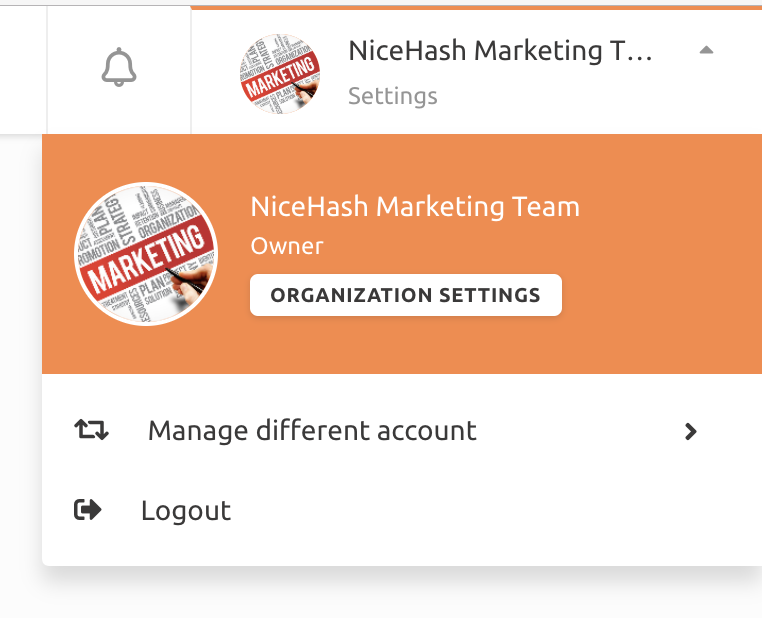
1. First, navigate to your organization profile by clicking the top right corner of the screen, click your profile and click Manage different account from the dropdown menu.

2. Select your organization and then click the Organization settings button.
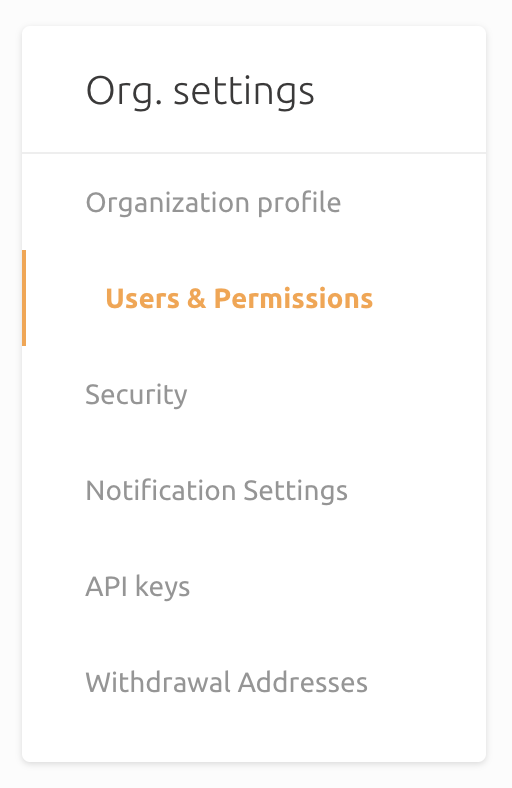
3. Click Users & Permissions tab in your organization settings. Here you can manage all your team members.
4. Click “Invite new user” button. Fill out the required fields and set user permissions. By default, all user permissions are set to OFF. Once completed, click “Invite user” and the user should get an email invitation and also a notification in his personal NiceHash account.

5. To manage existing users navigate to the More options button next to the user's profile.
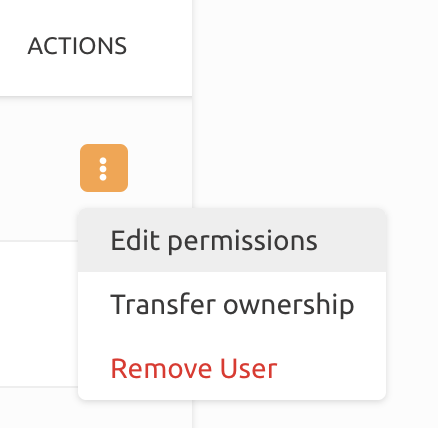
If you transfer ownership of an organization you will still have admin permissions by default until the new owner changes them.
If you remove the user from your organization (or you are removed as a member of an organization) that user will lose all access to the organization profile. The user will still have access to his NiceHash personal account.
You cannot remove or delete users' NiceHash personal accounts by removing the specific users from your organization.