NiceHash Firmware User Guide
The NiceHash Firmware powered by MARA is a custom ASIC firmware that optimizes the performance and efficiency of Bitcoin, Kaspa, and Scrypt miners. It offers various overclocking options, as well as built-in support for advanced features like hashrate splitting (hotel fee) and different environmental profiles (air, hydro, and immersion cooling), so miners can extract the most out of their hardware.
Supported models
NiceHash Firmware supports most Antminer BTC, LTC/DOGE, and Kaspa ASICs. The firmware can run on any Bitmain stock control boards (Xilinx, AMLogic, BeagleBone, CVctrl) and the NiceHash UCB 2100. For power supplies, it supports any Bitmain stock PSU and third-party PSUs compatible with Bitmain's firmware.
Supported BTC miners
- S19
- S19j
- S19j Pro
- S19j XP
- S19k Pro
- S19 Pro
- S19 XP
- S21
- S21+
- S21 Immersion
- S21 Pro
- S21 XP
- T21
Supported LTC/DOGE miners
- L7
- L9
Supported KAS miners
- KS3
- KS5
- KS5 Pro
A detailed up to date list of supported models can also be found here.
NiceHash Firmware Overview
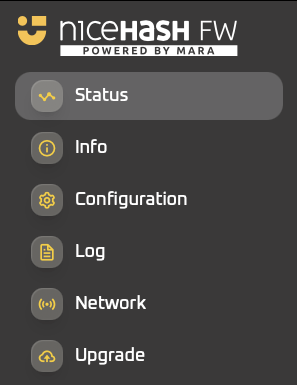
The NiceHash Firmware ASIC dashboard functions in the same familiar manner as stock firmware while providing additional features and improvements. It is divided into several sections listed below and can be accessed by logging into the ASIC via a browser from a PC connected to the same network.
Status (Overview)
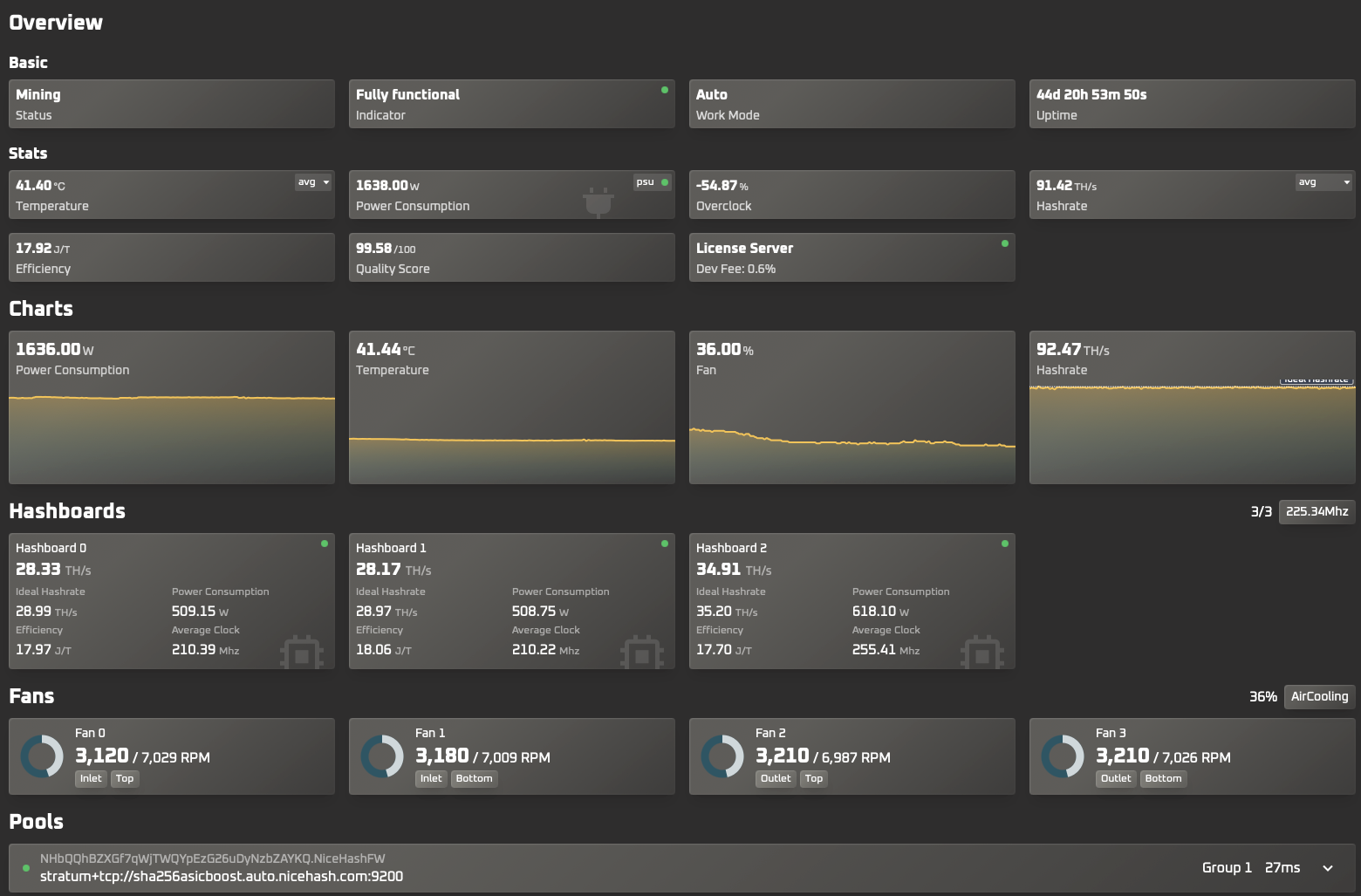
The Status overview page offers quick and clear information about the ASIC, split into easy-to-read sections that allow for easy checkups on the ASIC's performance.
Basic
- Status: shows if the miner is successfully mining, still initializing, tuning or is facing an error.
- Indicator: shows if the ASIC is fully functional or the error type it is facing.
- Work Mode: shows the current overclocking profile used.
- Uptime: total uptime.
Stats
- Temperature: The toggle shows the Average, Minimal, or Max temperature.
- Power consumption: shows the current power consumption.
- Overclock: shows the current overclock.
- Hashrate: shows the average, ideal, stock, or real-time hashrate.
- Efficiency: shows the current efficiency in J/T.
- Quality score: shows how well the miner is performing according to the theoretical maximum performance based on its current settings.
- Dev fee: shows the current dev fee being charged.
Charts
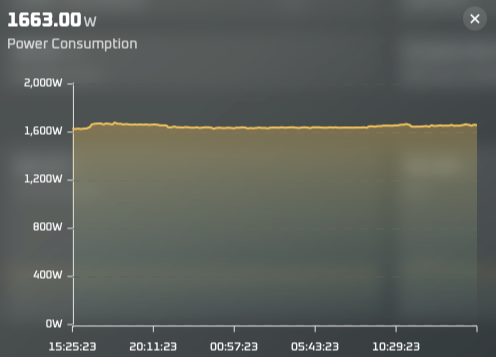
The clickable charts show the Power consumption, Temperature, Fan speed, and Hashrate for the last 24 hours.
Hashboards
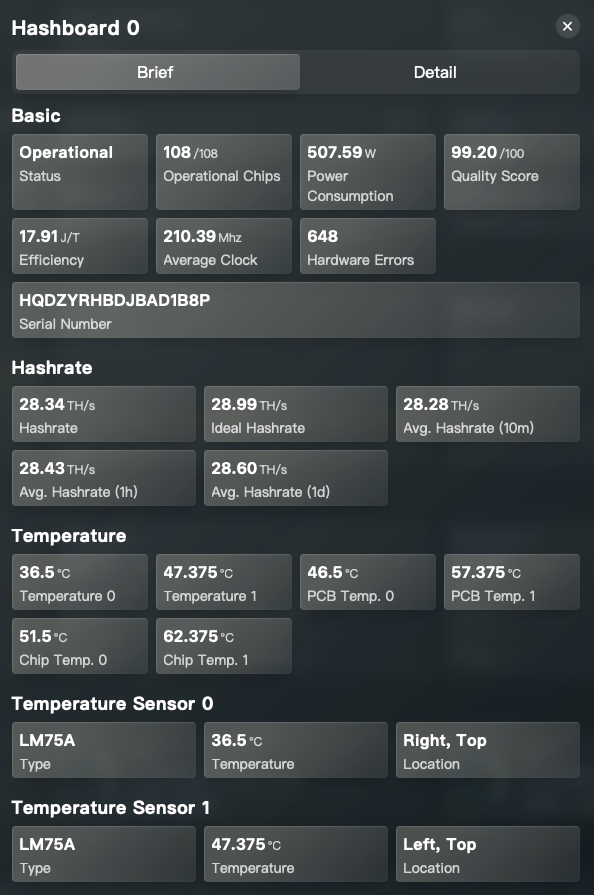
The clickable hashboards show Brief and Detailed information about each specific hashboard in the ASIC.
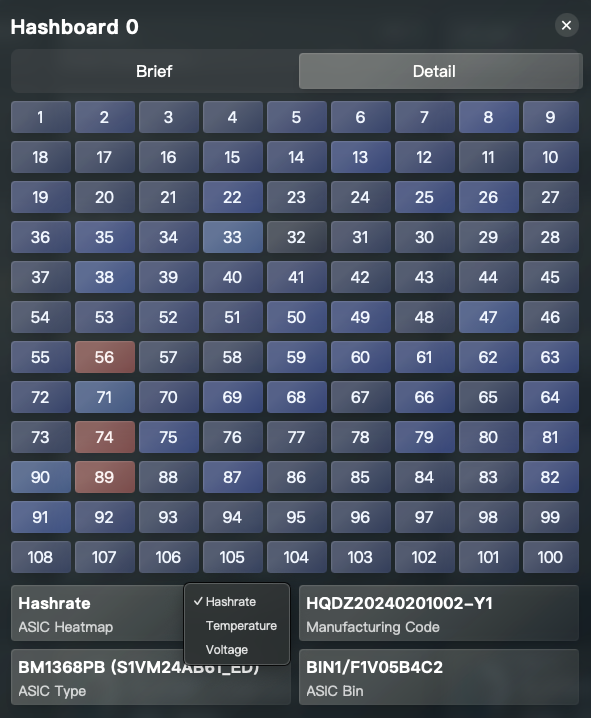
The Detailed view can be toggled to show the Hashrate, Temperature, and Voltage for each chip in the hashboard.
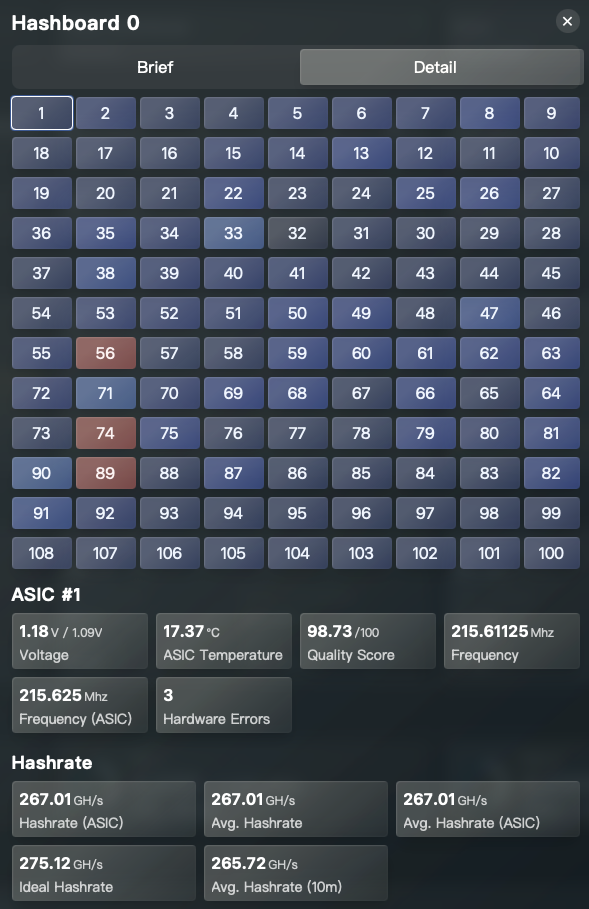
Each individual chip can also be selected to show its specific information.
Fans
Offers an overview of the current fan speed, their location, and current environmental profile.

Pools
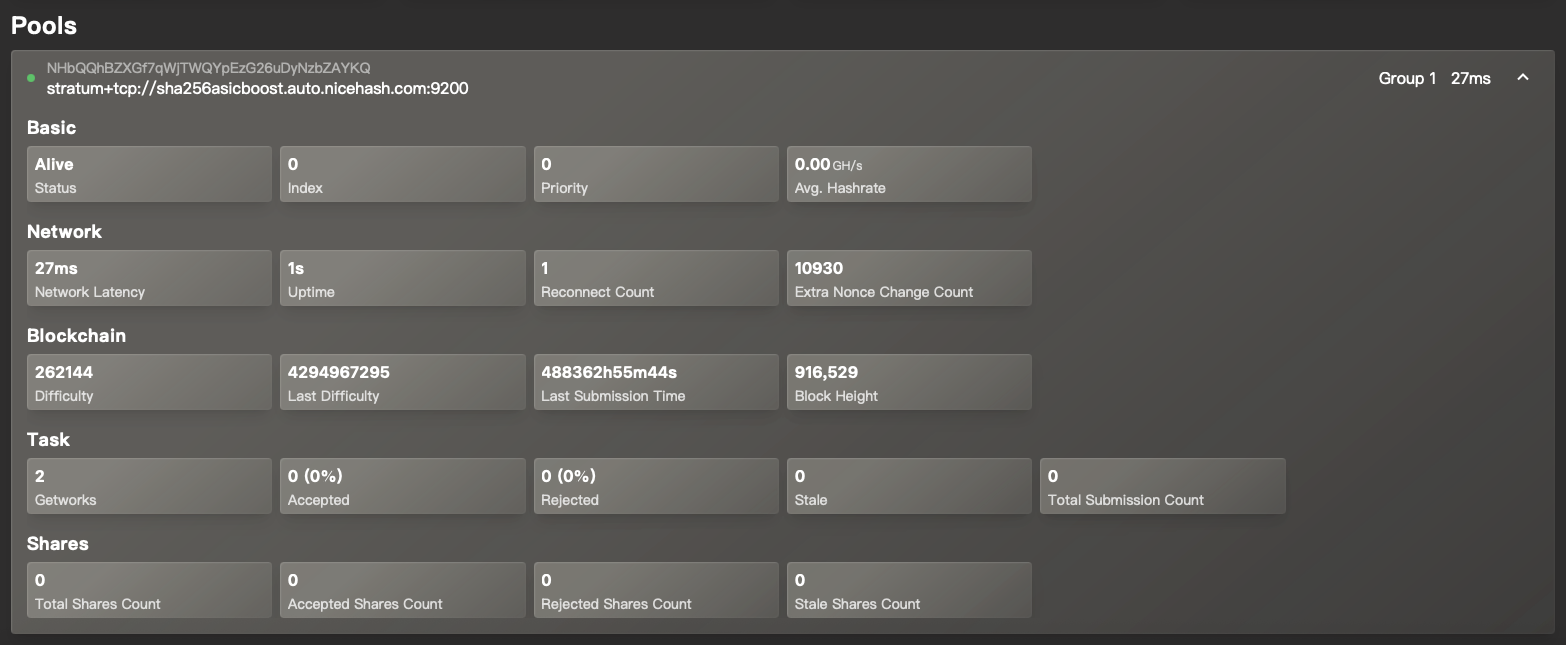
The clickable pools section shows the current pool information along with its Status, Hashrate, Network latency, Blockchain Difficulty, Share Counts, and other information.
Info
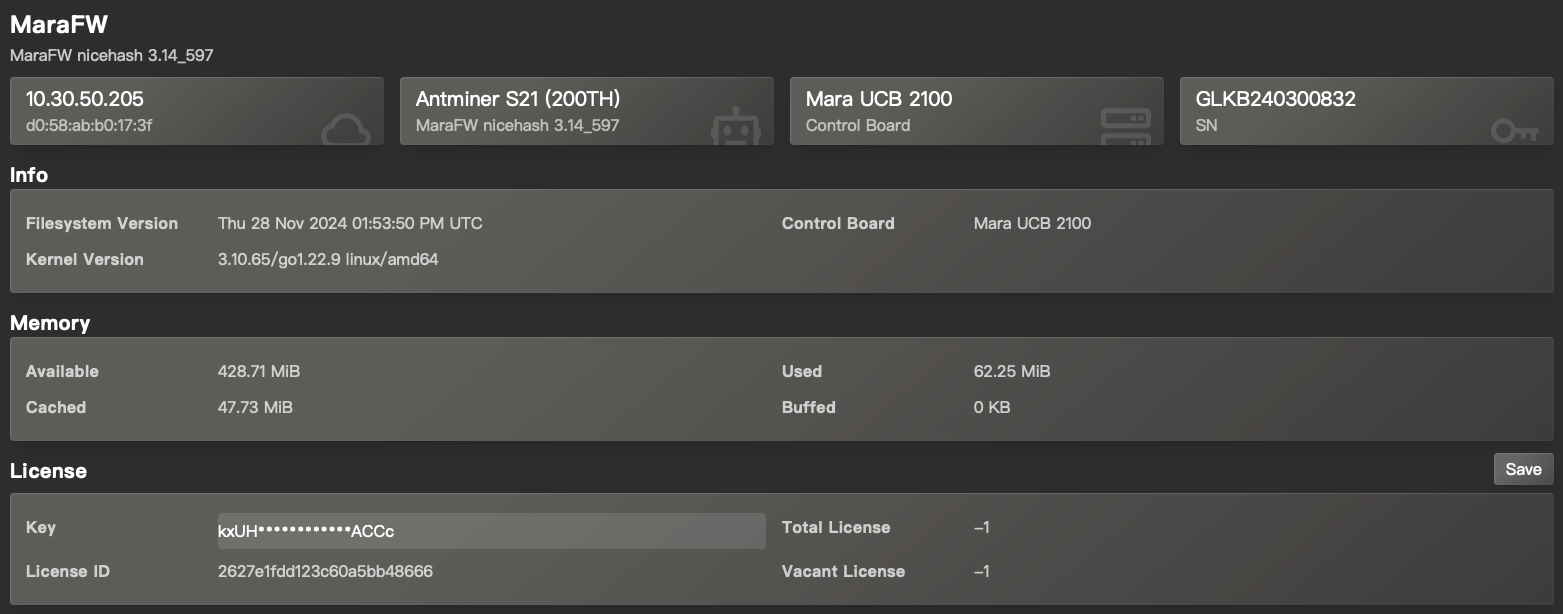
The info panel provides crucial information about the ASIC hardware and software info such as Firmware version, ASIC model, IP, control board, etc.
Configuration
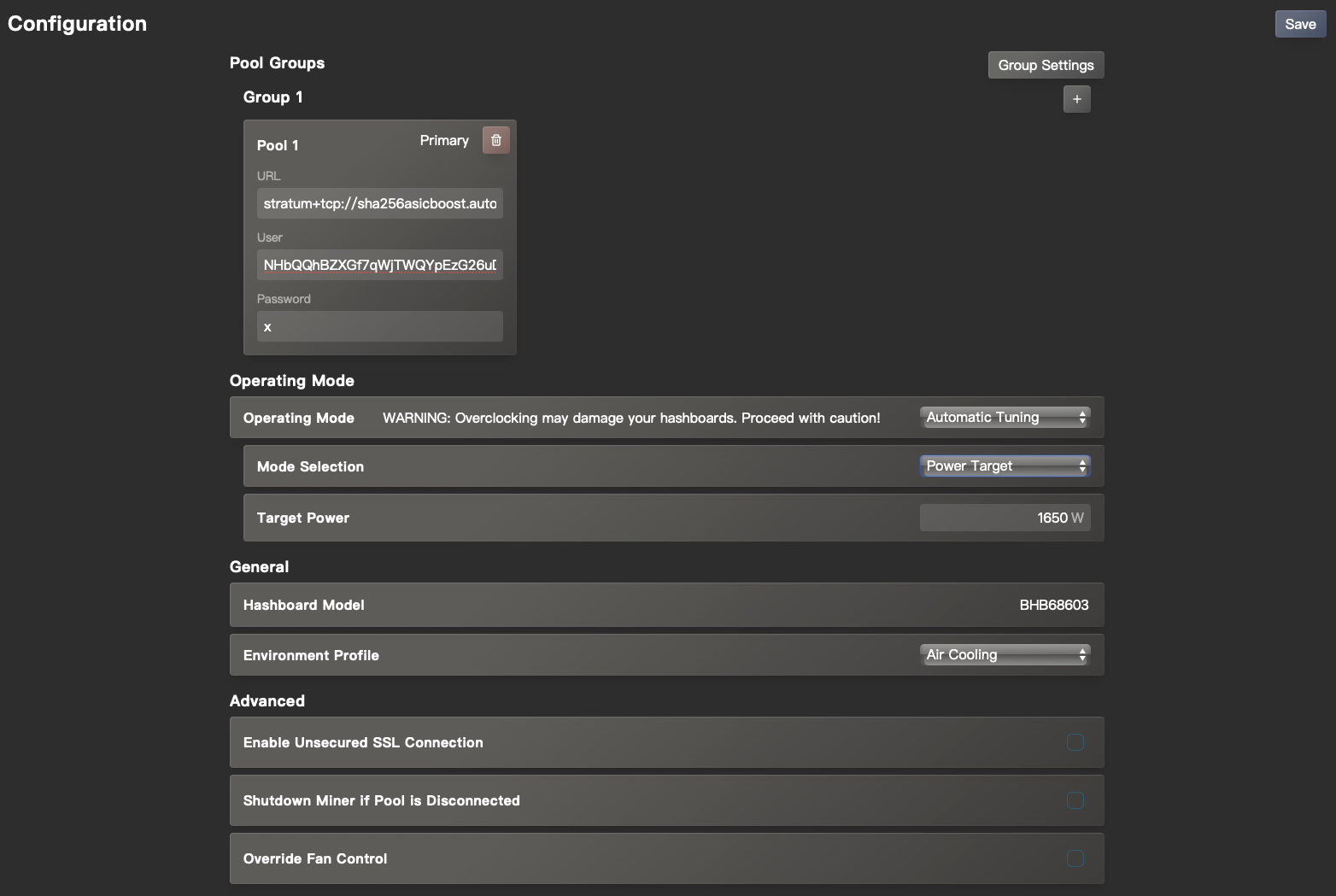
The configuration page is split into different sections that allow setting the ASIC Pools, Hotel fee, Overclocks, and other settings according to user preference.
Pool groups
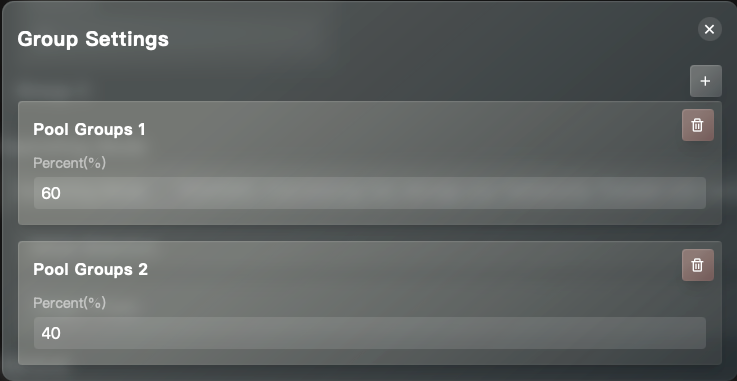
Pool Groups enable Hashrate splitting (Hotel fee), which allows the user to split the ASIC hashrate to multiple pools and wallets.
Operating Mode
The Operating Mode section allows for ASIC overclocking.
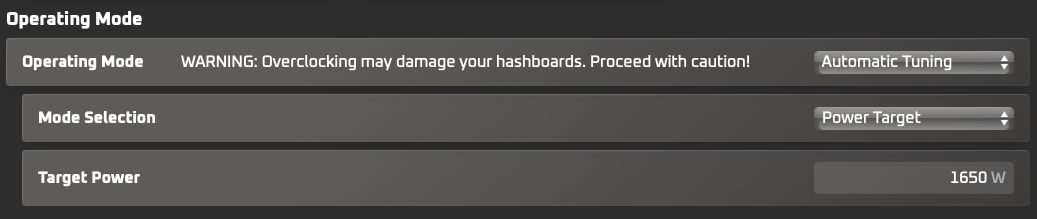
It offers several different overlocking options:
Stock Hashrate: Runs machines at their default hashrate with improved efficiency, simplifying power draw management.
Automatic Tuning allows automatic adjustments based on specific needs:
- Power Target: Limit the farm's power draw by optimizing frequency and voltage automatically to target the desired power draw. (Note: actual power use may vary; higher chip temperatures increase power loss).
- Hashrate Target: Sets a desired hashrate, with minimal power consumption maintained by the Automatic Tuning Algorithm.
- Percentage Adjustment: This option allows to increase or decrease hashrate by a desired percentage. Power draw might increase or decrease also.
Fixed Settings: This option allows users to set a fixed frequency and voltage for testing and troubleshooting purposes. It does not perform optimization and may result in lower performance and higher power draw compared to Automatic Tuning.
Sleep Mode: This mode minimizes power usage during planned downtimes, keeping miners accessible for a quick ramp-up when mining resumes.
General
The general section lists the Hashboard model and Environmental Profiles.

The NiceHash Custom Firmware supports several Environmental Profiles, which can be selected from the dropdown menu.
- Air Cooling: Select this option if the miners are cooled using the pre-installed fans.
- Hydro Cooling: Select this option if the NHFW is running on the Hydro series.
- Single-Phase Immersion Cooling: Select this option if the miners are cooled using typical immersion cooling method.
- Two-Phase Immersion Cooling: Select this option if the miners are cooled by Marathon's Two-Phase Immersion Cooling system.
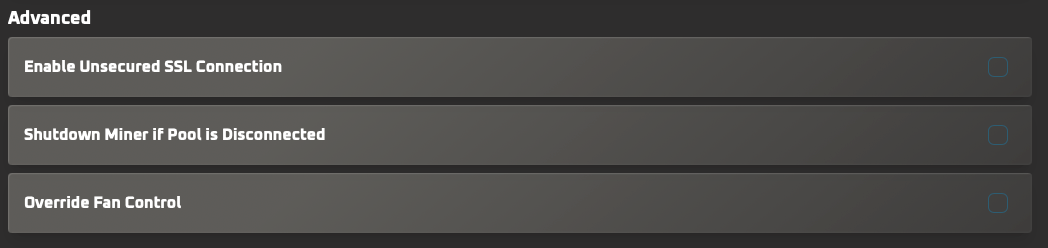
Advanced
Allows advanced options, such as enabling an unsecured SSL connection, shutting down the miner if the pool is disconnected, and setting a fixed fan speed by overriding the fan control.
Log
The Log section records the ASIC data and is crucial when troubleshooting issues.
The logs can be exported and downloaded by clicking the Generate Support Logs button.

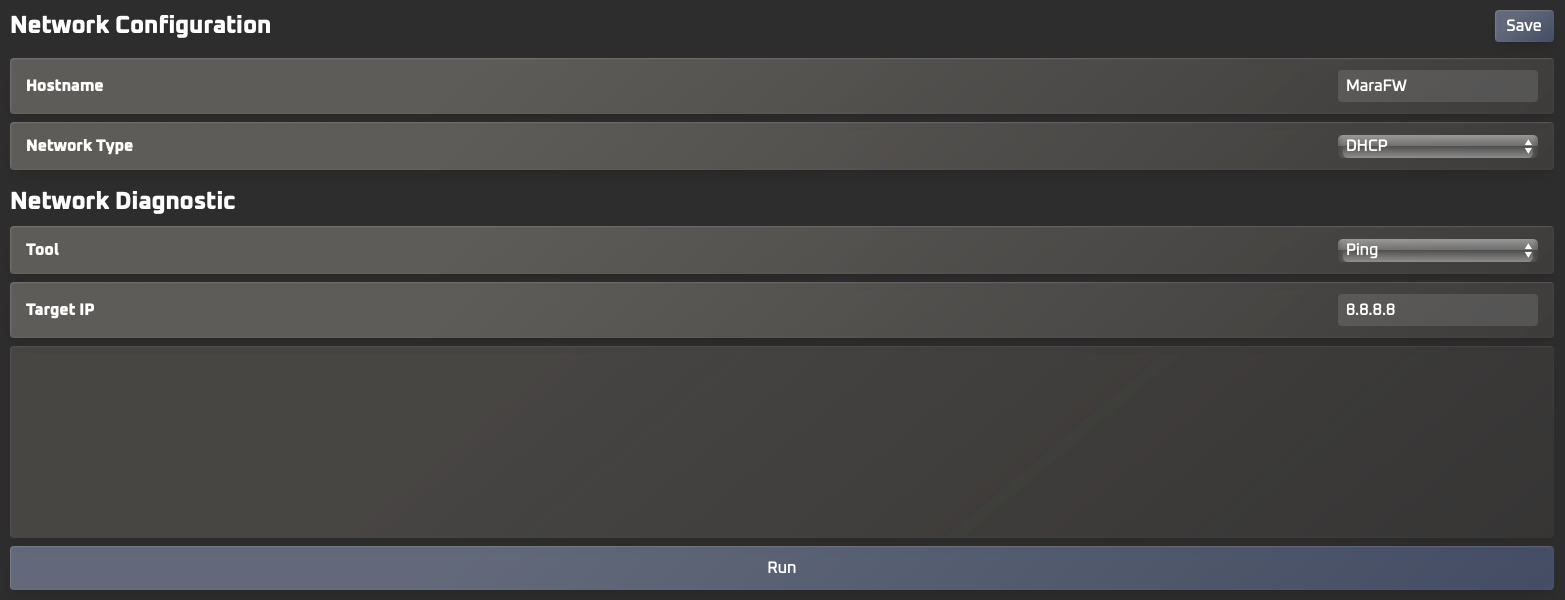
Network
The Network section enables Network configuration, such as setting the Hostname and switching between the DHCP and Static network types.
It also offers basic Network Diagnostic tools such as Ping, Trace, and NS Lookup.
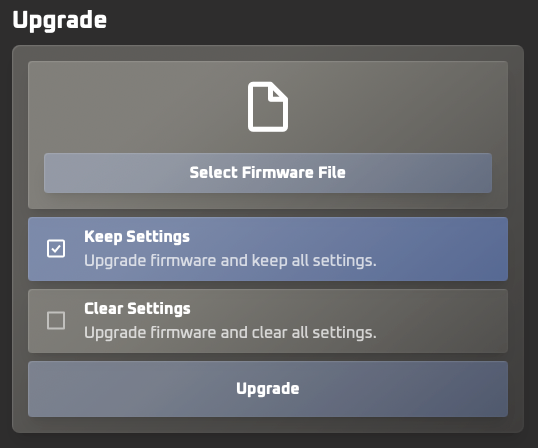
Upgrade
The Upgrade section allows Firmware updates to be initiated directly via the ASIC dashboard.
Firmware installation
The NiceHash custom firmware can only be installed on supported models running stock Bitmain firmware.
ASICs with CVctrl control boards, such as L9 and Kaspa ASICs, must also use a Cracker Card.
A detailed breakdown of the installation process for specific models is available here.
Firmware installation instructions
1. Download the files required to install the NiceHash custom ASIC firmware
- Download and run NiceHashTools from the NiceHash Download Center.
- Download the firmware ZIP file from the Download Center.
Note: Make sure to install NiceHashTools on a Windows computer that can reach your ASIC devices - normally, that is on a local network.
2. Install the NiceHash custom ASIC firmware
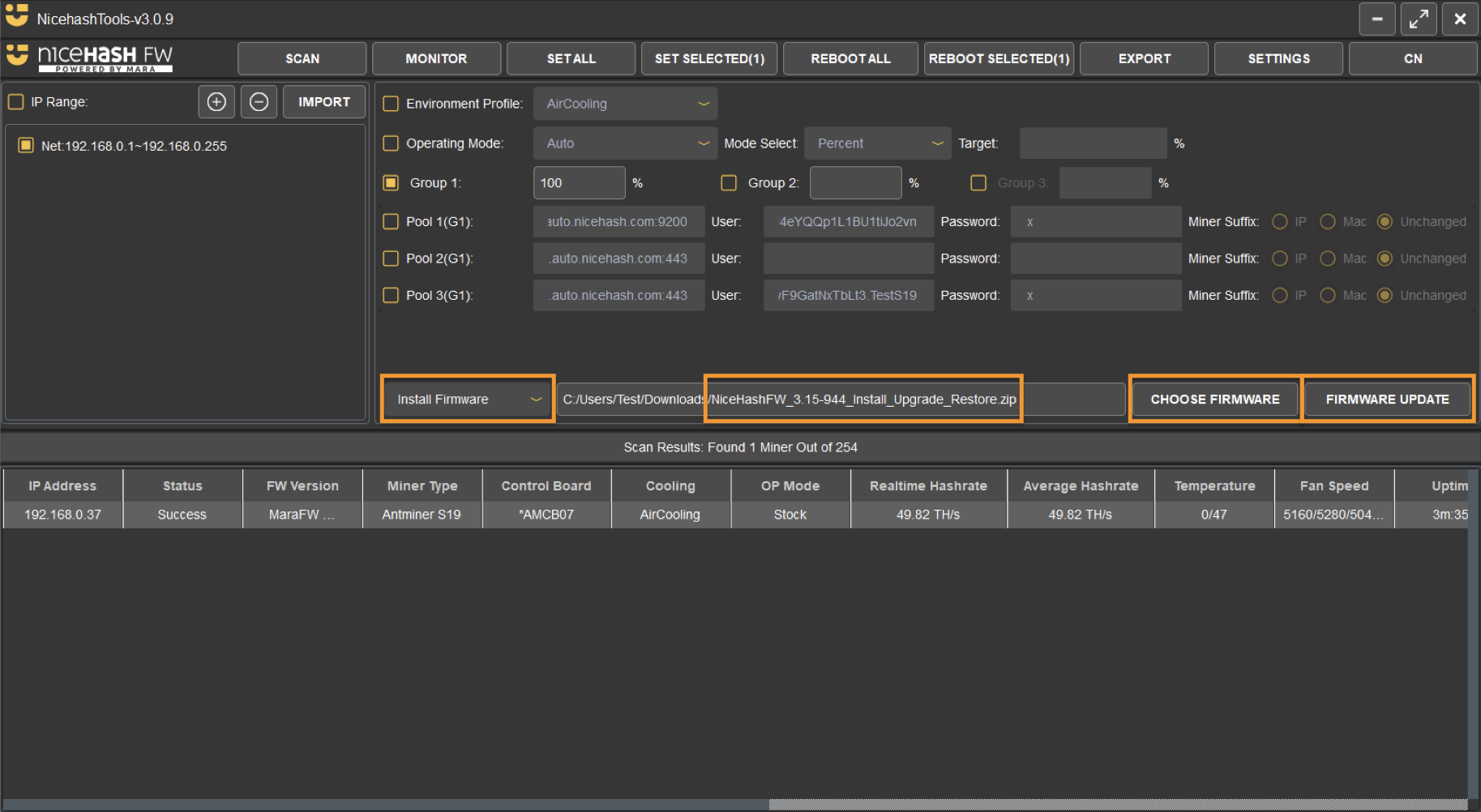
- Open NiceHashTools and SCAN your network IP range.
- You can add a new range by clicking the "+" button.
- You can change the default usernames and passwords in SETTINGS.
- Once scanned, select the ASIC IPs in the table that you want to upgrade.
Note: To select multiple ASICs press CTRL+A or hold down the left mouse button and drag across the desired ASIC IPs. Make sure to only select compatible ASICs. - Change operation action to Install Firmware in the dropdown menu.
- Click on CHOOSE FIRMWARE and select the NiceHashFW-xyz_Install_Update_Restore.zip.
Note: select the whole ZIP file (do not extract it). - Click on FIRMWARE UPDATE to start the process.
- Wait a couple of minutes for the process to complete.
Uninstalling the Firmware
Repeat the above process, but replace the action in 3rd step with the Restore Firmware option to uninstall the NiceHash Firmware and revert back to the ASICs stock firmware.
Updating the Firmware
NiceHash Firmware can be updated using NiceHashTools or via the ASIC Dashboard.
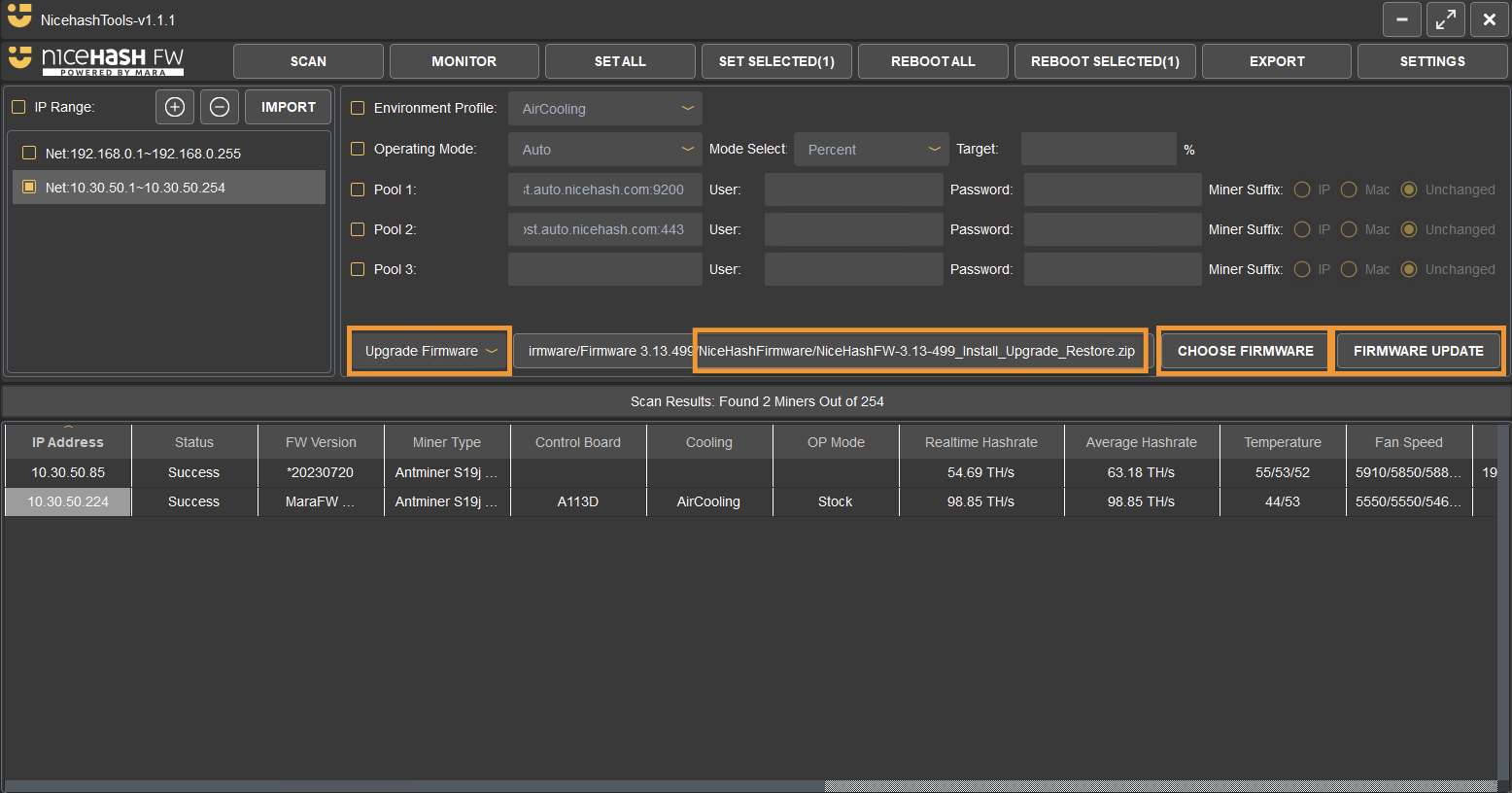
Follow these steps to update the NiceHash Firmware using NiceHashTools:
- Download the latest version of NiceHashTools and NiceHash Firmware from the Download Center.
- Run NiceHashTools and scan the network.
- Select Update Firmware operation in the dropdown menu.
- Click Choose Firmware and select the newly extracted NiceHashFW-xyz_Install_Upgrade_Restore located in the NiceHashFirmware folder.
- Click Firmware Update and select the ASICs to be updated.
- Select Update Chosen.
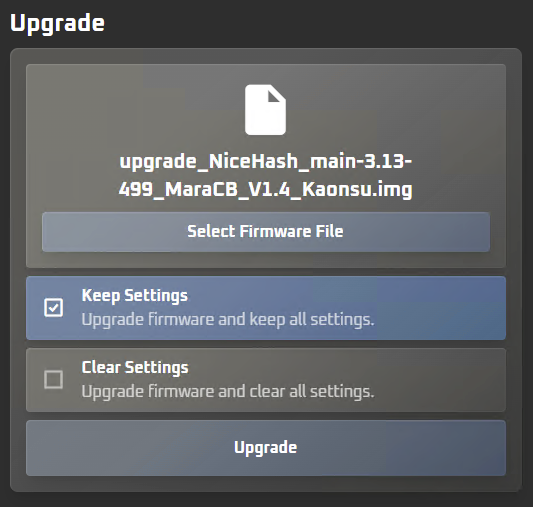
Follow these steps to update the NiceHash Firmware from the ASIC Dashboard.
- Download the latest NiceHash Firmware version from the Download Center.
- Extract the NiceHashFirmware.zip file.
- Extract the NiceHashFW-3.13-499_Install_Upgrade_Restore.zip (or newer) file found in the previously extracted NiceHashFirmware folder.
- Log into the ASIC dashboard.
Note: the ASIC IP can be found in NiceHashTools or by navigating to your router/modem and looking for the IP there or directly in your NiceHash Rig Manager when using NiceHash ASIC Monitor. - Navigate to the Upgrade tab.
- Click Select Firmware File and select the newly extracted upgrade_NiceHash_main-3.13-499_MaraCB_V1.4_Kaonsu (or newer) file that matches the ASICs control board.
- Choose to Keep Settings or to Clear Settings.
Note: for most cases, it is recommended to keep the settings. - Click Update.
Configuring the ASIC
BTC and LTC/DOGE ASICs using NiceHash Firmware can be configured to any pool by using NiceHashTools or by logging into the ASIC via a browser.
Option 1: Using NiceHashTools
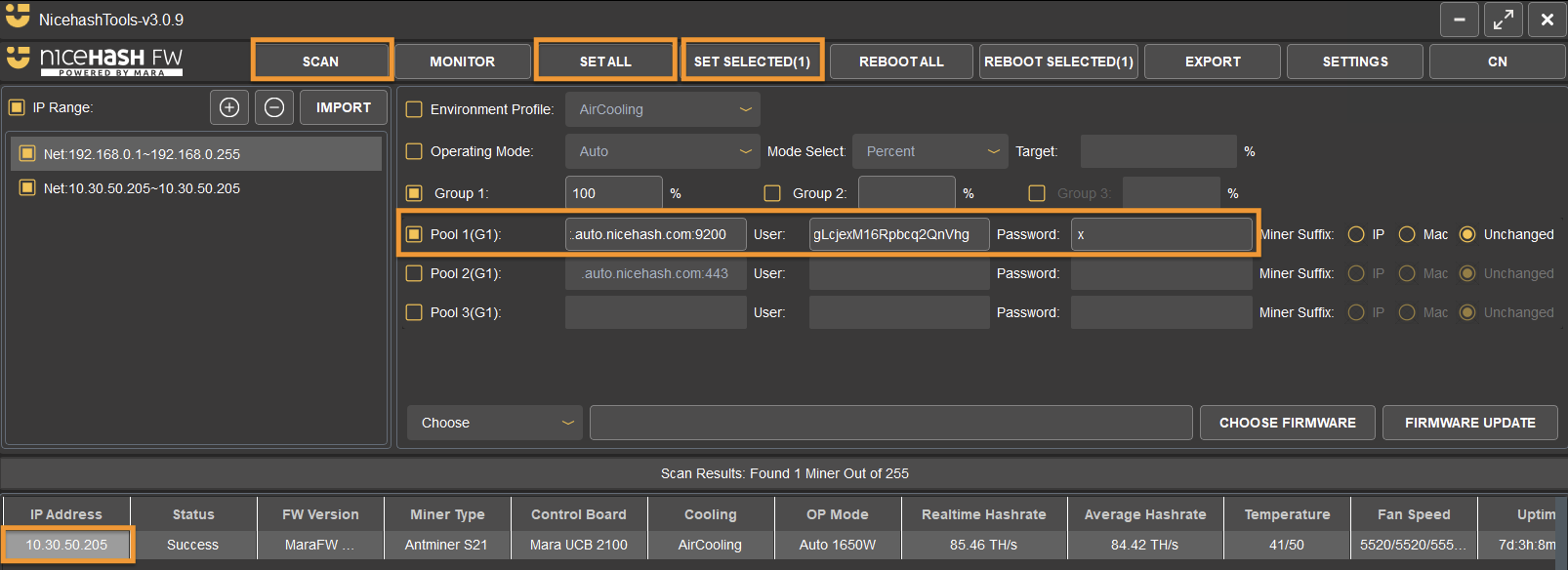
Follow the steps below to configure the ASIC using NiceHashTools:
- Download NiceHashTools from the Download Center.
- Run NiceHashTools and Scan the network.
- Use the Pool 1 checkbox (or more) to enable the pool settings and enter your data.
Pool 1: Stratum, User: Mining address, Password: x - Click Set All or Set Selected to apply the configuration to all detected ASICs or to select individual ones by clicking on the ASICs IP.
Option 2: Via browser
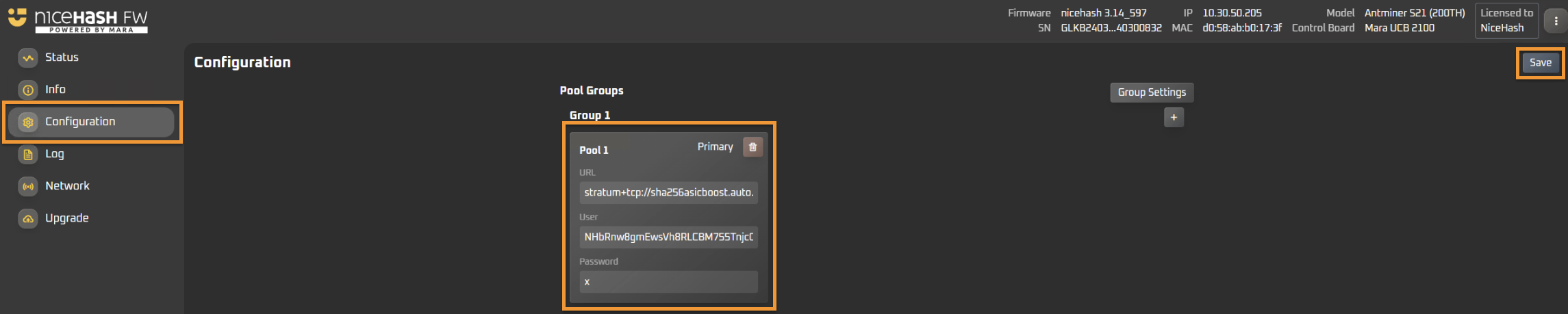
- Find your ASICs IP on your local network. This can be done by scanning with NiceHashTools or by connecting to your router, navigating to DHCP and looking up for the ASIC IP.
- Copy/paste the IP address in your browser.
- Enter the username and password.
The default is root/root. - Navigate to the configuration tab and enter the stratum and mining address data.
- Click SAVE.
Advanced Features
Overclocking
Follow the steps below to optimize your ASICs performance by overclocking or underclocking with NiceHash Firmware:
- Log in to the ASIC dashboard via a browser or by using NiceHashTools.
Note: the default username and password for Bitmain ASICs is root/root. - Navigate to the Configuration tab.
- Select the Automatic tuning Operating Mode.
Note: NiceHash Firmware supports Automatic tuning as well as manually setting the Frequency and Voltage by selecting the Fixed Settings mode. -
Select the desired Automatic tuning mode:
- Hashrate Target: Sets a desired hashrate, with minimal power consumption maintained by the Automatic Tuning Algorithm.
- By Percent: Increase or decrease the hashrate by a desired percentage.
- Power Target: Limit the power draw by optimizing frequency and voltage automatically to target the desired power draw.
Note: Actual power use may vary.
- Enter the desired value, and click the Save and OK buttons when prompted.
- Navigate to the Status tab and wait for the new settings to be applied and tuned. Once the settings are applied, the Status tab will show the ASIC as Mining.
Note: This process can take a few minutes to complete, and the NiceHash Firmware will show real-time phase progress from Phase 1 (Initialising) → Phase 2 (Tuning Percentage) → Phase 3 (Mining).
Hashrate Splitting (Hotel Fee)
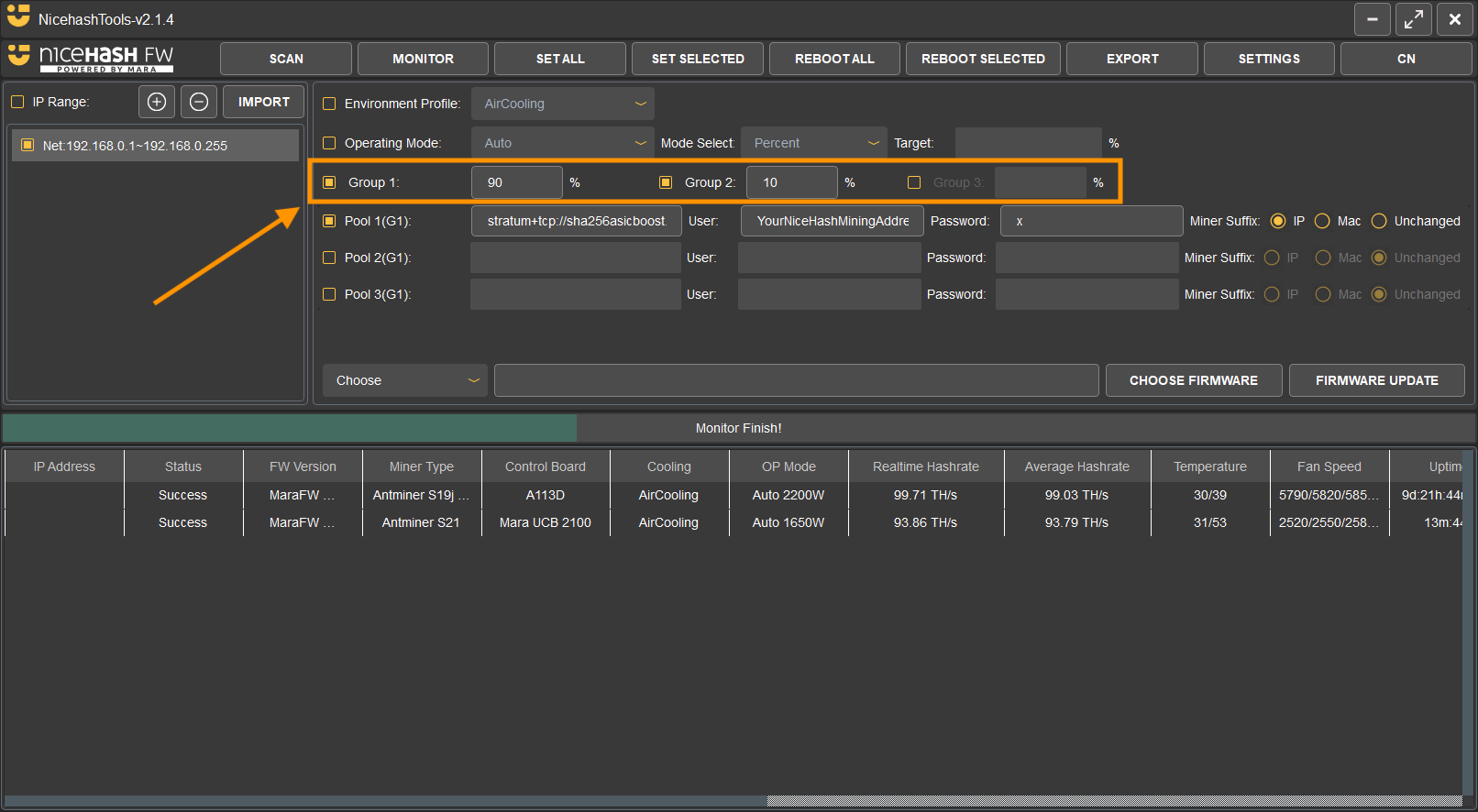
NiceHash Firmware allows up to 3 pool groups for hashrate splitting. Each group has a different hashrate split percentage, pool, worker name, and password setting.
You can enable hashrate splitting via NiceHashTools or via the ASIC dashboard.
Follow these steps to enable hashrate splitting via NiceHashTools:
- Install NiceHashTools by following the installation guide.
-
Enable Groups:
- Enable Group 1 and Group 2 for splitting the hashrate into two parts.
- For splitting the hashrate into three parts, enable Group 3 as well.
- Set the preferred percentage for each Group.
- Configure each group by setting a unique pool URL, Worker Name, and password.
- You can also use the same pool URL across all groups and only modify the Worker Name.
- Select the machines you want to configure for hashrate splitting.
- To save the settings, click on either SET ALL or SET SELECTED button.
Tip: To switch between groups, click on the group name in the interface.
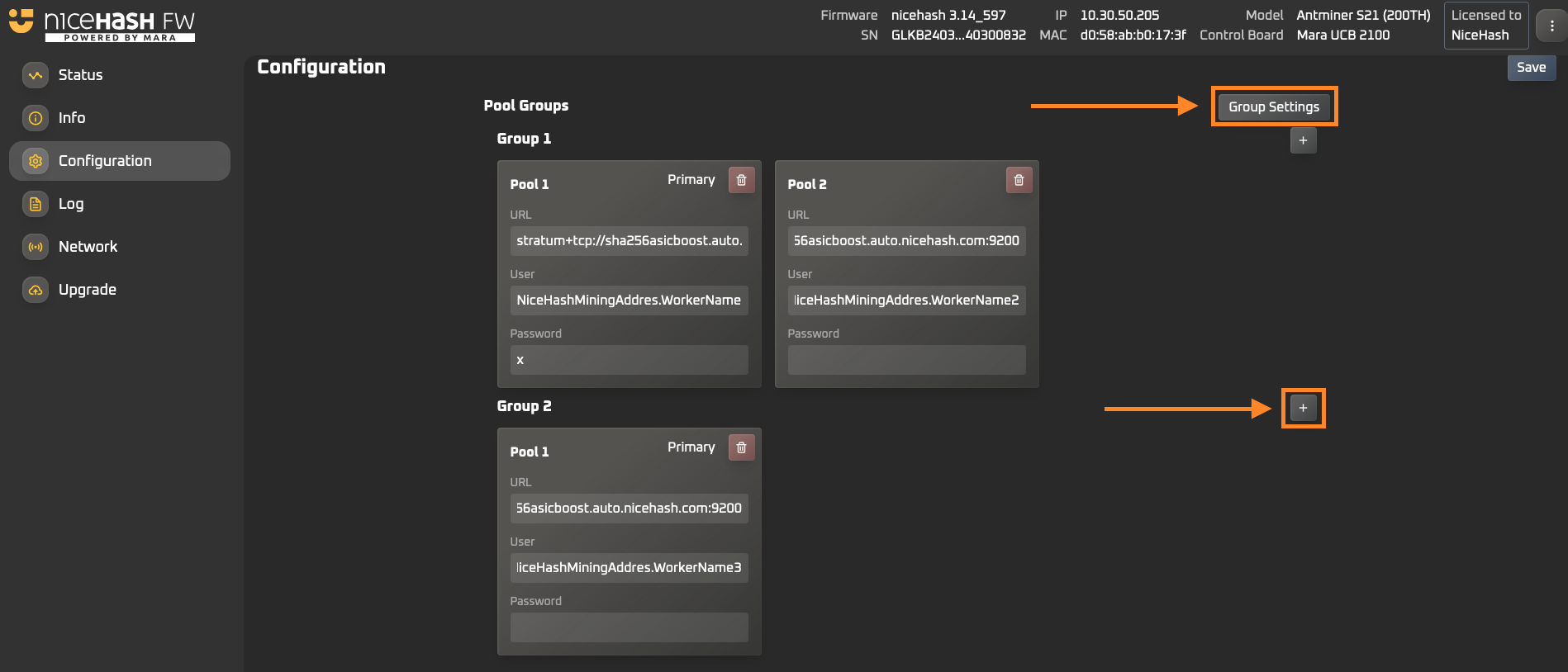
Follow these steps to enable hashrate splitting via the ASIC browser dashboard:
-
Open your ASIC browser dashboard by entering your ASIC machine's local IP address in the browser.
- Use "root" as both the username and password to log in.
- Navigate to the Configuration tab on the left side.
- To create a new group, click on Group Settings.
-
In the Group Settings popup:
- Set up new groups by clicking the "+" button.
- Adjust the percentage of the hashrate split for each group.
- Close the popup once you’ve completed the setup.
- To add a new pool settings to a group, click the "+" sign next to Group 2 or Group 3.
- Click the Save button located at the top-right corner of the dashboard.
FAQ
1. Who can use NiceHash Firmware?
NiceHash Firmware is intended for all miners with supported ASIC models.
2. Can BTC ASICs using NiceHash Firmware be used on third-party pools?
Yes, BTC ASICs using NiceHash Firmware can be used on third-party pools.
3. Can LTC/Doge (Scrypt) ASICs using NiceHash Firmware be used on third-party pools?
Yes, LTC/Doge (Scrypt) ASICs using NiceHash Firmware can be used on third-party pools.
4. Can Kaspa ASICs using NiceHash Firmware be used on third-party pools?
No, Kaspa ASICs using the NiceHash Firmware can only be used on NiceHash.
5. What is the Fee level?
The fees range from 1.4% when mining on NiceHash to 2% when mining on third-party pools. A detailed free breakdown is available here.
6. Are there any limits to the number of devices used?
No, the NiceHash custom Firmware does not have a device limit.
7. What is NiceHashTools?
NiceHashTools is a network scanning and management software designed for mass firmware installation on ASIC miners. It enables users to remotely install NiceHash Firmware across multiple devices simultaneously. Additionally, it allows for bulk configuration of overclocking settings, pool changes, and worker name adjustments, automating ASIC management.