RAM Timings Overclocking Guide with DRAM Ryzen Calculator
In this guide, we are going to show you how to use DRAM Ryzen calculator to overclock your RAM, thus improving your RandomXMonero hashrates and overall gaming experience. This guide can be used to overclock your RAM even if you only want a better gaming performance and squeeze more sweet juice out of your RAM.
DISCLAIMER: Before proceeding, you must understand that by doing a RAM overclocking you could damage your RAM and you will not be able to use it anymore. Also, in most cases, the warranty is voided by doing so. We do not take any responsibility if you happen to damage your hardware.
If you are new to CPU mining and do not want to change RAM timings, we suggest you first read our older post, where we talked about basic optimization tricks to improve your hashrate without touching RAM timings. You can find it here.
Fist of all, you need to download these tools:
Using Thaiphoon Burner to get RAM information
First, we need to get the exact RAM information. Thaiphoon Burner reads all the necessary information and allows you to extract them via XML file which is then used to import RAM information to the DRAM Ryzen calculator.
Follow these steps to export RAM information:
- Export the downloaded file to a preferred location
- Open Thainphoon.exe
- Click on the Read button
- Select your RAM. If you are using the same RAM sticks, pick just one of them
- Click on the Report button
- Scroll down and click on the Show Delays in nanoseconds
- Click on the Export button and select Complete HTML Report
- Save it to a preferred location - Desktop for example
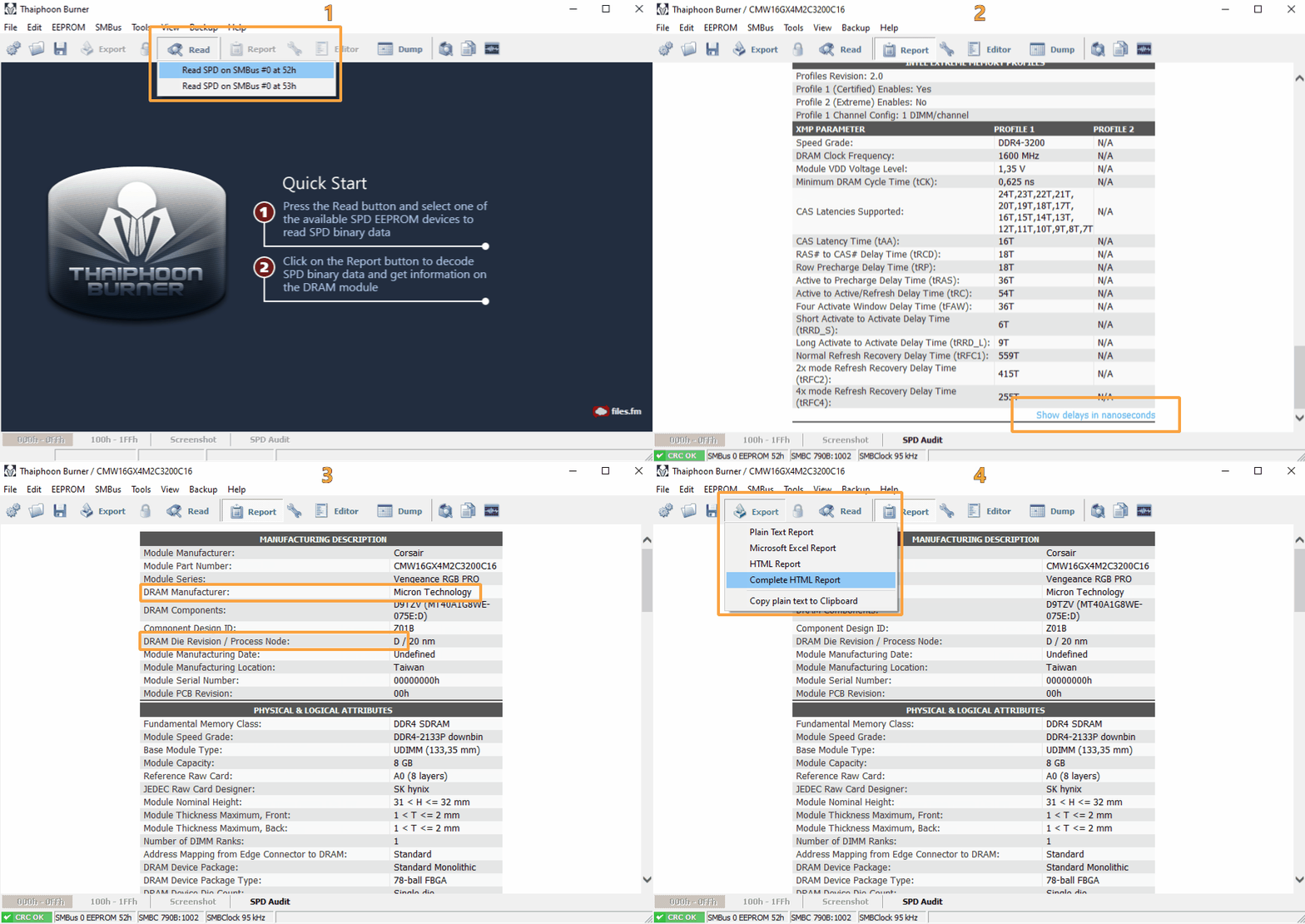
Leave the Thaiphoon Burner open, you will need to read some exact RAM information later.

Calculating Timing values with DRAM Ryzen Calculator
Here we will import the HTML report that we exported from Thaiphon Burner and calculate the timing values for your RAM.
1.Run Ryzen DRAM Calculator:
- Extract the DRAM Ryzen Calculator to a preferred location
- Run Ryzen DRAM Calculator(version).exe
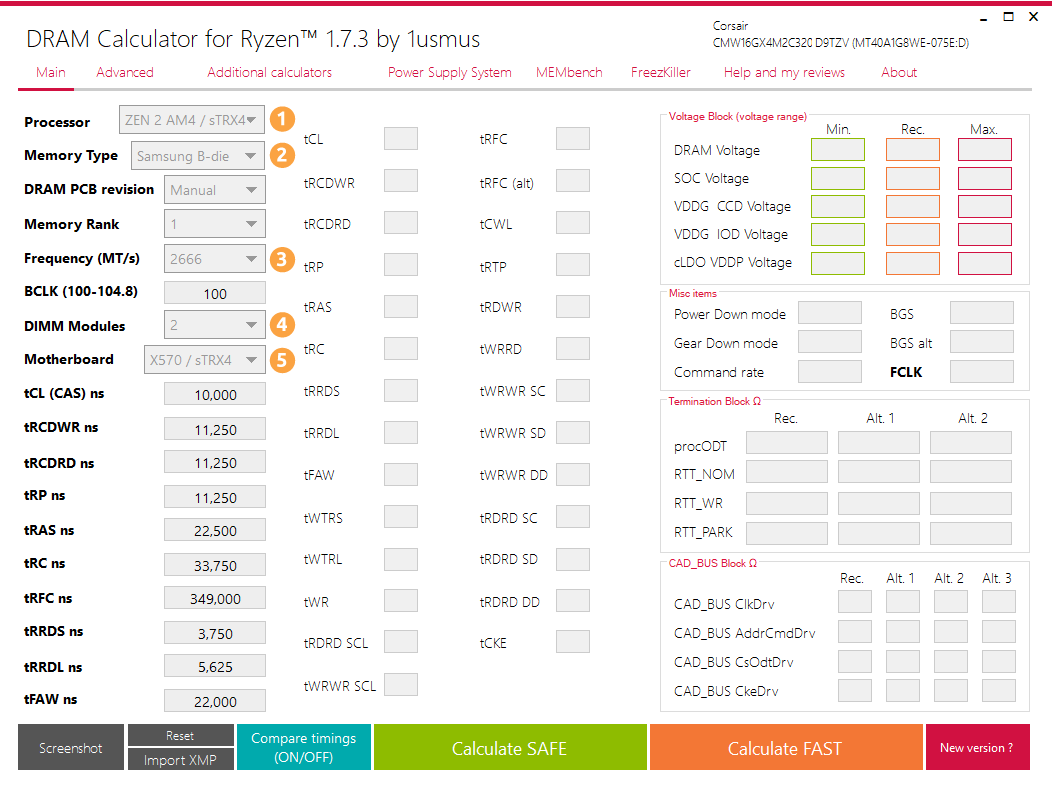
2.Filling out the basic RAM setting:
- Processor: Select your processor generation in the dropdown menu. You can find a cheatsheet with CPU generations below.
- Memory type: can be found in Thaiphoon Burner under the Report tab. DRAM manufacturer and DRAM Die Revision
- Frequency (MT/s): select the desired frequency (the official RAM frequency), we suggest 3200MHz. Read this article for basic frequency optimizing
- Select the number of DIMM modules (memory sticks) you have
- Select the motherboard chipset you have
- Leave DRAM PCB revision, Memory Rank, and BCLK untouched
| ZEN 1 | ZEN + | ZEN 2 | ZEN 3 (not available yet) |
| Ryzen 1000 Series | Ryzen 2000 Series | Ryzen 3000 Series | Ryzen 5000 series |
3.Importing RAM information from Thaiphoon Burner
After setting the basic information inside DRAM Ryzen Calculator, you can import the rest of the RAM information instead of manually inputting it.
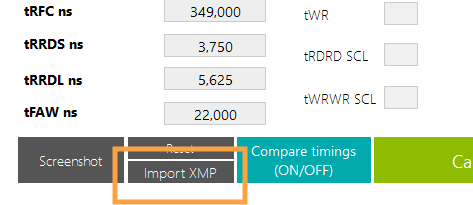
- Click on the Import XMP button inside DRAM Ryzen Calculator
- Locate the previously exported file from Thaiphoon Burner and open it.
4. Calculating the RAM timings
Click on the Calculate SAFE button (or FAST) to calculate the timings. The safe calculation leaves some improvement room and is supposed to be more stable than fast calculation.
You can also compare timings with the current one by clicking Compare timings (ON/OFF). This will help you to find the correct timing in BIOS to change.
You are almost there! All you need to do is to apply those calculations to your RAM via motherboard BIOS. Take a picture of the calculation results with your mobile phone and proceed with the guide.

Apply overclock timings to RAM via BIOS
In the last step, you will enter the world of true computer nerds (in a good way). Caution is recommended. Always double check your input value. Also, make sure that you are setting values to the current field, some abbreviations are quite ambiguous.
You might find some timings or voltages named differently. We suggest googling each of them as it would be too long a list to describe them all. Each manufacturer might name the timing a bit differently.
Not all voltages, frequencies, or clocks might need to be changed. Leave the ones not declared in the calculator empty.
1. Basic RAM settings:
- Restart your rig
- Enter motherboard BIOS by pressing DEL or F2 repeatedly on boot
- If not in Advanced mode already, press F7 to open Advanced mode
- Set BIOS to the default values. You can read how to do this here
- Navigate to OC Tweaker (or its equivalent). Each motherboard manufacturer might have slightly different menu navigation
- Open a picture of the DRAM Ryzen Calculator on your mobile phone that you took before
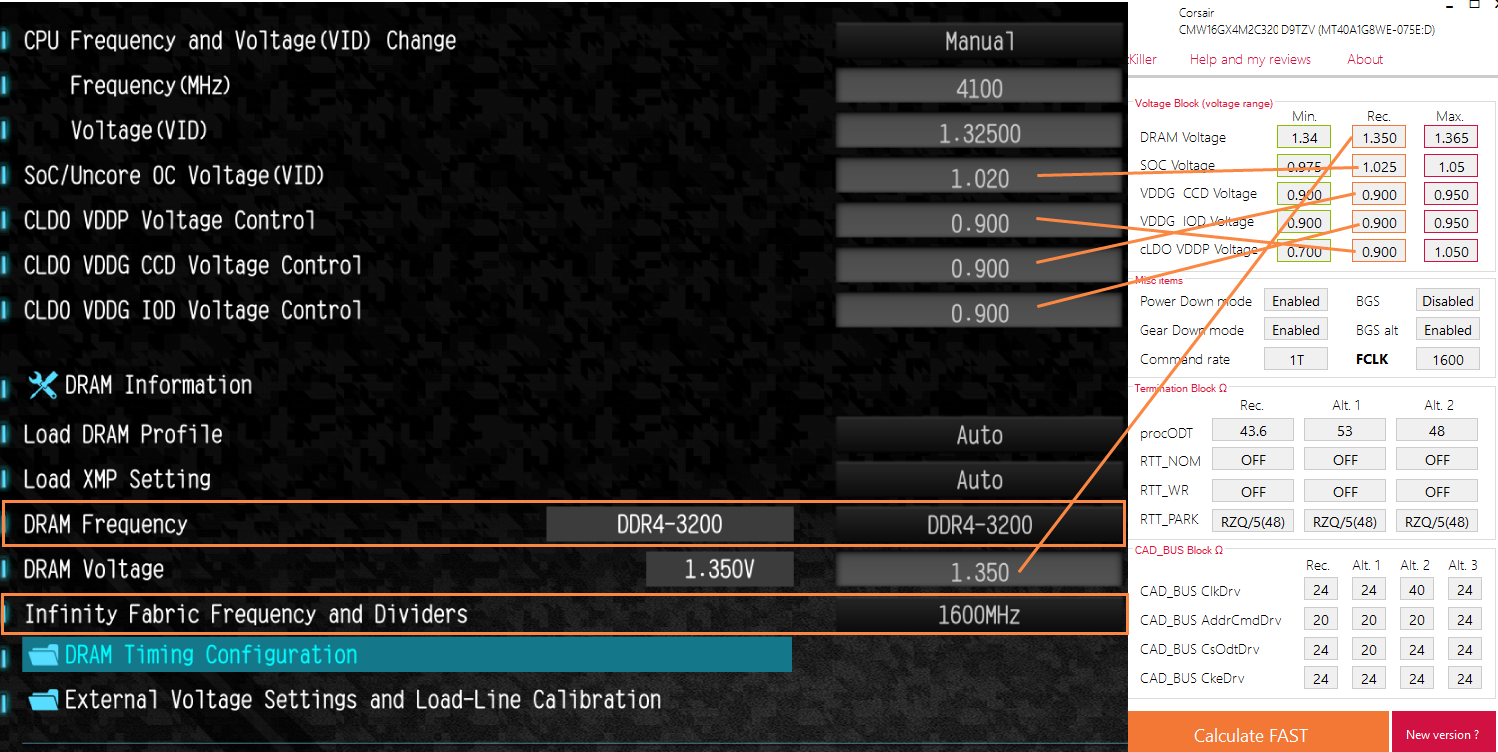
- Set DRAM Frequency to the one specified in the calculator. We recommended 3200MHz.
- Set Infinity Fabric to ½ of the DRAM Frequency. In our case that is 1600 MHz.
- Set DRAM Voltage as calculated from the DRAM Ryzen calculator.
- Set SOC, VDDG (CCD, IOD) and VDDP Voltage. Use the Recommended (Rec.) field from the calculator. Note that different motherboard manufacturers might have this setting located elsewhere.
2. Setting DRAM Timings
- Open DRAM Timing Configuration (or it’s equivalent). Here you will see a bunch of weird abbreviations like CAS# or RAS#.
- Start inputting the timings as shown on the example picture below. Enter all of the timings, not just the one seen in the picture.
- Once completed, and if the BIOS allows you, save the overclock template.
- Save changes and exit BIOS. Double-check everything before exiting!
- If the RAM timings were applied successfully, the rig will boot normally.
- If you experience boot issues after applying the timings, simply reset the BIOS with a CMOS jumper or by removing the battery. You can read how to reset BIOS here.
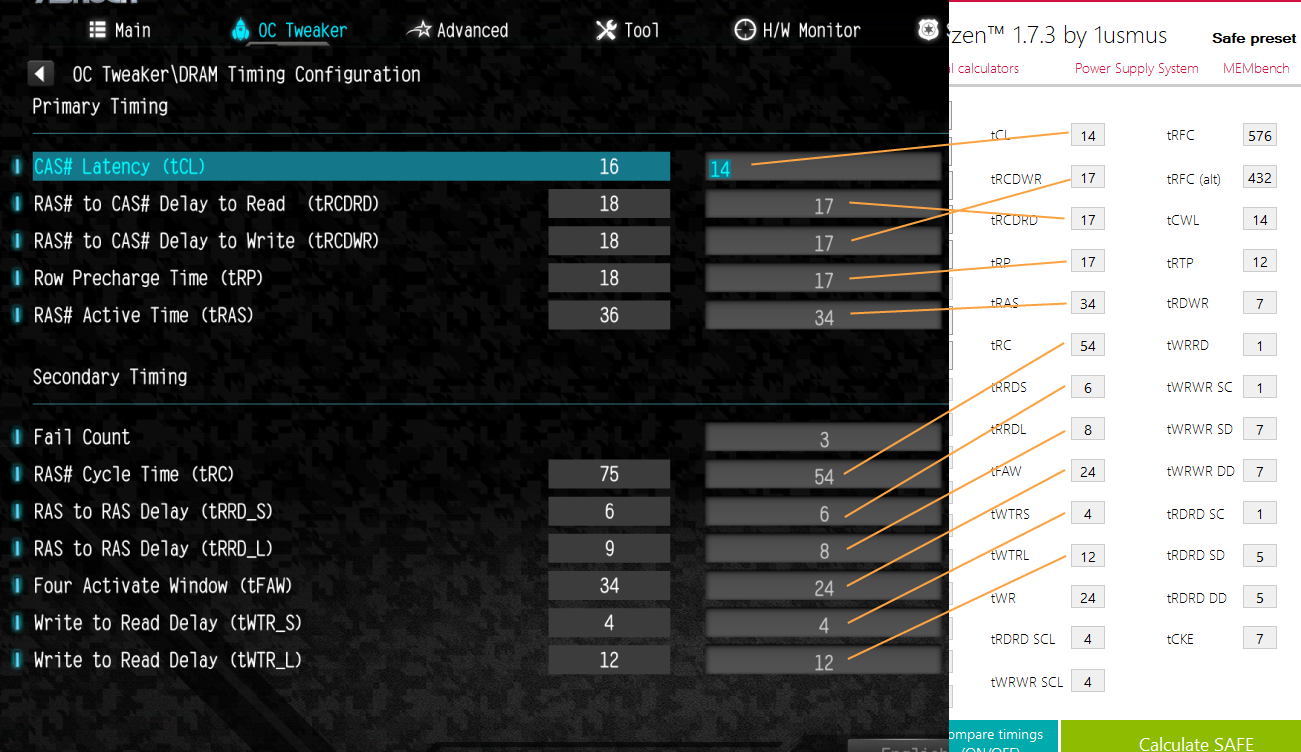
It might take some tries to successfully overclock the RAM. But the pleasure after the successful overclock will be that much bigger. Good luck!
If you have any further questions, feel free to join our Discord server or ask on our Reddit page where our staff and other users are always happy to answer any questions.