NiceHash OCTune explained
This guide is outdated. Please refer to the updated version here.
OCTune is a browser interface and is used to modify graphic card settings. At first, OCTune might look clumsy, but let us promise, after reading this guide you will be OCTune-fluent.
Click on the button below to download QuickMiner and try OCTune.
What is NiceHash OCTune?
NiceHash OCTune is a web interface that communicates with NiceHash QuickMiner and is used to modify:
- Fan profiles,
- Core clock,
- Memory clock,
- TDP,
- Voltage,
- Memory timings of your GPU.
Additionally, Autotune allows you to find the best core clock for your memory clock settings. You can find more information about Autotune below.
How to start OCTune?
Once you downloaded and installed NiceHash QuickMiner simply navigate to the system tray and right-click on the NiceHash QuickMiner icon then select OCTune as shown in the picture below.
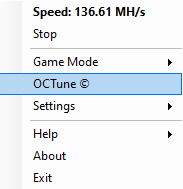
OCTune explained
Note that the OCTune is still in development and the GUI (graphical user interface) might change in the future.
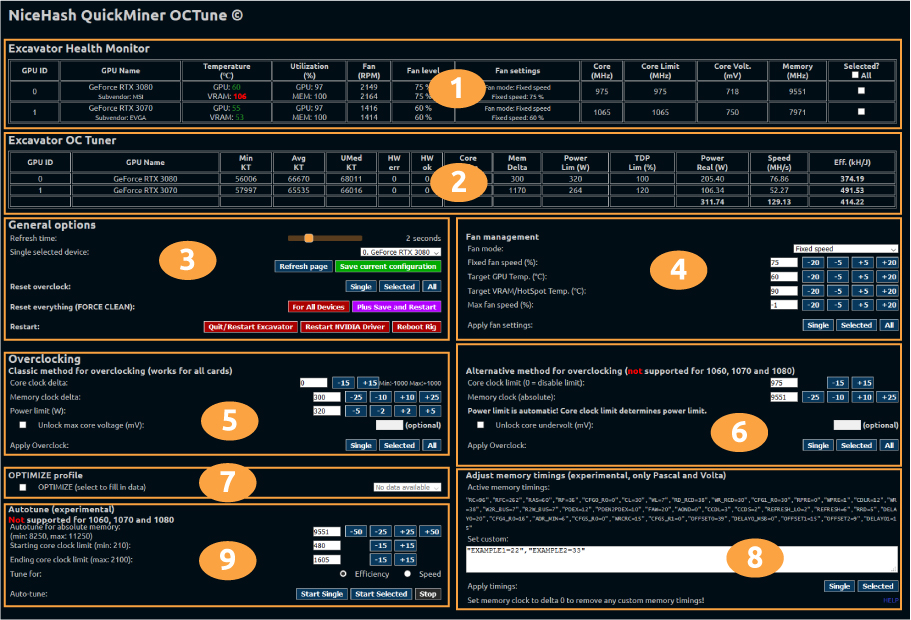
1. Excavator Health Monitor

At the top of the OCTune you can see the Excavator Health Monitor. Here you can find basic information about the hardware and its current health. Most of them are self-explanatory.
- Utilization - the usage of your GPU and Memory. Should be 100% if you are mining with full power.
- Core - current absolute value of core clock.
- Core Limit - the highest allowed absolute core clock. Can be changed in Alternative method for overclocking(6).
- Core Volt. - current core voltage. You can also lock the voltage in Alternative method for overclocking(6).
- Selected - If you want to overclock more GPUs at the same time, you can select the checkbox at the far right and click the Selected button when applying settings.
2. Excavator OC Tuner

The second table shows Excavator OC Tuner. This is the data that is received from Excavator. Here you can examine:
- MIN KT - Minimal Kernel Time. Execution time of code running on GPU in microseconds.
- AVG KT - Average kernel Time.
- UMed KT - Upper median (¾) Kernel Times. Your goal is to get this value as low as possible.
- HW err - Rejected shares due to high memory clock. This should be 0. Lower memory clock to eliminate HW err.
- HW OK - Accepted shares.
- Core Delta - Increased or decreased value from stock core clock.
- Mem Delta - Increased or decreased value from stock memory clock.
- Power Real (W) - Power usage of GPU in Watts. Includes all power draw sensors available.
- Eff. (kH/J) - Efficiency of mining. Speed divided by power draw.
3. General options.
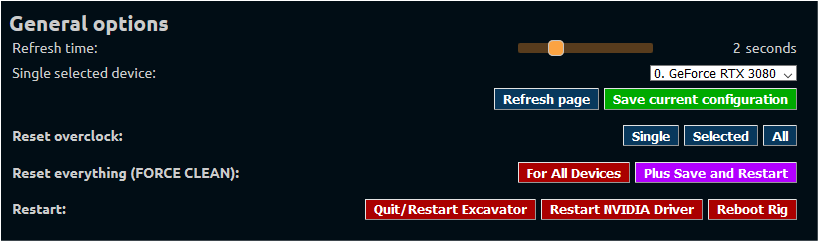
Here you can change the refresh rate of OCTune, save the current configuration or even restart NVIDIA drivers.
4. Fan Management
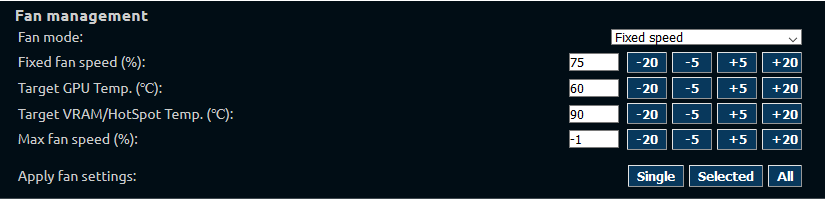
With OCTune, you can change fan profiles. Fan Management allows you to use 5 fan profiles:
- Default/Auto - No changes to the fan profile.
- Fixed speed - Set a fixed fan speed.
- Target GPU Temp - Fan will be adjusted relative to the specified GPU temperature.
- Target GPU&VRAM/HotSpot T. - Similar as above. Additionally, the fans will be also adjusted to VRAM or HotSpot temperature.
- Target plus decrease MCC - Same as target GPU&VRAM/HotSpot T. but if the fans alone will not be able to cool down the GPU, the memory core clock will slowly drop until the target temperature is reached.
5. Classic method for overclocking

This method works on all NVIDIA GPUs. The same type of overclocking used in other tools like MSI Afterburner. Simply set DELTA core and memory clock (example: +100 or -100) and power limit in Watts (not percentage). You can additionally set max core voltage in mV.
Apply the overclock by selecting:
- Single - only for the single selected device from General options
- Selected - for all GPUs selected in the Excavator Health Monitor table.
- All - for all GPUs in the system.
6. Alternative method for overclocking
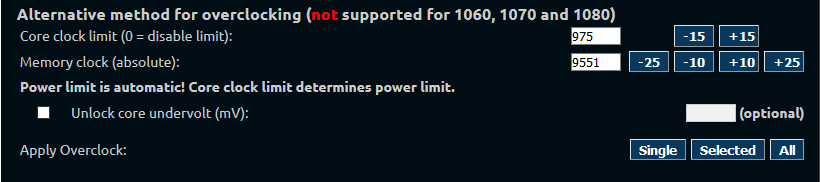
This is a new way of overclocking first recognized and implemented by NiceHash.
The alternative overclocking procedure is simpler than a classic one. We suggest using alternative overclocking if possible because you have to deal only with two variables instead of three. Unfortunately alternative overclocking does not work on Pascal based cards (GTX 1080, 1070, and 1060).
Note that you need to set absolute value, not delta. The power limit will be automatically set by the core clock limit.
Apply the overclock by selecting:
- Single - only for the single selected device from General options
- Selected - for all GPUs selected in the Excavator Health Monitor table.
- All - for all GPUs in the system.
We recommend using this method for overclocking.
7. Optimize

As mentioned at the beginning, you can also modify existing optimize profiles provided by NiceHash. You can do this by following this guide.
8. Adjust memory timings(experimental)
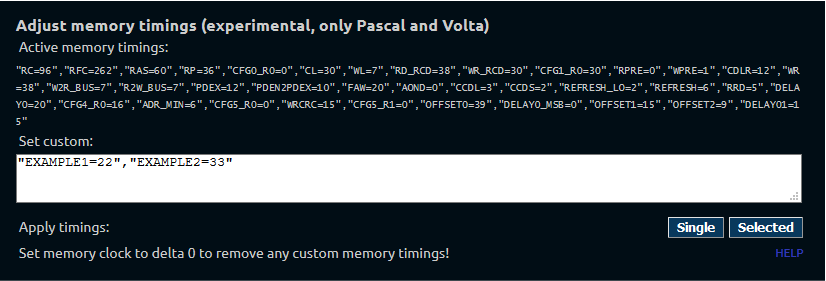
OCTune also supports editing the memory timings of Pascal and Volta GPUs. This means that you do not need to use the ETHlargment pill for mining with 1080, 1080 Ti, Titan X (pascal), and Titan Xp GPUs.
Additionally, you can experiment with different memory timings and squeeze the absolute best performance of your GPUs. Make sure to share your findings with the community on our Reddit and Discord.
9. Autotune (experimental)
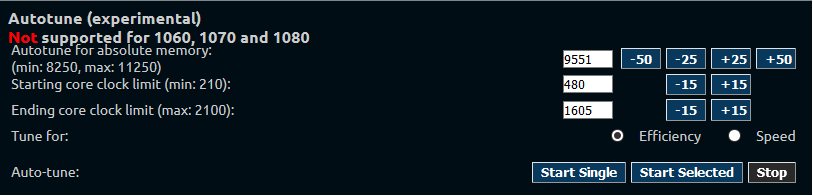
Autotune is the only of its kind. Autotune will automatically find the best core clock limit based on the user’s absolute memory clock input. You can select to tune for speed or efficiency.
Note that due to API limitations of NVIDIA management libraries, Alternative OC and Autotune features are available only for the RTX series (2000 and 3000).
If you have any further questions, do not hesitate and join our Reddit and Discord community for help from other users and our company representatives.