Modify existing OPTIMIZATION profiles
Many of you have expressed interest in slightly modifying existing optimization profiles when using NiceHash QuickMiner. In this guide, we will show you how to do it.
Method 1 (recommended)
If you are looking for a guide on how to modify optimization profiles in the new, updated OCTune, read this article.
Follow these steps:
- Download the latest QuickMiner.
- Start QuickMiner.
- Open OCtune.
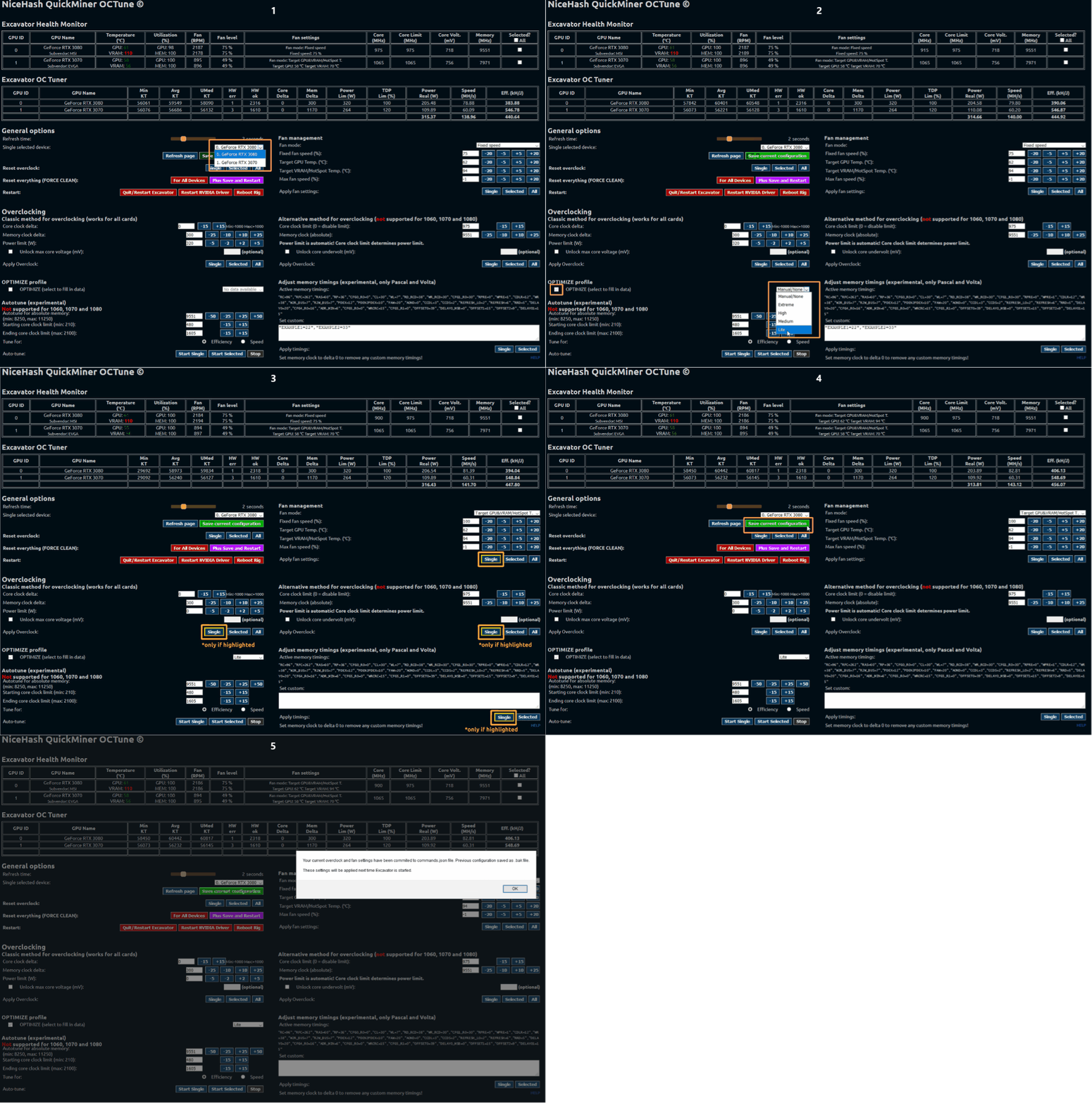
- Select your card via combo box (Single selected device).
- Select the checkbox next to OPTIMIZE (select to fill in data)
- Select the desired OPTIMIZE profile in OCtune.
- Click on the buttons highlighted with yellow color. Click them all.
- Finally, click the green "Save current configuration" button to save your configuration.
- Repeat the process from step 4 for other GPUs.
Note: To modify already saved settings simply select the GPU, change the desired value, click "Single" button to apply, and green "Save current configuration" to save the preset.
Method 2
Follow these steps:
- Select an overclock profile on Rig Manager (e.g. Medium or Lite) and apply it. (GPU only or whole rig if you use the same GPUs)
- Open OCtune (right-click on the NiceHash icon in the Windows tray menu).
- Select the GPU you would like to modify via Combo box.
- Go back to the Rig Manager and apply the Manual profile.
- Apply fan settings for Single
- Go to alternative overclocking and apply overclock for Single GPUs. Use alternative OC if the optimize profile uses mcc (max core clock), or use the classic OC method if the profile uses dmc (delta core clock). You can check if the profile uses mcc or dmc here.
- Some profiles (most of 1xxx series GPUs) use memory timing modifications. Apply memory timings on Single GPUs if the profile modifies timings.
- Click on the green Save current configuration button.
- Repeat this for all of the other GPUs that are not identical.
NOTE: Some profiles use custom voltage. For these profiles, you must first check “Unlock max core voltage (mV)” under classic overclocking and only then select the Manual profile (step 3).
You can find which profiles use custom voltages here. If the profile includes “mcv”, then the profile uses custom voltages.
The profile will be saved locally and will run automatically on the next Excavator start. You can then edit it additionally.
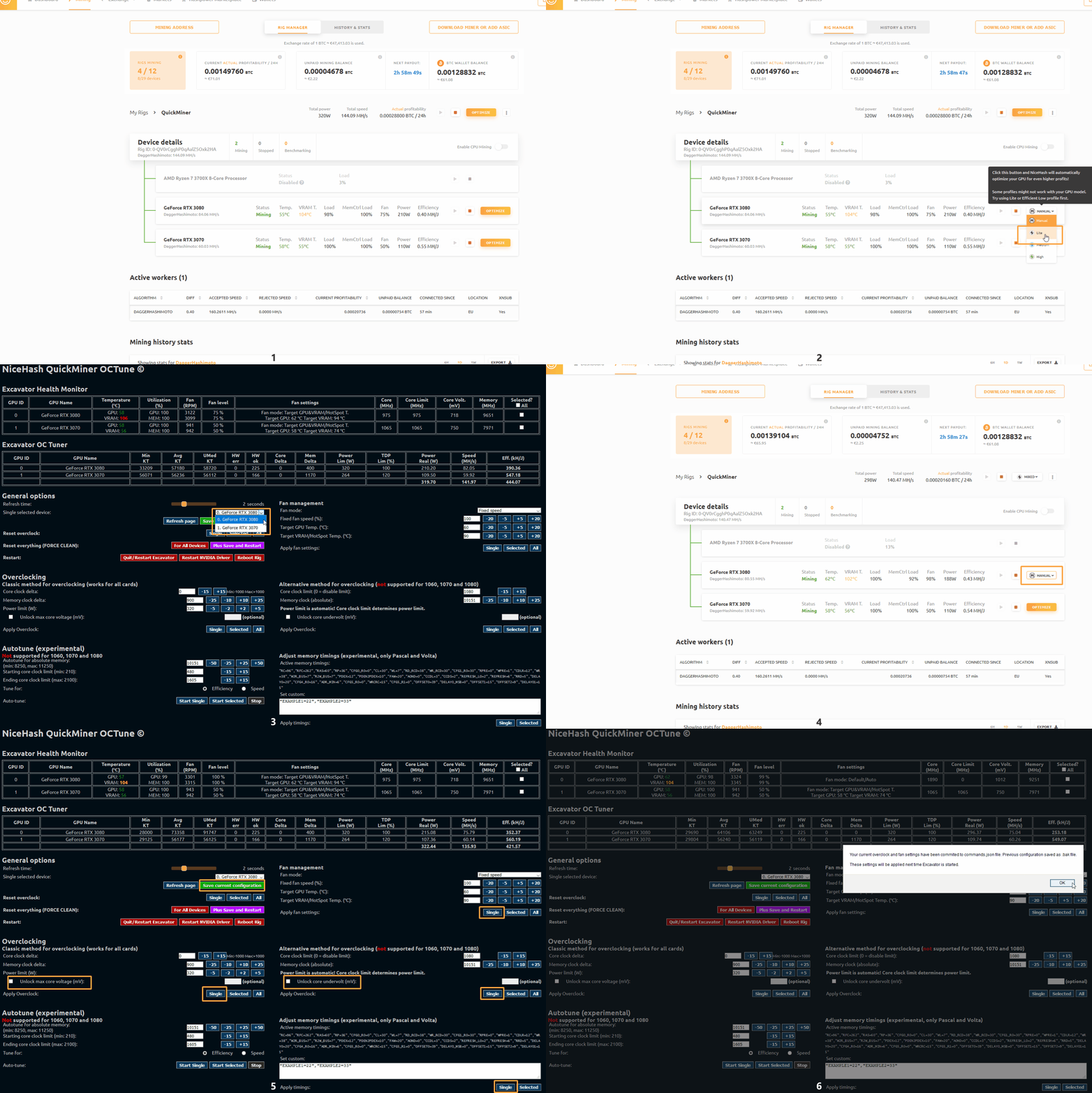
Click on the gif above to view it
Method 3
Follow these steps to modify optimization profiles:
- Download the appropriate Optimization data file (currently this is v5) and save it somewhere on your hard drive. Let's assume the location we save it into is D:\nhqm\optimize\data_005.json.
- In config file nhqm.conf modify "optimizeProfilesCustomDataURL" : null to "optimizeProfilesCustomDataURL" : "D:\\nhqm\\optimize\\data_005.json".
Be aware of the double backslashes - if you use a single, the whole config file gets corrupted and a new one is generated. Here you can also use your own HTTPS URL to replace the GitHub's default one. If set to null, then the default hardcoded URL is used which is regularly maintained by the NiceHash team to offer the best possible performance and reliability for most of the cards. - Modify D:\nhqm\optimize\data_005.json file.
From version 3, property names are much shortened but are still the same as used in version 2. Some can be figured by looking at examples. pt (profile type) 1 has several extra properties:
- dcc is delta core clock,
- pl is power limit in Watts and
- mt is memory timings array.
mcc (max core clock) is not being used in profile type 1. Profile type 1 is used by GPUs from the Pascal series (1xxx without 1660). Setting max core clock is not possible for Pascal cards.
Keep in mind that you should regularly check official optimize data so you do not get left behind. Also, with any major change to this part of the subsystem, a new version gets used which means that your locally saved file would not work anymore. Then you have to either change "optimizeProfilesCustomDataURL" back to null or download the new version of optimize data and modify the new one.