How to use OCTune with NiceHash QuickMiner?
This guide is outdated. Please refer to the updated version here.
OCTune is a browser interface and is used to change graphics card settings.
Before proceeding, we recommend that you read the blog post on explaining OCTune, which gives you a basic overview of the OCTune layout.
How do you open OCTune?
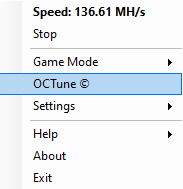
Once you have downloaded and installed NiceHash QuickMiner simply navigate to the taskbar and right-click on the NiceHash QuickMiner icon and then select OCTune, as shown in the image below.
How to use the classic overclocking method of OCTune?

Use this method only with GTX 1060, 1070, and 1080 series GPUs. Users GPUs of Quadro, Tesla, Volta, GTX 1660, RTX 2000, and RTX 3000 series should use the "Alternative Overclocking Method".
Search the Excavator OCTuner table for UMed KT. Your goal is to keep this value as low as possible.
- Use these settings as a starting point for your GPU overclock.
- Once the settings are applied, let it run for a few minutes. There should be no HW err in the Excavator OCTuner table.
- Increase the "Memory clock delta"by +25 and let it run. Repeat until your mooring/rig freezes/crashes or you see a HW err in the Excavator- OC tuner table.
- Lower the " Memory clock delta" by -10 and check if the HW-err is still increasing. If so, lower it , by another -10 bid the HW err stops rising.
- Most GPUs in the GTX 1000 series prefer a higher core clock. Try increasing it by +25 until you see the HW err increase or the driver crashes. Lower it by -10 , until the HW err stops rising and the system becomes stable.
- Lower the TDP by -5. The hashrate starts to drop, but the efficiency might be higher. Find your personal "sweet spot" by playing with the power limit.
- Click on the "Save Current Configuration" button to save the settings for this GPU.
- Repeat the process for the other GPUs, selecting them in the "General Options".
NOTE: "The classic overclocking method" uses 3 variables, while the "Alternative overclocking" uses only 2 variables. This makes the "Alternative overclocking" easier. We recommend all users with GPUs of the series GTX 1660, RTX 2000, and RTX 3000 to use the "Alternative Overclocking"
How to use OCtune's alternative overclocking method?

We strongly recommend using this method for all Volta, Quadro, Tesla, GTX 1660, RTX 2000, and RTX 3000 GPUs.
- First determine the "maximum memory clock" for the GPU by increasing the "memory clock (absolute)", by +25 until you get rejected shares (share above target or or HW err in the "Excavator OC Tuner table). Lower the "memory clock", by -10 , until you get no HW errors anymore.
- Start with a higher "Core clock Limit" (1500 for example), then lower the "Core clock Limit", by -15 u watch the Speed (MH/s), Power Real (W), and Eff. (kH/J).
- After each reduction of the "Core clock Limit",check the values Min KT, Avg KT, and UMed KT (UMed KT is the most important). These values should be as low as possible. The lower they are, the better the speed. When you are satisfied with the achieved speed. you can save your OC settings by pressing the "Save current configuration" button in "General option".
Note that if you change your "memory clock", you will need to readjust the "core clock limit" (maybe just +15 or -15).
How to use Autotune in QuickMiner-OCTune?
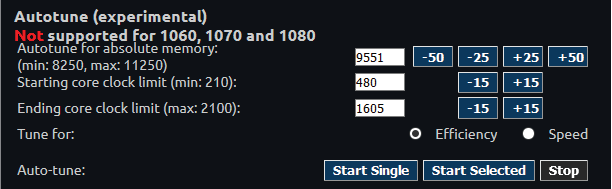
Autotune uses the "Alternative Overclock Unbgs Method "and is only supported on Quadro, Tesla, GTX 1660, RTX 2000, and RTX 3000 GPUs.
- Follow the first step of the above alternate overclocking guide uand determine your best absolute "memory clock" settings.
- Copy the absolute "memory clock" from the "Alternative Method" to Autotune (Autotune for absolute memory).
- Input optional "Starting-Core clock-Limit" and "Ending-Core clock-Limit" . We do not recommend beginners to change this value.
- Select "Efficiency" or "Speed" as desired.
- Select "Start Single", to auto-tune only the GPU selected in the "General Options" or "Start Selected", to auto-tune the selected GPUs in the "Excavator- Health- Monitor- Table"
- Wait and watch the "Events" on the right. When finished, make sure to "Save Current Configuration"
- Repeat the process for other GPU models if needed.
The result could be further tweaked to perhaps gain an extra 1% in performance or efficiency, but considering that Autotune does everything automatically and very quickly (only one iteration through workable core clock limits at a time to test performance), it raises the serious question of whether additional tweaking is worth your time.
If you have further questions, don't hesitate to join our Reddit- and Discord- community for help from other users and our company representatives.