How to start mining VerusCoin (VRSC) on NiceHash?
VerusCoin (VerusHash algorithm) is currently not supported in NiceHash Miner. But you can still mine it at NiceHash.
For this guide, you do not need to create a separate VerusCoin wallet, but you can use the existing NiceHash mining account!
How to start mining VerusCoin (VRSC) on Windows?
#1 Install NanoMiner
You can easily install NanoMiner via NiceHash Miner plugins tab. NiceHash verifies the miner files so you can avoid downloading malware from unofficial web pages.
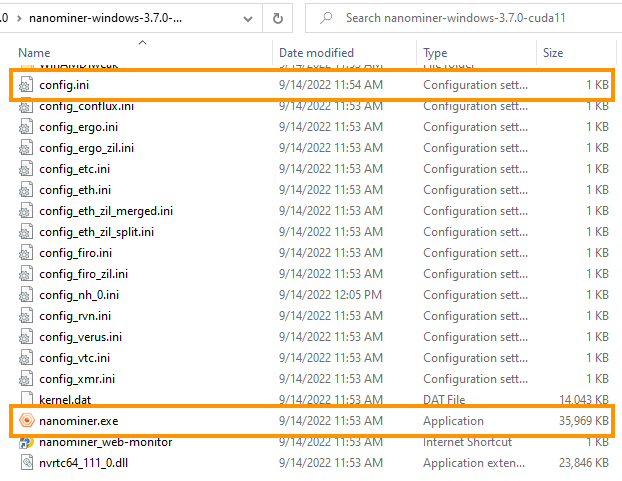
Open NanoMiner root directory. If you are helping yourself with NiceHash Miner, simply click on the 3 dots next to the plugin name in the Plugins tab and click show internals. Navigate to the ...\bins\19.0\nanominer-windows-3.7.0-cuda11
#2 Edit the config.ini file
Example of NanoMiner config.ini prepared for mining on NiceHash:
; Address to send funds to.
            wallet = YourNiceHashMiningAddress
; (Optional) Coin to mine.
            coin = VRSC
; (Optional) Rig (worker) name.
            rigName = speed_test
; (Optional) Rig (worker) password.
            rigPassword=X
; Pool address.
pool1=verushash.auto.nicehash.com:9200
; Select nearest pool server by ping.
            sortPools=true
Remember to use replace the NiceHash mining address found in the Mining tab inside the NiceHash web dashboard.
Do not forget to save the config.ini
#3 Start mining
Run NanoMiner.exe, and you will start mining VerusHash! Congrats!
How to start mining VerusCoin (VRSC) on HiveOS?
#1 Create a new wallet and flight sheet in HiveOS
You can follow this guide if you are unfamiliar with setting up a flight sheet and wallet.
#2 Add NanoMiner to the flight sheet
- Navigate to the flight sheets and edit the preferred flight sheet
- Click on Add Miner
- Select NiceHash-VerusHash in the Coin field (if it is not available, skip to #2.1.)
- Select NiceHash wallet (mining address) in the Wallet field
- Select NiceHash as a pool, if not, use this: stratum+tcp://verushash.auto.nicehash.com:9200
- Select NanoMiner as a Miner.
- Name your flight sheet and select UPDATE to update the flight sheet.
This is it, you should now be mining VerusCoin besides mining whatever GPU coin you are mining.
#2.1
When writing this article, HiveOS has not added the NiceHash-VerusHash algorithm. Follow this steps to add the algorithm manually:
- Navigate to the flight sheets and edit the preferred flight sheet
- Click on Add Miner
- Select NiceHash-Autolykos
- Select NiceHash wallet (mining address) in the Wallet field
- Select NiceHash as a pool - VerusHash algorithm will not be available, we need to set a custom URL
- Click on Configure pool
- Uncheck the AUTO checkbox
- Click on Enter URLs manually (advanced) and input this as the URL: stratum+tcp://verushash.auto.nicehash.com:9200
- Select NanoMiner as a Miner.
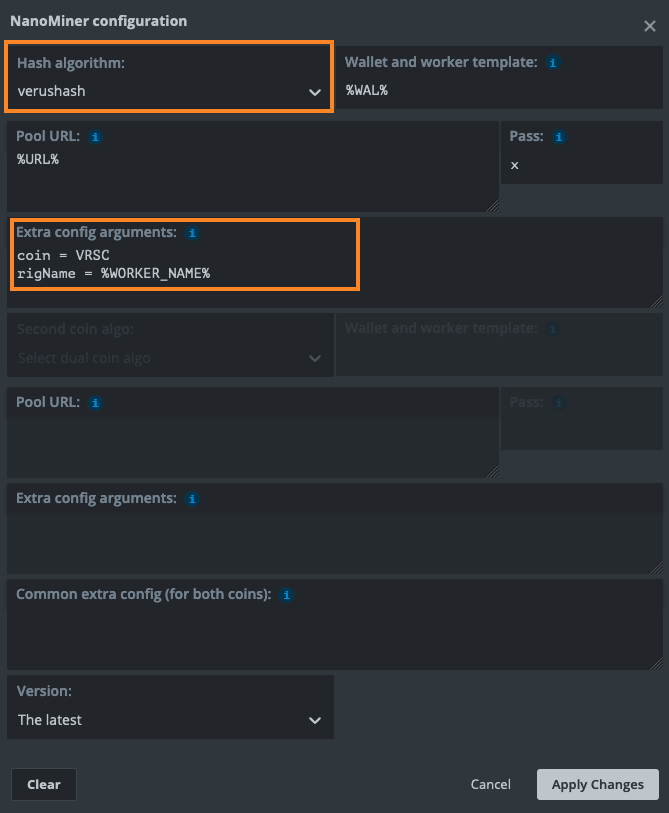
- Click on Setup Miner Config
- Change the Hash algorithm to verushash
- Change coin = ERG to coin = VRSC. Leave everything as it is and Apply Changes
- Name your flight sheet and select UPDATE to update the flight sheet.
For help and assistance with mining, make sure to join our Discord or Reddit community.