What is the NiceHash Rig Manager?
The NiceHash Rig Manager dashboard allows you to monitor your mining rigs remotely via a browser on a PC. It gives you the ability to monitor your Rig status, hashrate, power consumption, select which algorithms to mine and which plugins to use as well as enables you to control each GPU individually and optimize it to your liking.
Rig Manager - Optimize Feature Guide
You can now enable and disable miners/algorithms and tune your rig for mining with the new Optimize feature. With it, you are able to set overclocks, fan profiles and even add Extra Parameters remotely!
You can create different profiles for different types of hardware and settings, and combine them in bundles. For example, you can make a bundle with all the OC, and Fan profiles for the devices in your rig.
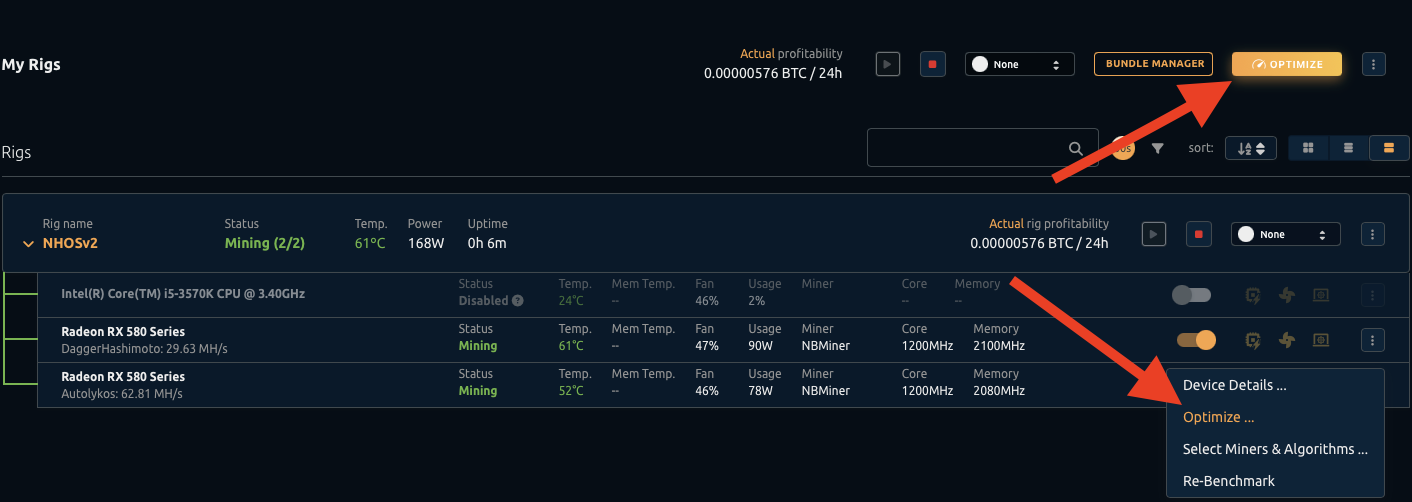
To access the Bundle Manager, you can click on the Bundle Manager link at the top of the Optimize side menu, or click on the 3 vertical dots at the right of the Optimize button.
How do the different Optimize menus work?
The Selection Menu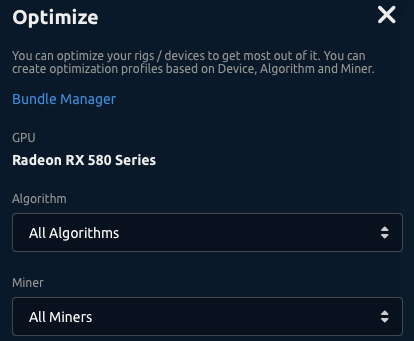
When you click on the Optimize button, a side menu will appear. At the top, it will indicate the selected device.
There is an Algorithm field and a Miner field. Here you can select the combination algorithm(s) and miner plugin(s) that you want your settings to apply to.
For example, if you want to create an overclocking profile that has the same OC settings for both the ETCHash and DaggerHashimoto algorithms, you can select these two on the Algorithms field. If you want this profile to apply to all miner plugins, select “All Miners”.
The Overclocking Menu 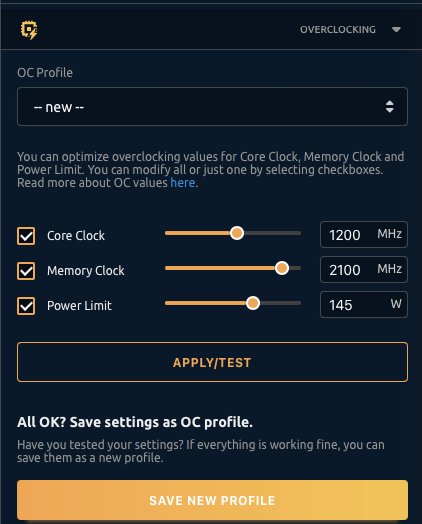
The Overclocking menu allows you to apply overclocks to the selected device. You can do so by defining the absolute or delta values for core and memory clocks and changing the power settings.
You can apply these changes to the rig by clicking the Apply/Test button. Once you do so, your GPU will be under TESTING mode until you stop the testing. The testing mode ensures that the settings are reset if the GPU or rig crashes.
When you find a stable OC, you can save it as a new profile that you can later apply. When you save a new profile, make sure that you select the correct algorithms and mining plugins you want to use with these OC settings.
The Fan Management Menu 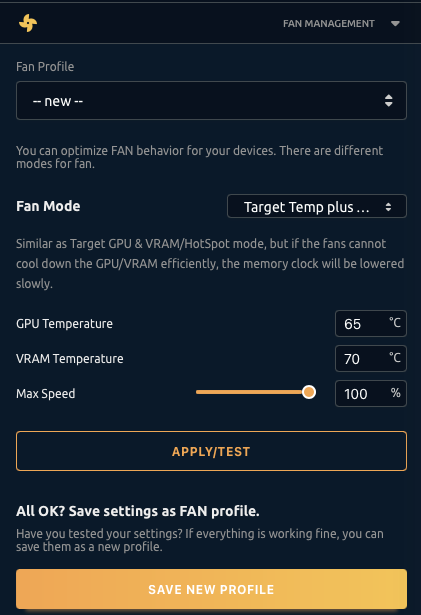
The Fan Management menu allows you to apply a fan profile to the selected device. You can select from different fan modes and modify those modes further.
You can apply the new fan mode by clicking on the Apply/Test button. If you are happy with the fan profile, you can save it as a new profile. You may want to make the fan profile to work with a specific algorithm (like KAWPOW), or you might want to apply it for all algorithms. Make your selection at the top of the Optimize menu.
Extra Launch Parameters (ELP) Menu 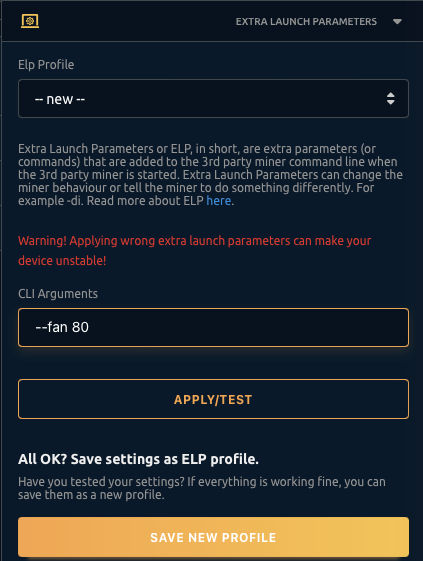
The Extra Parameters menu allows you to send Command Line Arguments to the miner plugin(s) used by the selected device. You can learn more about ELPs here.
Just like with other Profiles, ELP profiles can also be specific for a miner and algorithm. In this case, you will most likely want to define ELPs for a specific miner plugin, as ELPs are usually not compatible across different plugins.
Bundle Manager
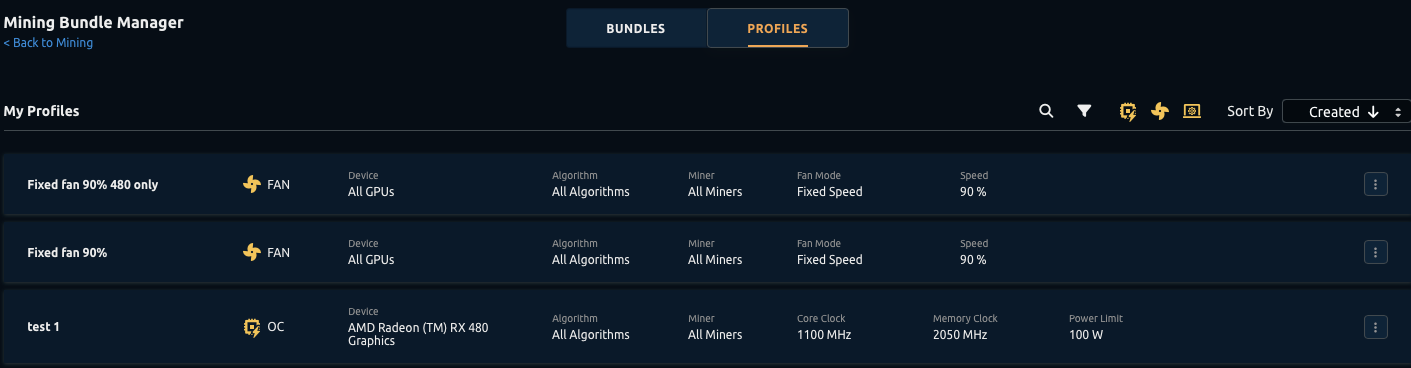
In Bundle Manager, you will be able to find all your profiles and combine them into a bundle that you can apply to your rigs.
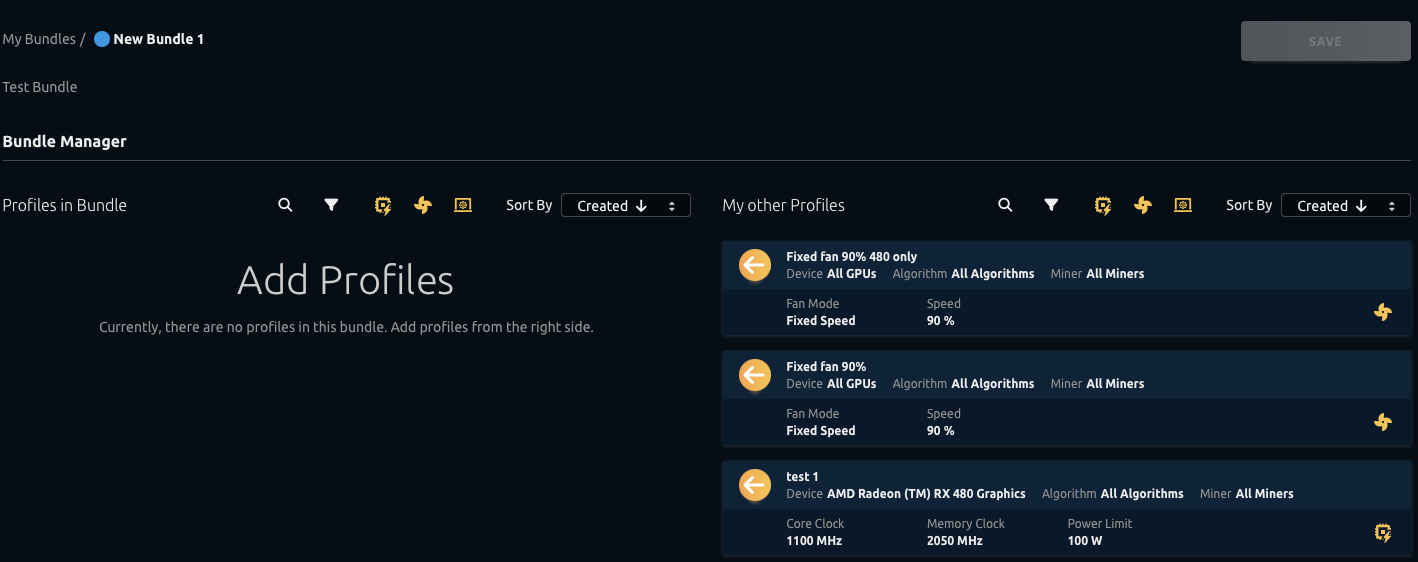
When creating a new bundle, you will be able to choose the profiles you want to include. We recommend including all the created profiles for the different GPU models you have on that rig. You can then apply different bundles to different rigs.
You can sort by profile type (OC, FAN, ELP) and also by device and algorithm. Once you create a Bundle, you can apply it to your rig by selecting it on Rig Manager. Now when the miner switches to a different algorithm, the profiles on the bundle that match the algorithm and miner will be applied.

How to tune your GPU for mining with Rig Manager?
New Rig Manager that comes with the new NHOS release features simple overclocking called TEST which is used for testing the stability of overclocking before applying them permanently. The TEST overclocking is reset upon rig reboot. Advanced profiles & bundles allow you to set overclocks based on the algorithm, miner and GPU.
How to Overclock?
When creating new OC profiles, we recommend enabling only a single algorithm. Overclock settings will vary per algorithm, but will usually be stable across mining plugins, so working with only one at a time will make this process much easier.
First, click on the Optimize button. A menu will show up on the right side of the screen and you will now be able to select the devices to apply overclocks to. Once you select your GPU by clicking on the circle next to its name, the Optimize menu will show you more options.
You can then change the core and memory clocks for the selected device using the Overclocking menu and setting it by using the APPLY/TEST option.
Once the stable OC settings are found, you should create profiles that will vary from each other. You can then combine multiple profiles into a bundle which is then applied to a rig.
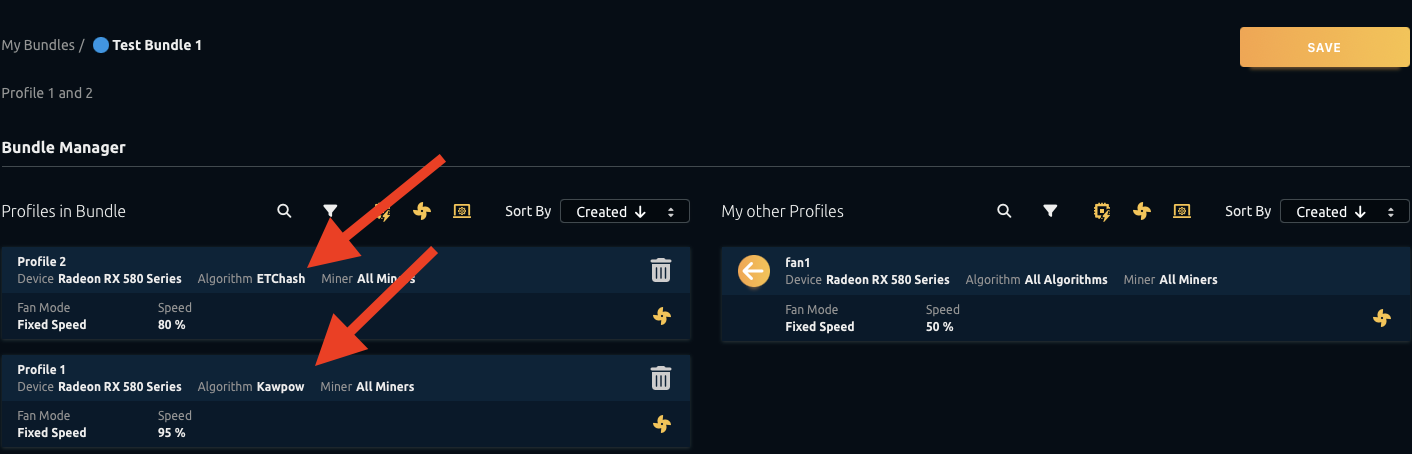
Example: Profile1 will be used on ETCHash algorithm while Profile2 will be used on KawPow algorithm.
Note: If the rig is restarted while TEST is being active, the overclocks will be reset to default. This is to prevent rig crash loops due to unstable overclock settings.
What are Profiles and how to set them up?
Profiles are used to prepare a set of instructions for your GPU. There are three types of profiles:
- Overclocking Profile: Is used to set core and memory clock on certain GPU, algorithm and miner (plugin)
Note that each profile can support multiple GPUs and miners - Fan Profile: Is used to set fan profiles
- Extra Parameter Profile: Is used to set extra commands when starting up the miners (plugins)
To create a profile, follow these steps:
- Click on the Optimize button in the top right corner
- Select a GPU you would like to prepare a profile for (you can only create profiles for one GPU at a time)
- Select what Algorithms and Miners you want to prepare this profile for
- Input Power Mode, Core and Memory clocks and click Apply/Test
- Once you are confident with the settings, click on the SAVE NEW PROFILE
You can create Fan and Extra Parameter profiles in a similar fashion.

What are Bundles and how to set them up?
Bundles are sets of profiles. You can combine multiple profiles in one big Bundle that has all the OC, Fan and EP settings for your rig.
You may apply this Bundle to your rig, and NHOS v2 will automatically switch between OC profiles when switching algorithms. It will do this based on the Algorithm and Miner defined on each profile.
To set up a Bundle, you must first create one or more Profiles. After creating profiles, visit the Bundle Manager page. You can navigate to it by clicking on the Bundle Manager link at the top of the Optimize side menu, or click on the Bundle manager button on the left side of the Optimize button in Rig manager.
To create a Bundle, follow these steps:
- Click on Bundle Manager button
- Once you are on the Bundles page, click on the NEW BUNDLE button in the top right corner
- Name the bundle and select the icon & colour
- After that, simply move the profiles from the right side to the left. The profiles on the left will be applied to the bundle
- Save the bundle
- Now you can apply it to the rig
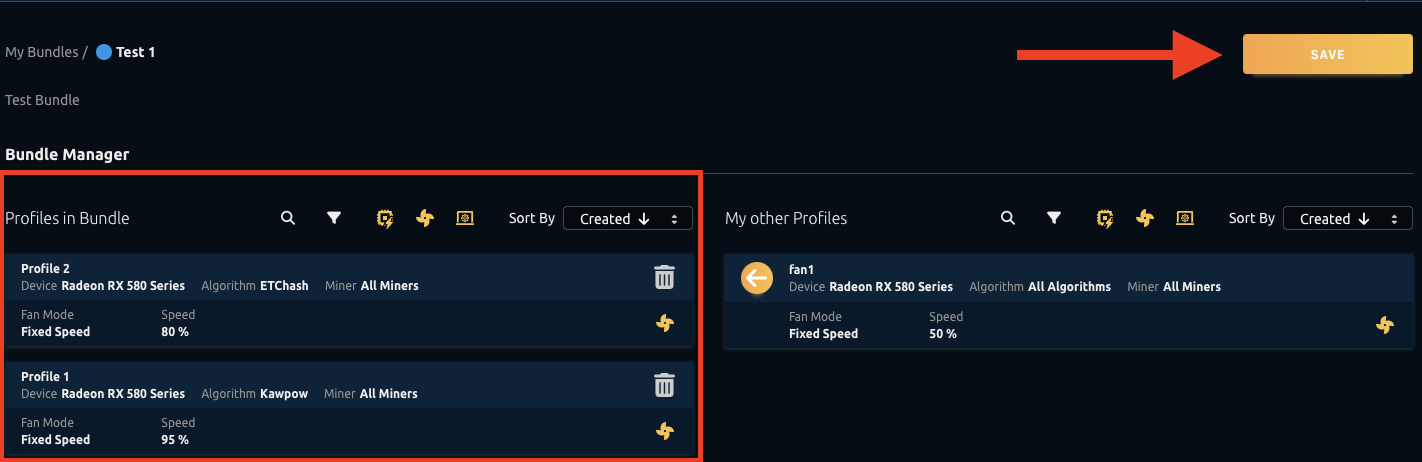
To apply a Bundle, follow these steps:
- Navigate to the Rig Manager
- On the right side of the RIG TILE, simply select the bundle you created before

Note that the bundles can also be applied to the whole group or even all rigs at the same time.
FAQ
1. I have a problem, where can I get additional support?
If you are experiencing any issues and need further assistance then either contact us via a support ticket or join our Discord and Reddit communities.
2. Can I Optimize both GPUs and CPUs?
Yes, you can optimize both GPUs as well as CPUs.
3. Can I modify the Bundles and Profiles?
Once created, existing Bundles and Profiles can no longer be modified. You must create a new Profile or Bundle if you wish to change the settings.
4. Can I delete Bundles and Profiles?
Yes, Bundles and Profiles can be deleted by clicking on the 3 dot button next to them and selecting Archive
5. Can I Optimise via the NiceHash app?
No, Bundle and Profile optimizations are not available in the NiceHash app.