What is NiceHash Miner?
NiceHash Miner is our mining software that allows you to rent out your computing power (on your PC or mining rig) to NiceHash hash power marketplace. Buyers on the marketplace rent your computing power and in return, you get paid in bitcoins. NHM includes 3rd party miners, thus we cannot guarantee for every line of code that goes out with the release.
Quick Setup Guide
Below is a list of steps to get NHM installed and start mining:
- Download NHM from the web.
- Install NHM.
- Copy NiceHash internal Mining Address from the dashboard to NHM.
- Start mining.
Detailed Setup Guide
Downloading NiceHash Miner
When downloading NiceHash Miner, you will be redirected to the Github page, where you can download the miner installer or zip version. Zip version does not require installation and it can ran from the download folder.
- Login to www.nicehash.com.
- Navigate to Mining tab.
- Click on DOWNLOAD MINER OR ADD ASIC button.
- Select NiceHash Miner and click DOWNLOAD.
- Click on Download NiceHash Miner.
Starting NiceHash Miner zip version
Once the NiceHash Miner {version} zip has been downloaded, you need to extract the files to the desired folder. This can be anywhere on your drive. Once extracted, find NiceHashMiner.exe and double click on it. NiceHash Miner will start.
Installing NiceHash Miner
To install NiceHash Miner, you need to double-click on the previously downloaded nhm_windows_{version}.exe. From here, follow the steps in the installer. The installer will create a shortcut on your Desktop. After the installation has been completed, NiceHash Miner will start automatically.
Adding NiceHash Miner bin folder to Windows Defender exception list
Many anti-virus (AV) programs can interfere with the proper operation of the NiceHash Miner. Therefore we suggest adding NiceHash Miner to Windows Defender exception list.
- Open Windows Defender
- Click on Virus & Threat protection
- Click on Manage settings
- Scroll down and click on Add or remove exclusions
- Click on Add an exclusion
- Select Folder
- Navigate to NHM installation folder which should be here:
"C:\Users\{YourWinUser}\AppData\Local\Programs\NiceHashMiner".
NOTE: YourWinUser should be different for you. This is your Windows username. - Select NHM folder
If you are using the ZIP version of NiceHash Miner, then you need to locate the folder where you extracted NiceHash Miner and add that folder to the exception list.
First run
There is only one mandatory input required after installation - Mining Address. We use Mining Address as a link between the owner of the rig and our platform. It is recommended to input the Worker Name, this is for your own identifying of the rig. You can name your worker in the General Settings (top right corner).
Notice: Below mining address does not belong to anyone. Make sure to use your own mining address.
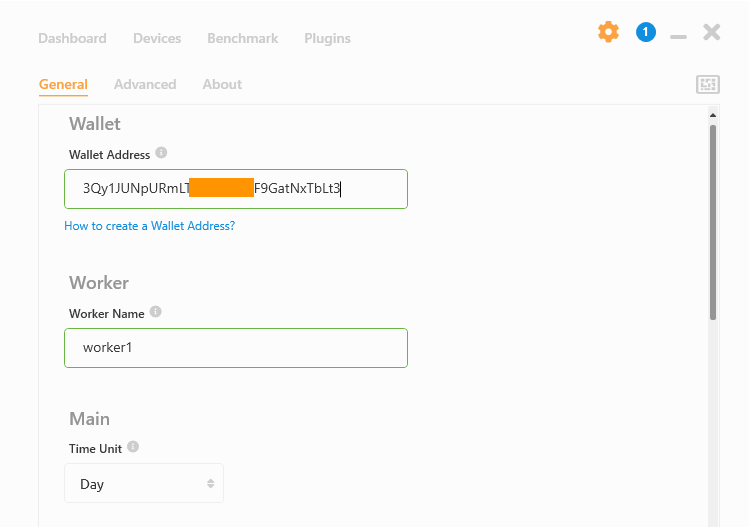
Click on the Start Mining button to start mining. NiceHash Miner will run the benchmarks on the first run. Benchmarks can take up to 5-10 minutes, depending on your hardware and benchmark type.
Benchmarks
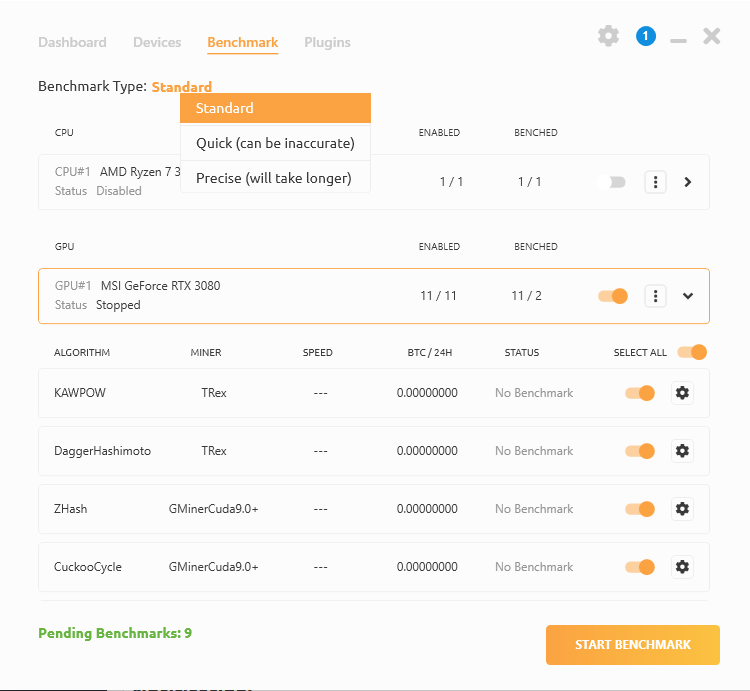
When NiceHash Miner is opened, navigate to the Benchmark tab in the top menu. Benchmarks are normally performed on the first run. Benchmarks allow NiceHash Miner to switch algorithms based on your device’s performance. You can disable/enable devices here. Also, you can disable/enable just one miner or algorithm for each device.
NiceHash Miner supports 3 Benchmark Types:
- Quick - short, but can be inaccurate.
- Precise - long, but more accurate.
- Standard - in between Quick and Precise.
Custom Algorithm Settings
With Custom Algorithm Settings, you can customize start command line for each of your miner when mining on a specific algorithm.
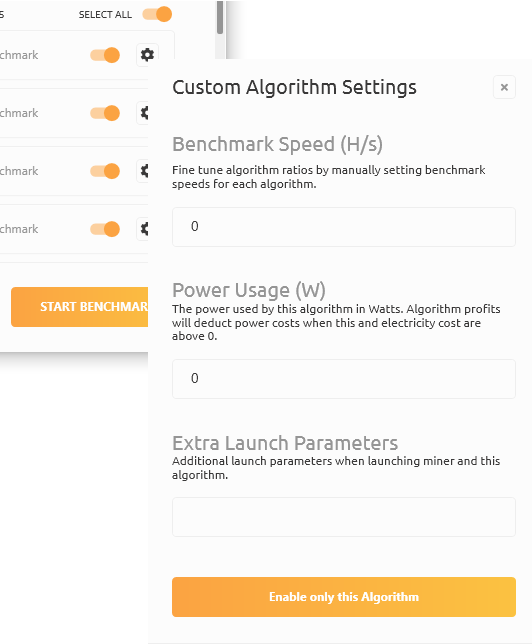
Benchmark Speed
This is auto-filled when benchmarks are completed. The value equals devices hashrate received when benchmarking. The value is displayed in base metric unit. You can manually change the value.
Power Usage (W)
This will be displayed only for devices that report power usage. Mostly all NVIDIA cards report power usage, while AMD cards do not. You can manually change the value. This value will be used to determine if the profits are high enough when Mine regardless of profit is disabled.
Extra Launch Parameters
You can add extra launch parameters via this field. For example, if you wish to enable rxboost with Claymore miner, you can type -rxboost in the field. In order to write multiple parameters add a space as separator. For example -rxboost -strap
Schedule for re-benchmarking
Enabling this allows an algorithm to re-benchmark even if it is benchmarked already.
Start mining
To start mining, make sure that you have input Mining Address then click on Start Mining button on the NiceHash Miner dashboard.
General Settings
Here are the most basic settings. You can change your Mining Address, Worker Name, Time Unit, Language, Currency and Theme here. You can also enable Auto Updates of the NiceHash Miner and Plugins.
Advanced Settings
Advanced settings are intended for advanced users. You can enable Autostart Mining, Allow Multiple Instances, Run on Startup and many more advanced settings, each explained by a little question mark next to it.
Plugins
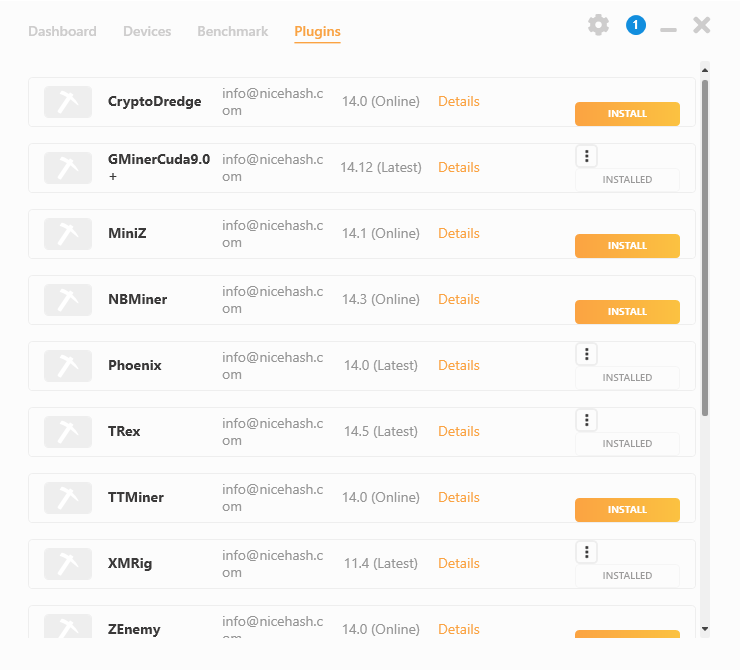
NiceHash Miner by default includes a hand picked miners. If you wish to install another miner that is not included by default, you can install it via Plugins tab.
In order to install a Plugin navigate to Plugin tab and click install or uninstall in order to uninstall it.
Notifications
Notifications will notify you about new NiceHash Miner releases, updates and let you know about potential issues NiceHash Miner could be exposed to.
NHM Bug Reporting
If you encounter a possible bug, please open a ticket and send us a log report.
You can create a log report by navigating to Settings>General, scroll down and click on Create a log report button. This will restart NHM and send the logs to our server. Send the generated UUID to our support agent.