
GENERAL TROUBLESHOOTER
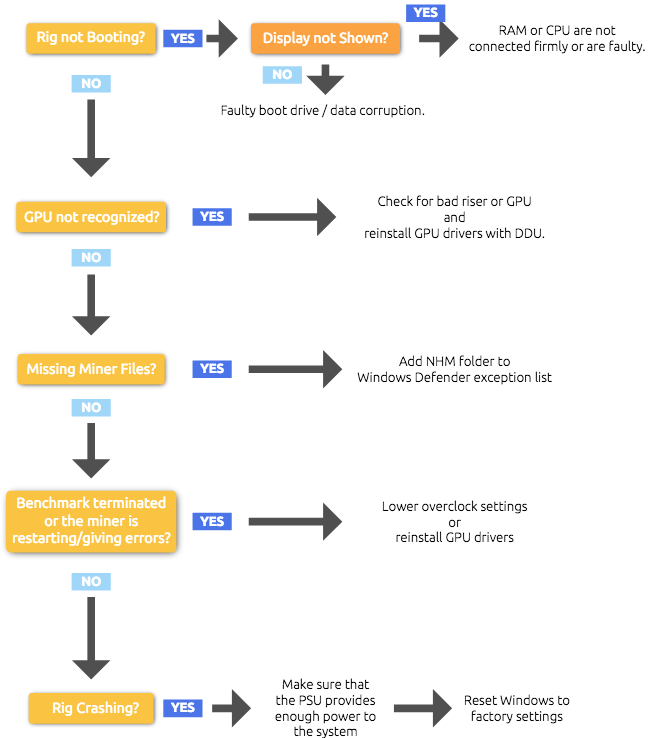
Hardware issue
Riser failure
90% of the issues related to rig crashing or not detecting GPU are related to bad USB PCIe x1 to x16 riser failure. The only way to fix it is to change it. First, a user needs to find out which riser is bad:
1. Disconnect ½ of the GPUs and risers, leave the other ½ connected, and start mining.
a. If the rig is running OK, then the riser in the other ½ is bad. Repeat halving until you locate the bad riser and change it.
b. If the riser is not working, the fans on the GPU will most likely not spin.
2. Visually check for the power supply cable that goes into the riser from PSU. Sometimes the yellowpower cable gets burned at the connector. This can cause the riser to fail. Note that only 2 risers can be connected to 1 SATA power cable.
Power Supply Issue
The total power supply wattage should be at least x1.2 the amount of total rig consumption.
Example: 6x 1060 6GB(6x90W) + Motherboard(50W) + CPU(50W) = 640W x 1.2 =768W
Things to note:
If a user is using 2 PSUs on 1 rig, the GPU and riser connected to it, should be powered from the same PSU.
Make sure all cables are firmly connected. Sometimes 6+2 PCIe power connector(or other cables) might be loosely connected and cause the GPU not to be detected.
Other Hardware Issues
Wrong motherboard BIOS settings
Make sure BIOS settings are correct (PCIe speed gen2, above 4g decoding enabled)
Wrong video output
Make sure that the video output inside BIOS is set to GPU and not onboard GPU(via motherboard)
System specification does not meet algorithm requirements
Not enough VRAM:
- DaggerHashimoto (Minimum 6GB VRAM),
- KAWPOW (Minimum 3GB VRAM),
- ZHASH (Minimum2GB VRAM),
- BEAM (Minimum 3GB VRAM).
Software Issue
Driver Related Issues
If there are errors with GPU detection, 3rd party miner crashing/restarting, not able to set overclocks or low hashrate, the issue might be related to the drivers.
Follow these steps to re-install GPU drivers:
- Download correct standard version drivers from the AMD or NVIDIA website.
- Download DDU.
- Disconnect LAN cable from your rig.
- Run DDU, delete the drivers and restart your rig.
- Install GPU drivers.6. Restart your rig again and connect the LAN cable back.
Note: Make sure that you downloaded STANDARD version of NVIDIA drivers here: https://www.nvidia.com/Download/Find.aspx#
Upon Windows installation or when deleting drivers, WIndows tends to auto-install GPU drivers, that is why it is recommended to disconnect the rig from the web.
Another, more detailed way to install drivers is to install it for each added GPU:
- Download correct drivers from the AMD or NVIDIA website.
- Download DDU.
- Disconnect LAN cable from your rig.
- Run DDU, delete the drivers and shut down your rig.
- Disconnect all GPUs/risers and connect only 1 GPU.
- Install the GPU driver and shut down the rig.
- Connect only 1 more GPU and install the driver (do not run DDU now).
- Repeat until all GPUs are connected.
- Restart your rig again and connect the LAN cable back.
Note that AMD drivers allow a COMPUTE MODE in AMD settings app, that increases hashing speed.
Windows Related Issues
Most common Windows related issues are:
1. Windows Defender - NiceHashMiner.exe or 3rd party miners are deleted
1.1. Add an NHM folder exception to Windows Defender
2. .NET installation missing - when NHM or some of its components are not launching.
2.1 Install .NET
NHM Related Issues
If you are having issues with NHM, you can always install one or two versions older release to find out if the issue is related to the latest NHM.
If there are issues with algorithms switching(some algorithms might be causing a rig or NHM to crash), disable all but one algorithm and try mining. This way you will eliminate potential issues. If you find out that a miner is causing issues you can disable it and download alternative miner from PLUGINS tab.
Common Issues
| ISSUE | SOLUTION |
| CPU running on 100% without actual mining | Disable Zenemy miner |
| 4GB card not working on DaggerHashimoto on Win10 | DaggerHashimoto DAG file + Win10 RAM usage is bigger than 4GB, GPU won't work |
| RX 4xx and 5xx GPUs doing less than they should | Enable Compute mode in AMD settings |
| When mining starts on CPU, hash rate drops on GPU | Change priority in task manager. Task manager>details>(miner name)>right click>set priority>realtime |
| CPU miner low hash rate on RandomX | Enable large pages>Lock pages in memory |
| Miner is deleted by antivirus | Add bin to Windows Defender whitelist |
| GPU not recognised, 3rd party miner crashing, reporting CUDA or OpenCL errors | Reinstall GPU drivers (Standard) |
| Miners crashing, benchmark not complete, out of memory error | Increase virtual memory |
Send us a ticket via our support channel. You can also join our Discord server or Reddit forum where other users and our team members will be happy to assist you.