Optimal GPU mining temperature
This blog post will talk about what mining temperature your GPUs should run at while mining.
When mining, your GPU will consume more electrical power. More electricity usage means more heat output. Almost 100% of GPU power consumption is transformed to heat. Basically, for every Watt of rig power usage, the same amount of heat is dissipated into the air. For example, running a rig that consumes 1000W is practically the same as running a 1000W heater.
What is the ideal GPU mining temperature?
GPU mining temperature
The ideal temperature should be as low as possible. But realistically speaking, a temperature from 60°C up to 70°C is the normal GPU mining temperature.
VRAM mining temperature
Some RTX 3000 series GPUs have issues with overheating VRAM temperature. We explained how to solve the issue in this blog post.
The normal operational VRAM temperature should be somewhere between 80°C and 95°C. Note that the RTX 3080 and 3090 GPUs will start to thermal throttle at around 95°C mark.
Of course, lower temperatures are better but most likely, your GPU will not reach temperatures below 60°C (GPU) / 80°C (VRAM) when mining, unless you have very cool ambient temperatures or your GPU is water-cooled.
What are the maximum temperatures for GPU when mining?
GPU mining temperature
The maximum GPU temperature, while mining is 80°C; anything above this will exponentially increase the possibility of permanent damage to the GPU. Also, running the GPU at above 75°C - 80°C will start to thermal throttle the GPU. This depends on your GPU manufacturer.
VRAM mining temperature
The maximum VRAM temperature while mining is 110°C, which should be avoided by following this guide. Running the GPU at higher than 95°C will start to thermal throttle the GPU.
Thermal throttling is when the GPU slows down itself to prevent overheating. This will cause slower mining speed and less potential earnings.
If the GPU mining temperature is close to or exceeds 80°C, we suggest the following:
- Make sure that the GPU has enough airflow.
- Make sure that the ambient temperature is not too high.
- If the GPU is older than 3 years, change the thermal paste.
- Lower the power consumption (power limit) of the GPU.
Lowering the power limit is one of the best ways to lower GPU power consumption and, therefore, lower the GPU's heat production from the GPU. Most NVIDIA cards mining hash rates will not be affected by lowering the power limit to 75% or 80%.
You can lower power consumption via the Rig Manager by using QuickMiner and following this guide or by using NHM/NHOS and lowering TDP:
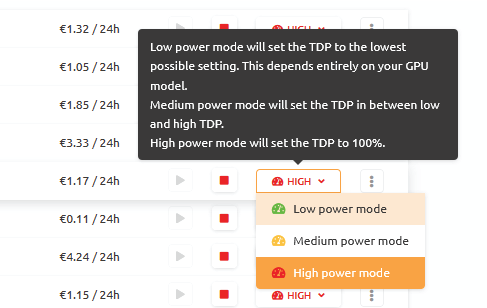
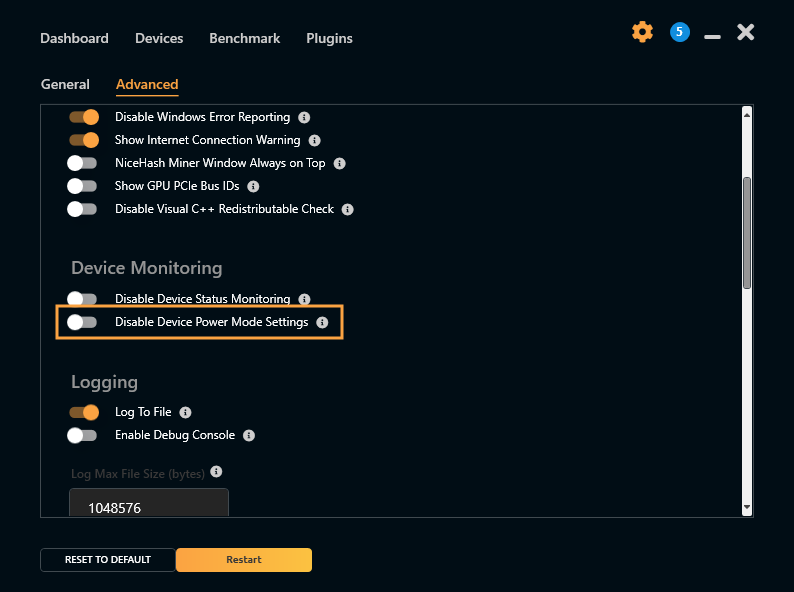
To set power mode from Rig Manager, you need to allow the NiceHash Miner to change the power mode. Make sure that the next conditions are met:
- NiceHash Miner is running as an Administrator.
- Disable Device Power Mode Setting inside the NiceHash Miner option.
Note that setting power mode on Windows only works with NVIDIA graphic cards. AMD cards will be supported in the future.
The above steps do not apply to NHOS users. You can set the power mode immediately in NHOS.
How to tell the current temperature of the GPU?
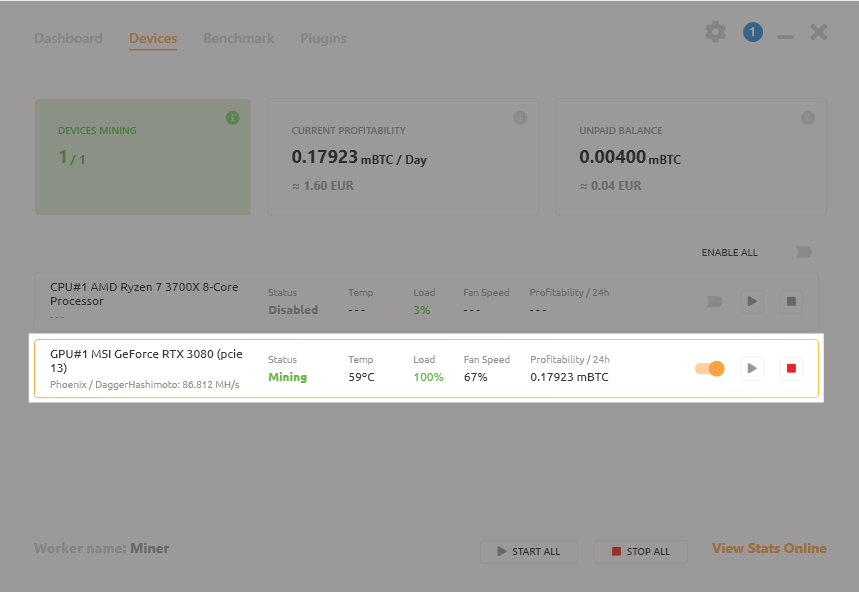
If you are using NiceHash Miner or NiceHash OS, you can simply open the rig tab and read the GPU temperatures.

You can also inspect GPU temperatures from inside the NiceHash Miner.
If you are using NiceHash QuickMiner (NVIDIA only), you can even check the VRAM temperatures inside Rig Manager:
