NiceHash QuickMiner: Game mode
Game Mode is NiceHash QuickMiner's latest feature, making switching between gaming and mining very quick and easy!
What is Game Mode, and what does it do?
Game Mode performs the following activities when activated:
- detects your primary graphics card,
- stops mining on your primary graphics card and
- (optional) applies special Game Mode overclock settings for your primary graphics card.
In reverse, when you deactivate Game Mode following is performed:
- the primary graphics card is detected,
- (optional) previous mining overclock settings are applied and
- starts mining on your primary graphics card
Where to configure Game Mode?
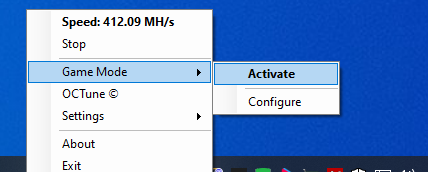
Right-click the NiceHash QuickMiner tray icon.
If you do not overclock your graphics card for gaming, you can skip this step and go to the next one.
If you are a gamer who likes to push the GPU to its limits and overclock it to get extra FPS, then you would like to apply your favorite overclocks before entering the game. Unfortunately, overclock values for mining are usually the complete opposite of gaming; therefore, your overclocks need to be changed before entering the game and changed again for mining after exiting the game.
First time using this feature, you might want to adjust your Game Mode Overclock profile. To do so, right-click the NiceHash QuickMiner notification icon and, from the menu, select Game Mode -> Configure. The following dialog is displayed:
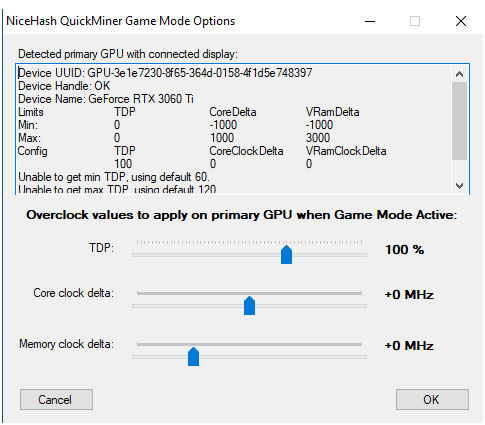
Here, you can tune the most important three parameters for overclocking your gaming GPU. Set them as you want and click OK. You are ready to enter Game Mode now.
NiceHash QuickMiner automatically detects your primary graphics card (the one with a connected display). Game Mode always affects only your primary GPU, leaving the rest intact. If in the future, you change your primary GPU to another one, you'd have to reconfigure your Game Mode overclocks to fit the new primary GPU.
Enabling Game Mode
Right-click the NiceHash QuickMiner notification icon, and from the menu, select Game Mode -> Activate:
You will be informed whether Game Mode activation was successful or if there was an error.
Disabling Game Mode
When you stop gaming, you can return to mining by doing the opposite and clicking Game Mode -> Deactivate. QuickMiner will apply mining settings, and you can continue earning Bitcoin with your GPU!
Join us at our Subreddit or our Discord server!