NiceHash API integration with Google spreadsheets guide
In this article, we are going to explain how to use Google Apps Script with NiceHash API and write data to Google spreadsheet. You can use this guide as a starting point to track your earnings, payouts, balances or build other custom scripts.
List of content:
- Generating API keys and secrets
- Google Apps Script
- Authentication
- Coding & writing data to the spreadsheet
- Full code example
#1 Generating API keys and secrets
In order to call to NiceHash endpoint, you must first create private and public endpoint keys.
You can do this by following these steps:
- Inside the NiceHash platform, navigate to the account or organization settings > API keys
- Click on CREATE NEW API KEY and fill out the form.
- Input the 2FA key.
- Save API Key Code and API Secret Key Code. These keys will only be shown at this point. If lost, you will need to generate new keys.
- Confirm the API Key with the code sent to your email.
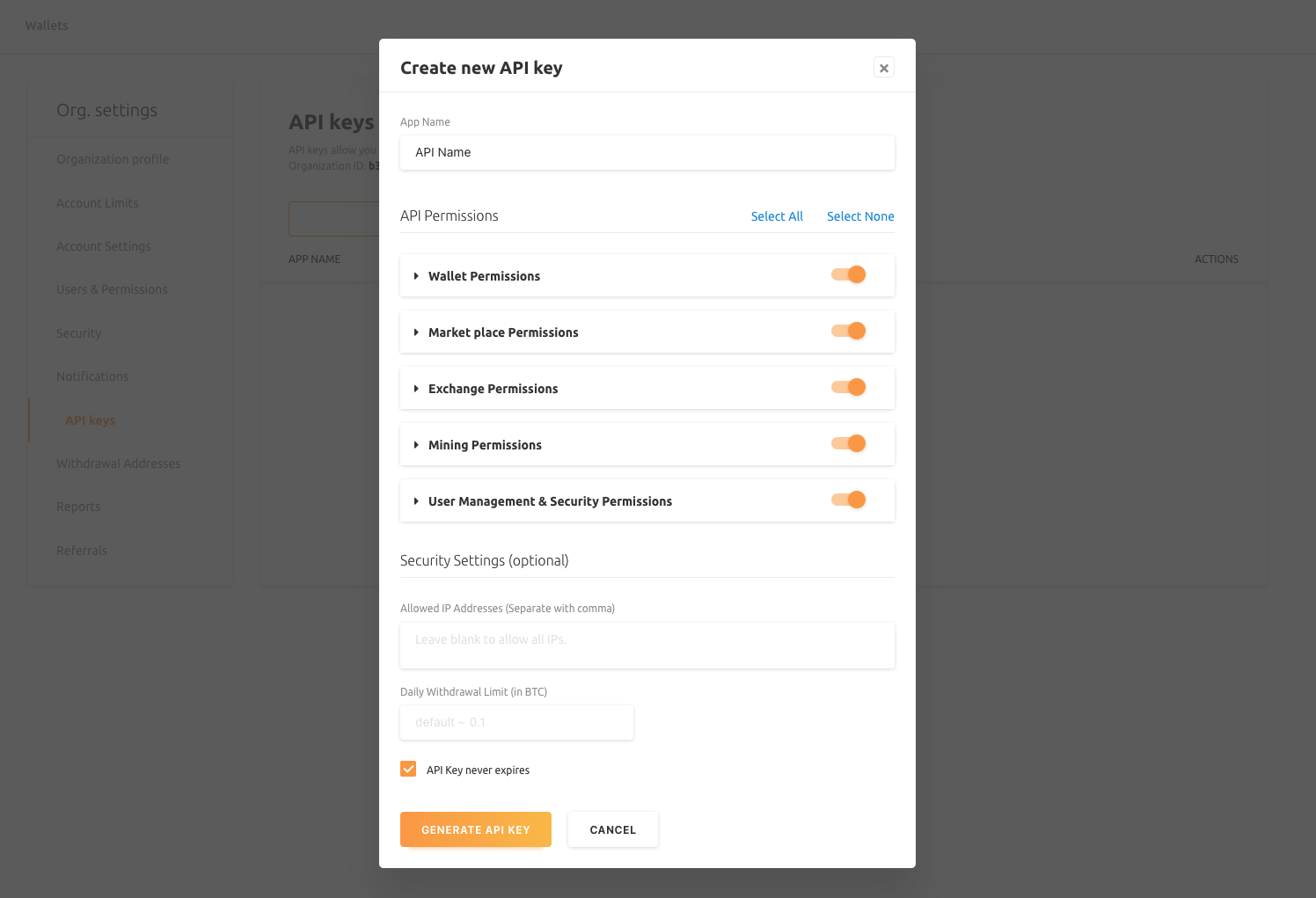
You will also need an organization ID. This can be found on the Account/Organization Settings > API keys page.
#2 Google Apps Script
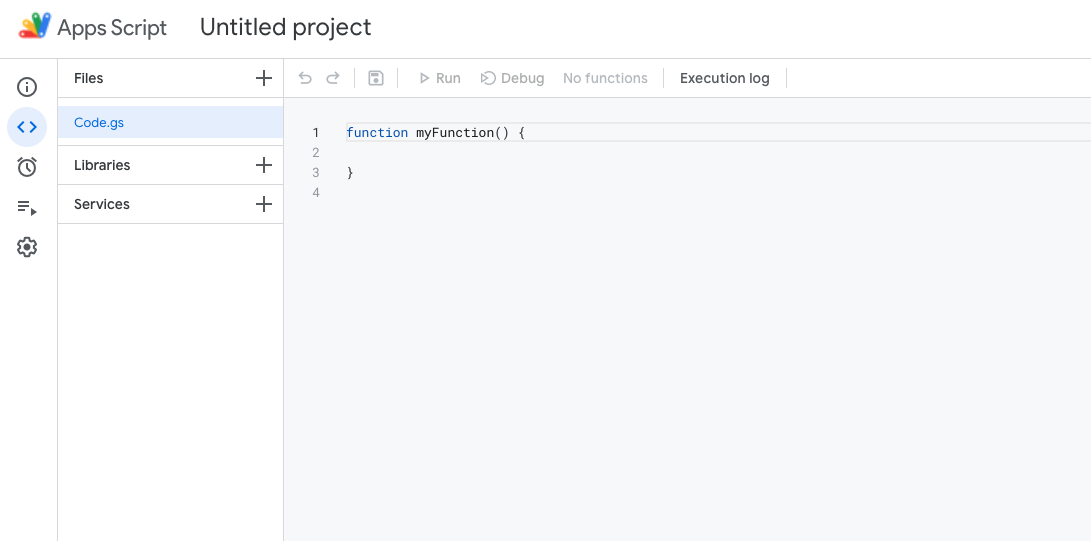
To open Google Scripts from Google Spreadsheets, simply navigate to the Extensions > Apps Script inside Google spreadsheet.
You will see an empty function MyFunction(). You are now ready to start coding.
#3 Authentication
Copy this code inside myFunction().
function generateNonce() {
    var d = Date.now();
    return "xxxxxxxx-xxxx-4xxx-yxxx-xxxxxxxxxxxx".replace(/[xy]/g, function (c) {
    var r = (d + Math.random() * 16) % 16 | 0;
    d = Math.floor(d / 16);
    return (c == "x" ? r : r & 0x7 | 0x8).toString(16);
    });
}

eval(UrlFetchApp.fetch("https://cdnjs.cloudflare.com/ajax/libs/crypto-js/3.1.9-1/crypto-js.min.js").getContentText());
eval(UrlFetchApp.fetch("https://cdnjs.cloudflare.com/ajax/libs/crypto-js/3.1.9-1/hmac-sha256.min.js").getContentText());
eval(UrlFetchApp.fetch("https://cdnjs.cloudflare.com/ajax/libs/crypto-js/3.1.9-1/enc-base64.min.js").getContentText());
var delim = "\u0000";
var url = "/main/api/v2/mining/miningAddress"; //Example of GET method. Change this to call different methods. Only use URL after "https://api2.nicehash.com".
var key = "YOUR_API_KEY"; //Change this value to your custom key. Leave quotation marks.
var secret = "YOUR_API_SECRET"; //Change this value to your custom secret. Leave quotation marks.
var org = "YOUR_ORGANIZATION_ID"; //Change this value to your custom id. Leave quotation marks.
var time = ""+new Date().getTime();
var nonce = generateNonce();
var reqMeth = "GET";
var content = key + delim + time + delim + nonce + delim + delim + org + delim + delim + reqMeth + delim + url + delim;
var HMACsig = CryptoJS.HmacSHA256(content, secret);
var xServiceAuth = key + ":" + HMACsig;
var headers = {"X-Nonce": nonce, "X-Time": time, "X-Auth": xServiceAuth, "X-Organization-Id": org};
var response = UrlFetchApp.fetch("https://api2.nicehash.com" + url, {"headers": headers});
var content = response.getContentText();
var obj = JSON.parse(content);
This code will create an authentication with the NiceHash API service.
You can use var obj to play around now.
Response example:
{"address":"39ok3paMEbrtb1fKukbCreAESLzp5nAMVU"}
For additional API methods, use NiceHash documentation.
#4 Coding & writing data to the spreadsheet
From now on, you can start coding with basic Javascript inside Google Apps Script. You can find Apps Script documentation here.
You can fetch the Bitcoin Address with the above example. To access this address simply use var address = obj.address;
Next, you must link the function to the sheet (tab inside the spreadsheet). You can do this with this code:
var sheet = SpreadsheetApp.getActiveSpreadsheet().getSheetByName("SHEET_NAME");
To write the address value to the spreadsheet, use this:
var cell = sheet.getRange("B2"); cell.setValue(address);
Run the script by clicking on the RUN button at the top. Bitcoin address will be written to the B2 cell.
#5 Full code example
Copy this code to your Apps Script and run it. Remember to change your API keys and organization ID!
function myFunction() {
    function generateNonce() {
        var d = Date.now();
        return "xxxxxxxx-xxxx-4xxx-yxxx-xxxxxxxxxxxx".replace(/[xy]/g, function (c) {
            var r = (d + Math.random() * 16) % 16 | 0;
            d = Math.floor(d / 16);
            return (c == "x" ? r : r & 0x7 | 0x8).toString(16);
        });
    }

    eval(UrlFetchApp.fetch("https://cdnjs.cloudflare.com/ajax/libs/crypto-js/3.1.9-1/crypto-js.min.js").getContentText());
    eval(UrlFetchApp.fetch("https://cdnjs.cloudflare.com/ajax/libs/crypto-js/3.1.9-1/hmac-sha256.min.js").getContentText());
    eval(UrlFetchApp.fetch("https://cdnjs.cloudflare.com/ajax/libs/crypto-js/3.1.9-1/enc-base64.min.js").getContentText());
    var delim = "\u0000";
    var url = "/main/api/v2/mining/miningAddress"; //Example of GET method. Change this to call different methods. Only use URL after "https://api2.nicehash.com".
    var key = "YOUR_API_KEY"; //Change this value to your custom key. Leave quotation marks.
    var secret = "YOUR_API_SECRET"; //Change this value to your custom secret. Leave quotation marks.
    var org = "YOUR_ORGANIZATION_ID"; //Change this value to your custom id. Leave quotation marks.
    var time = ""+new Date().getTime();
    var nonce = generateNonce();
    var reqMeth = "GET";
    var content = key + delim + time + delim + nonce + delim + delim + org + delim + delim + reqMeth + delim + url + delim;
    var HMACsig = CryptoJS.HmacSHA256(content, secret);
    var xServiceAuth = key + ":" + HMACsig;
    var headers = {"X-Nonce": nonce, "X-Time": time, "X-Auth": xServiceAuth, "X-Organization-Id": org};
    var response = UrlFetchApp.fetch("https://api2.nicehash.com" + url, {"headers": headers});
    var content = response.getContentText();
    var obj = JSON.parse(content);

    //-----START CODING BELOW THIS LINE-----
    var sheet = SpreadsheetApp.getActiveSpreadsheet().getSheetByName("SHEET_NAME");

    var address = obj.address;

    var cell = sheet.getRange("B2");
    cell.setValue(address);
}