NHOS Overclocking Guide
[2023 Update] This guide does not apply to NHOSv2. Follow this guide for NHOSv2 optimisations.
This guide will help you to overclock GPUs when using NiceHash OS.
If you are not sure how to start using NHOS, read this guide. Also, check our NHOS User Guide PDF here.
Setting TDP, Core Clocks, and Memory Clocks
[April 2021 update] Setting core and memory clock in NHOS might not work for all cards.
1. Once you have successfully flashed NHOS to your USB flash drive, the NHOS partition will only contain the configuration.txt file. You are required to start the NHOS at least once in order for the NHOS to get your GPU information.
2. After your mining rig shows up in your Rig Manager, you can shut down your mining rig and remove the USB flash drive with the NHOS. Insert this USB into a PC to edit the files. Navigate to NHOS:\nhm\configs and open device_settings file.
We advise you to use a text editor like Notepad++ to edit all values at once with the help of CTRL+F and REPLACE ALL function.
3. Here you can change the tdp, core_clocks, and memory_clocks to the desired value.
tdp allows you to control the amount of power to be consumed by a GPU as a percentage. 100% is the default value. If set to 75%, the GPU will consume 75% of what it would be consuming otherwise.
NVIDIA example:
"tdp": "default" change to "tdp": 75
"core_clocks": "default" change to "core_clocks": 50
"memory_clocks": "default" change to "memory_clocks": 100
AMD example:
"tdp": "default" change to "tdp": 75
"core_clocks": "default" change to "core_clocks": 1800
Note that you have to use values without quotation marks. Also, notice that the AMD and NVIDIA values are different. When changing the setting for NVIDIA cards you add or subtract value from the default value, while in AMD you set the absolute value.
4. Save the file, remove the USB from PC and put it in your mining rig.
5. This is it! NHOS will boot and start mining automatically with new overclocked settings.
Setting Overclocks for a specific Miner or Algorithm
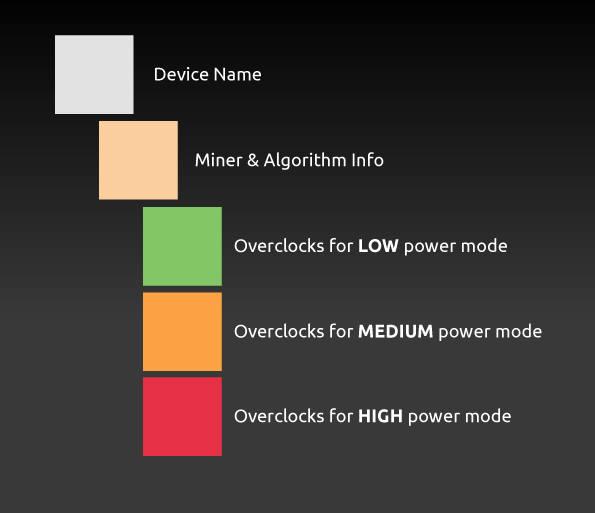
In the same file device_settings, you can edit overclocks for one miner or one algorithm only. Look for a block of code with algorithm_id, and change the values below this block.
Code structure inside device_settings file is designed as illustrated below:
List of algorithm IDs:
5 = Keccak
20 = DaggerHashimoto
21 = Decred
28 = Blake2s
32 = Lyra2z
33 = X16R
36 = Zhash
37 = Beam
39 = GrinCuckaroo31
40 = Lyra2REv3
42 = CryptoNightR
43 = CuckooCycle
44 = GrinCuckarooD29
45 = BeamV2
46 = X16Rv2
47 = RandomXmonero
48 = Eaglesong
49 = Cuckaroom
50= GrinCuckatoo32
51 = Handshake
52 = KAWPOW
53 = Cuckaroo29BFC
54 = BeamV3
Example
If you wanted to set overclocks for Keccak(Algorithm ID “5”) when mining with CCminer, then you would look for this part of the code:
"miner": "ccminer",
"algorithm_id": [5],
"enabled": true,
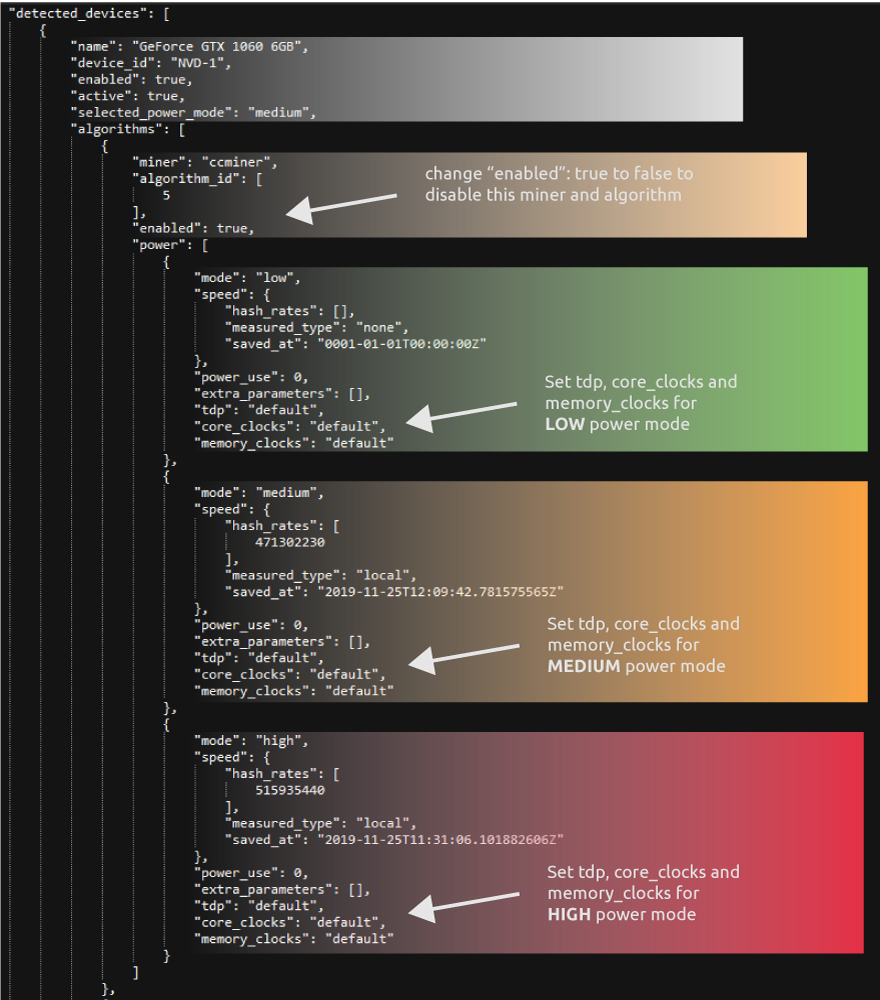
And change the tdp, core_clock and memory_clock values for each power mode. Each power mode will use different settings when selected.
NOTE: Set the values without the quotation marks. ("tdp": 65)
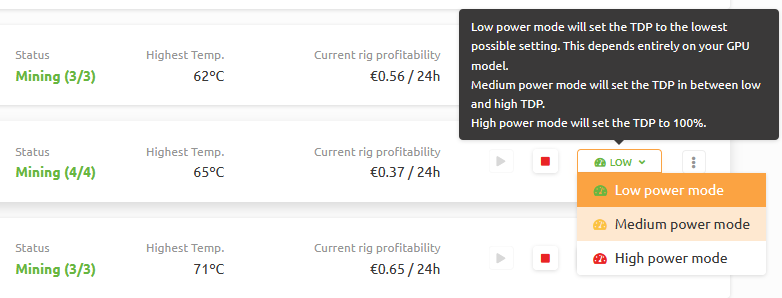
NHOS power modes can be changed via Rig Manager once the rig is up and running. Note that the NHOS will do the benchmarks if you change the power mode for the first time.