How to send Windows Event Logs?
When reporting a bug, our support agent might ask you for Windows Event Logs. We need Application and System logs.
NiceHash employees will never ask for your password. Never tell your password(s) to anyone.
Follow these steps to send us Application Event Logs:
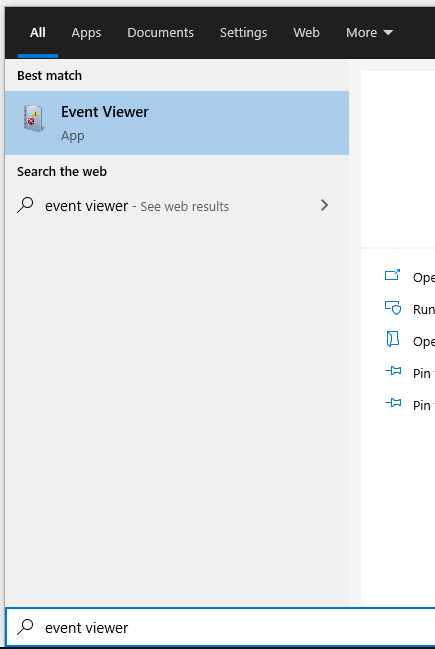
1. Open Event Viewer. Type Event Viewer in Windows Search.
2. On the left side, navigate to Event Viewer > Windows Logs > Application.
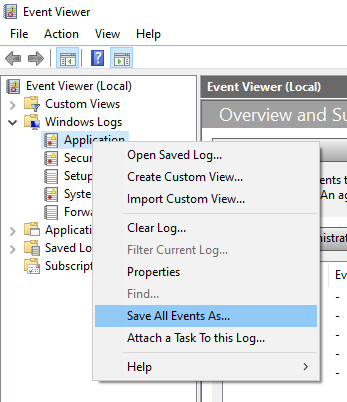
3. Right-click on the Application and select Save All Events As.
4. Name the file and click Save.
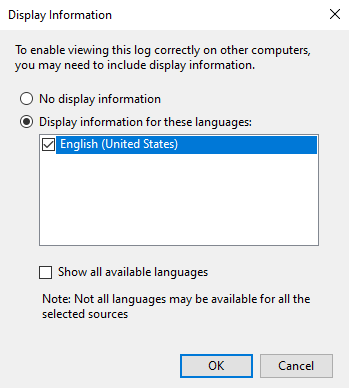
5. Select Display information for these languages and then English.
6. Click OK.
Follow these steps to send us System Event Logs:
1. Open Event Viewer. Type Event Viewer in Windows Search.
2. On the left side, navigate to Event Viewer > Windows Logs > System.
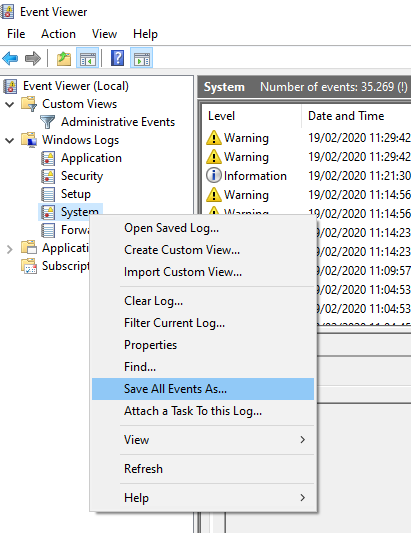
3. Right-click on the System and select Save All Events As.
4. Name the file and click Save.
5. Select Display information for these languages and then English.
6. Click OK.
Send these logs to logs@nicehash.com. Default save location is C:\Users\User\Documents.