How to Secure Your E-mail Account
The global Internet industry is facing security issues when an attacker acquires access to a victim's email account. This can be easily avoided by increasing security on your email account by enabling 2-STEP VERIFICATION.
First, visit haveibeenpwned.com, where you can check if your email address has been compromised in any data breach. If you find your email on the list, this guide is even more important! The attacker could have your email address and password that you used at the time of the breach on the platform that was compromised.
Note that attacks happen every day, enabling 2-step verification will take you 5 minutes of your day, and will make it virtually impossible for the attacker to gain access to your email account. This will protect your accounts on other platforms too, not only on NiceHash.
In this guide, we will show you how to enable 2-step verification for the top 5 email providers used to Log in to NiceHash.
The 5 most used email providers by our users are:
Gmail.com
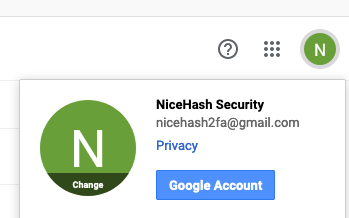
1. In the top right corner click on your Profile Icon and click Google Account. A new tab will open.
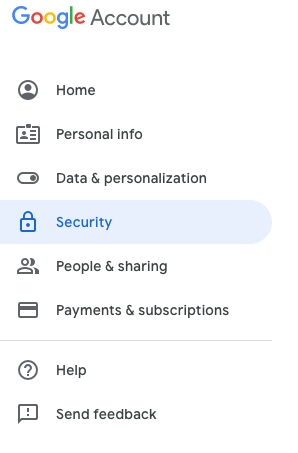
2. On the left side of the screen, click on the Security tab.
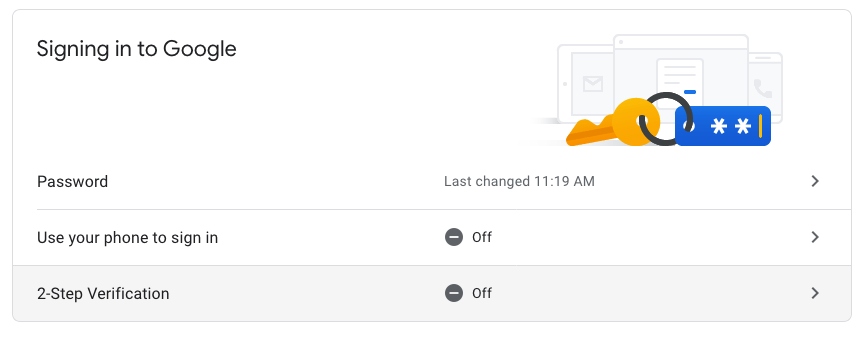
3. Navigate to Singing in to Google and select 2-Step Verification and click Get Started.
4. Select the country you are from and input your mobile number. Click Next.
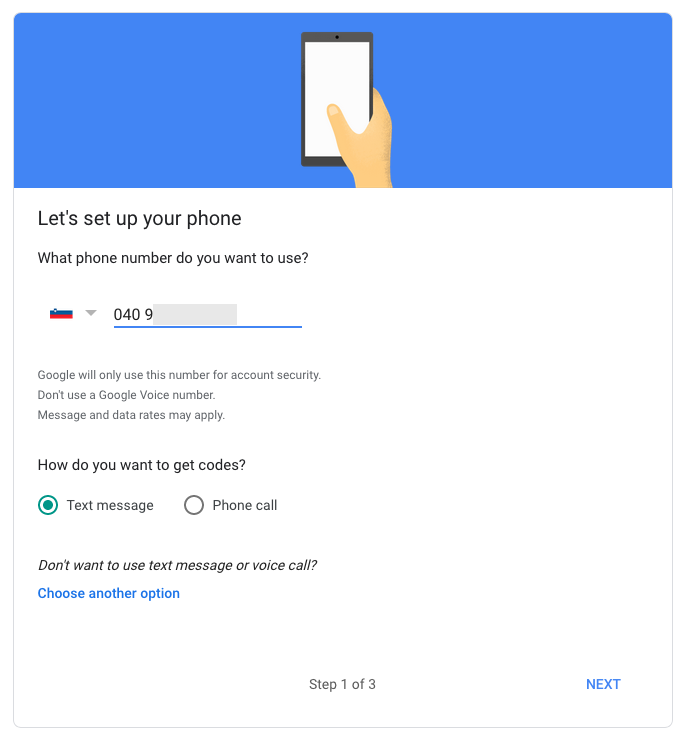
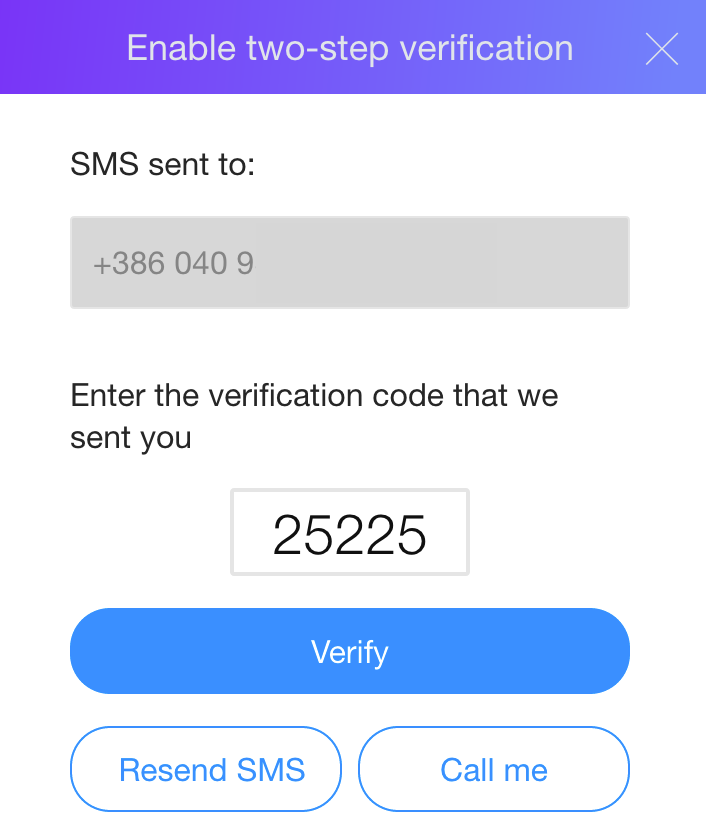
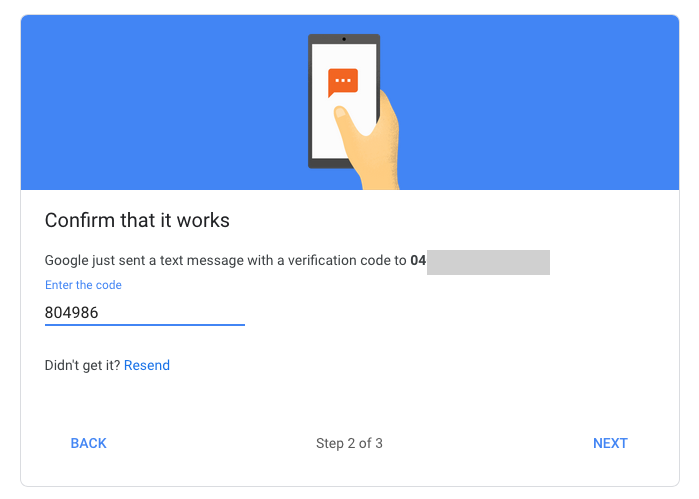
5. Wait for the SMS to arrive, then input the Google Verification Code from the phone to the empty field.
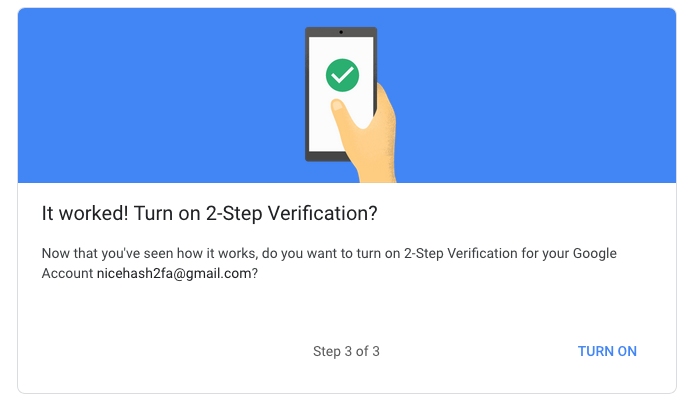
6. Don’t forget to TURN ON the 2-step verification.
Mail.ru
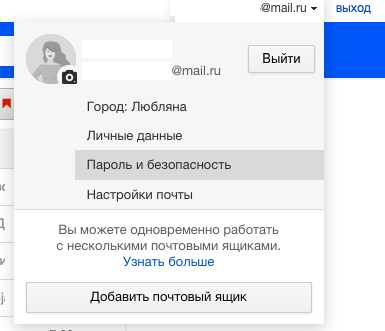
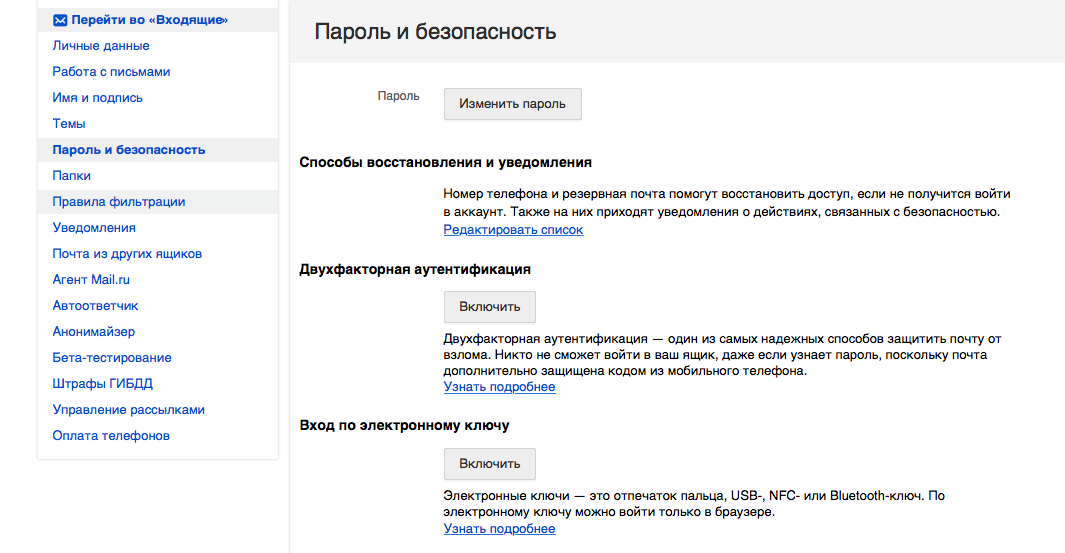
1. In the top right corner click on your email address and click Password and Security.
2. Navigate to Two-factor authentication and click Enable.
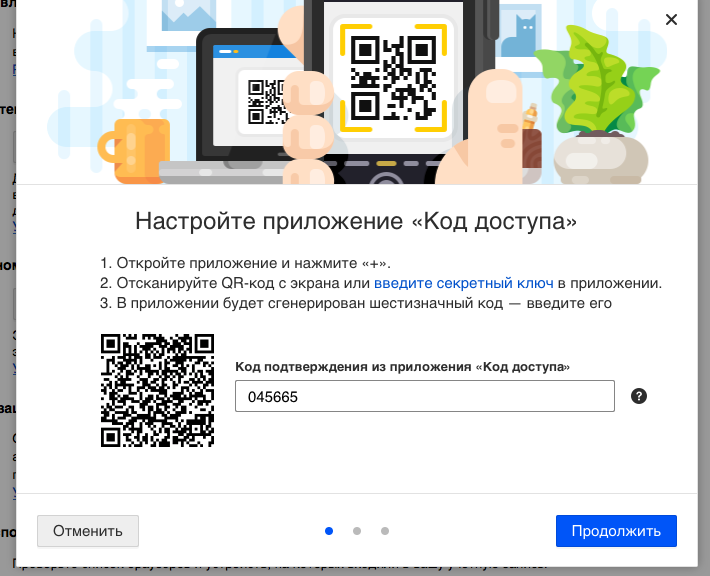
3. Install the “Access code” application to your mobile device.
4. Click “+” and choose mail.ru service.
5. Scan QR code or enter the key manually to the application.
6. Enter generated code to the field on your screen. Click Next.
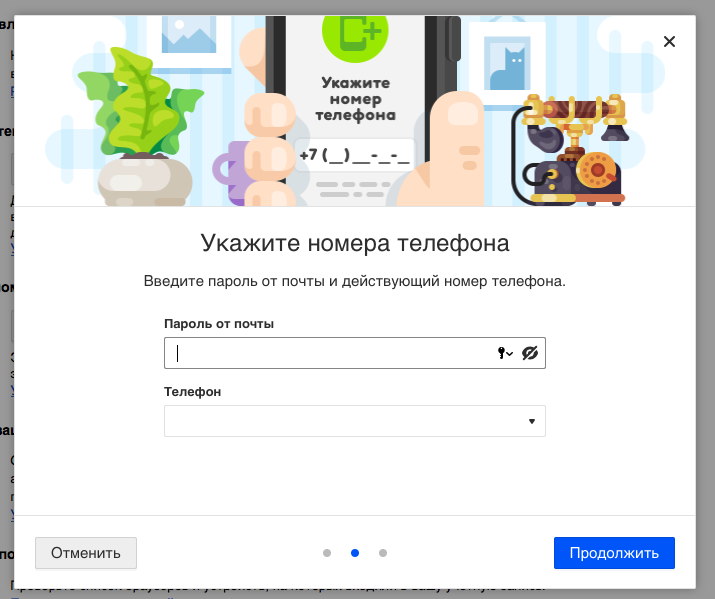
7. Enter your email password and phone number. Click Next.
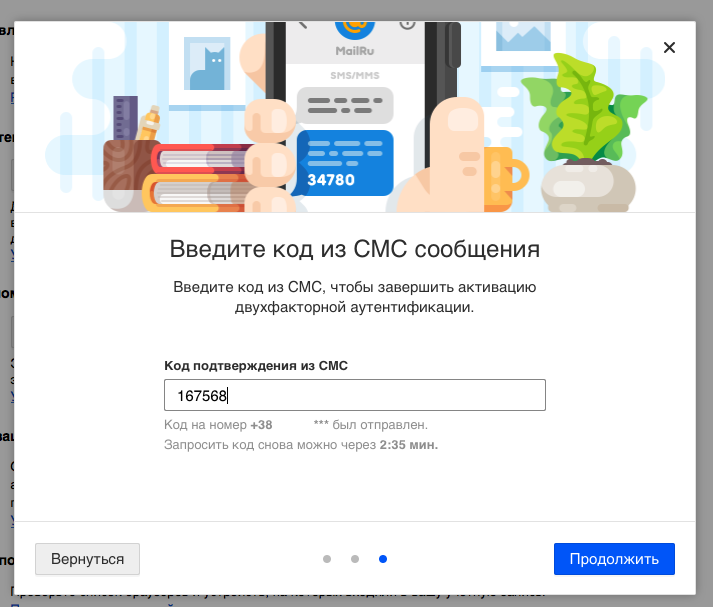
8. Wait for the SMS to arrive, then input the Verification Code from the phone to the field on your screen. Click Next.
Hotmail.com
1. Navigate to https://account.microsoft.com/security/ and sign in.
2. Click on Turn On under the Two-step verification.

3. Select A phone number and your Country. Then type in your phone number. Click Next.
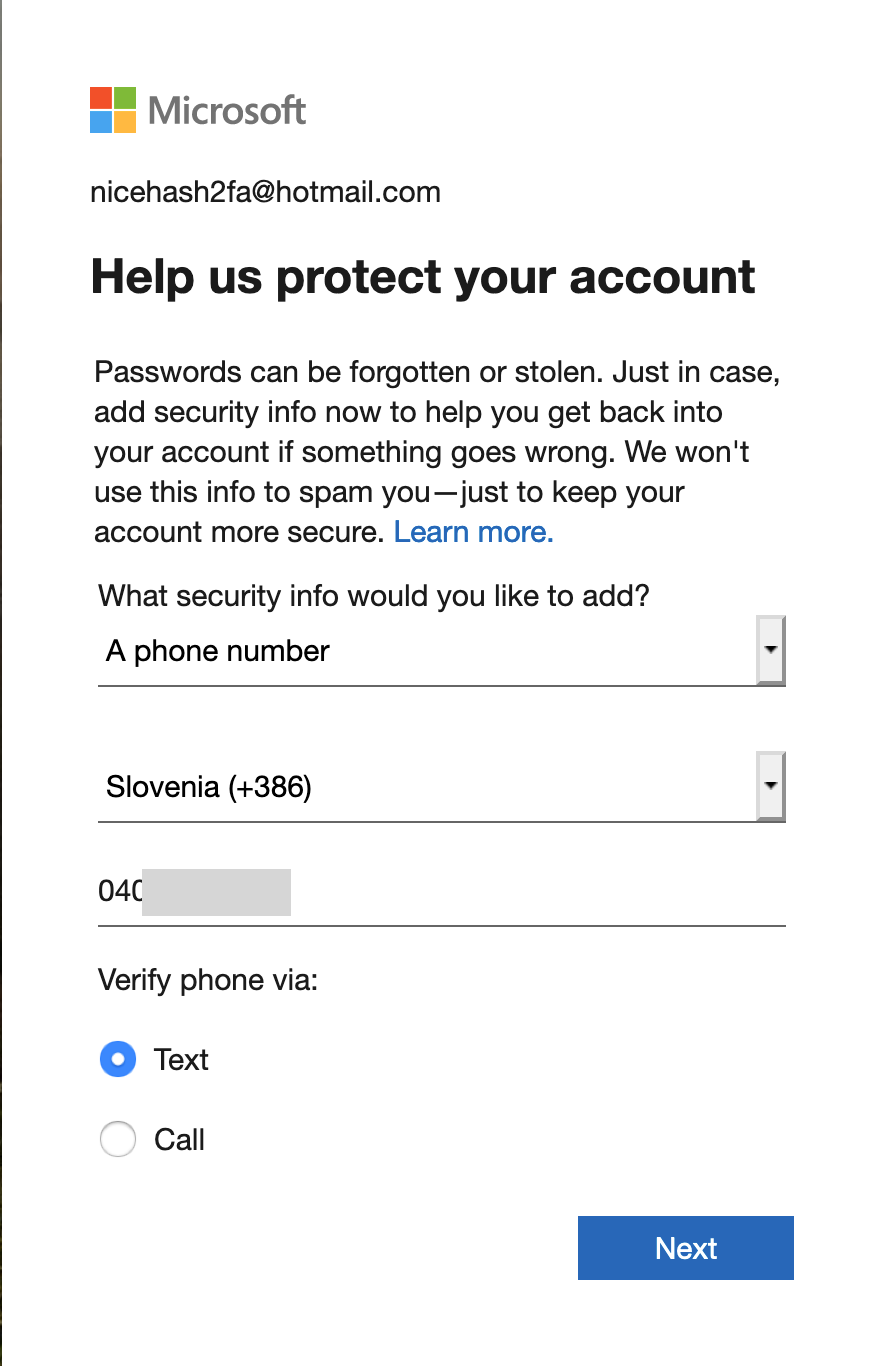
4. Enter the code received on your mobile phone.
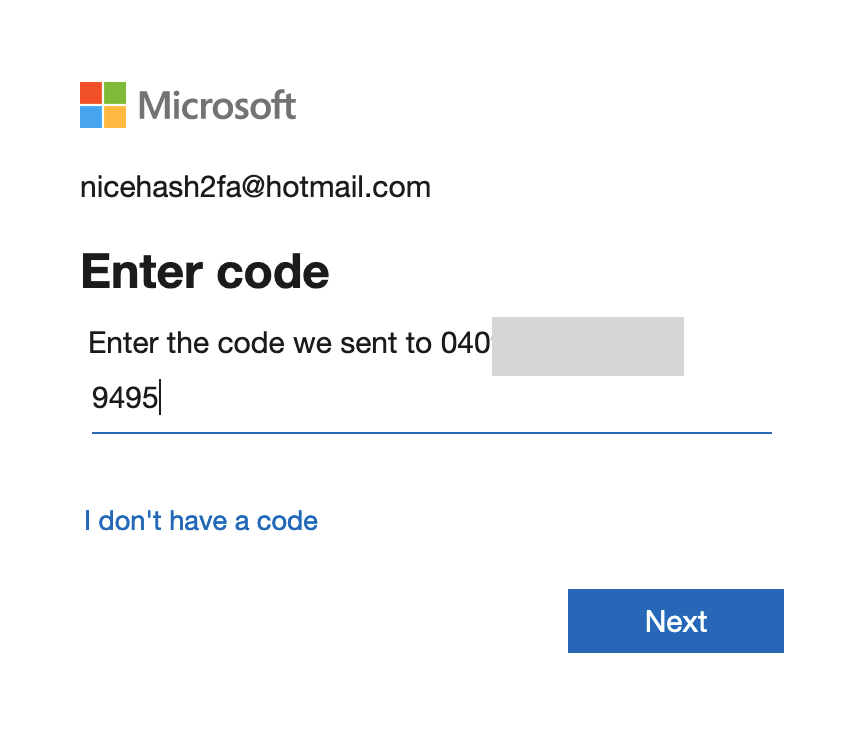
5. Next time you sign in, you will be prompted to write the last 4 numbers of your phone number. Then you will receive a 7 digit code to proceed.
Yandex.ru
1. In the top right corner click on your email address and click Manage account.
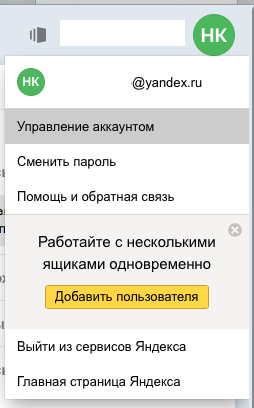
2. Navigate to Passwords and authorization and click Set up two-factor authorization.

3. Enter your phone number and click Get code.
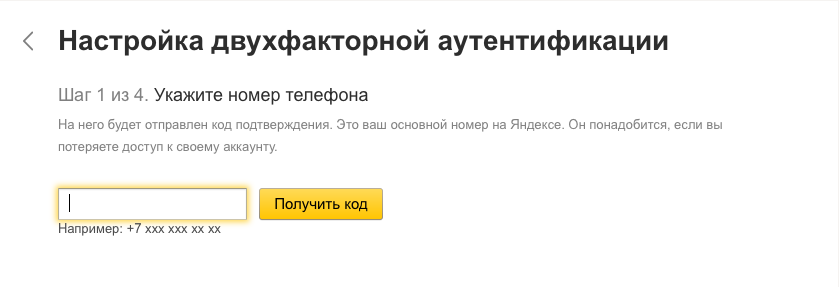
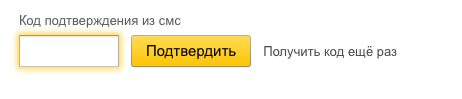
4. Wait for the SMS to arrive, then input the Verification Code from the phone to the field on your screen. Click Confirm.
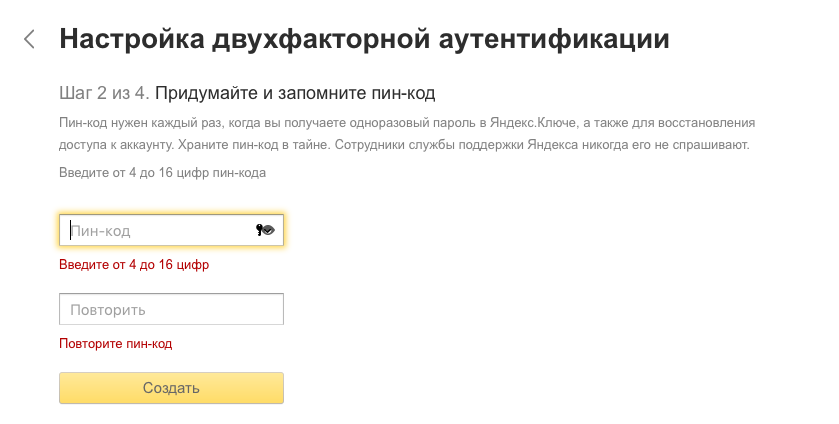
5. Create a PIN code and click Create.
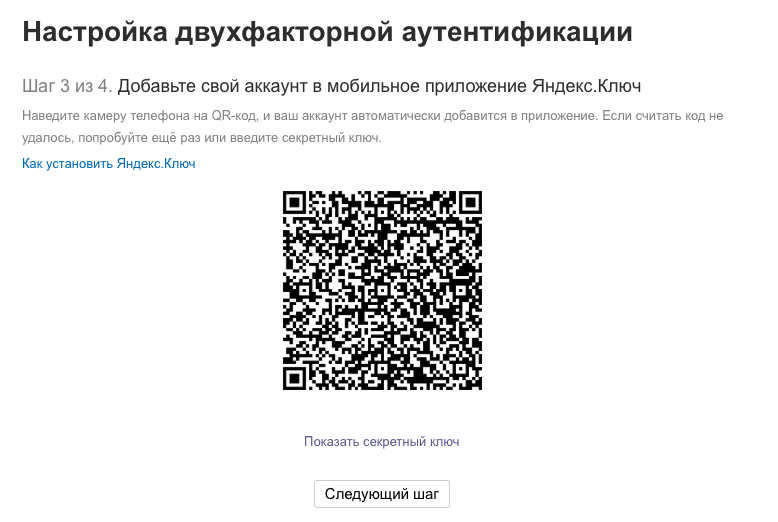
6. Install the “Yandex. Key” application to your mobile device.
7. Click Add account. Scan the QR code or enter the key manually to the application. Click Next step on your screen.
8. Enter the PIN code created in step 5 to the application.
9. Enter the generated password to the field on your screen. Click Enable.

Yahoo.com
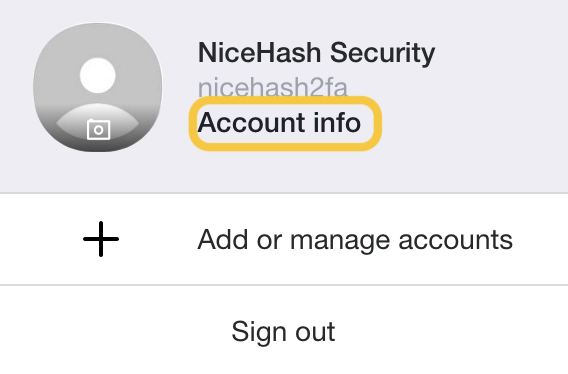
1. Click your profile icon and Account Info.
2. Select Account Security tab on the left side of the screen.
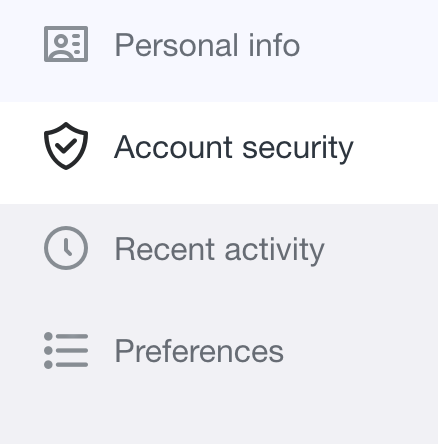
3. Click on the toggle button to enable Two-step verification.

4. Select your Country and input your mobile number.
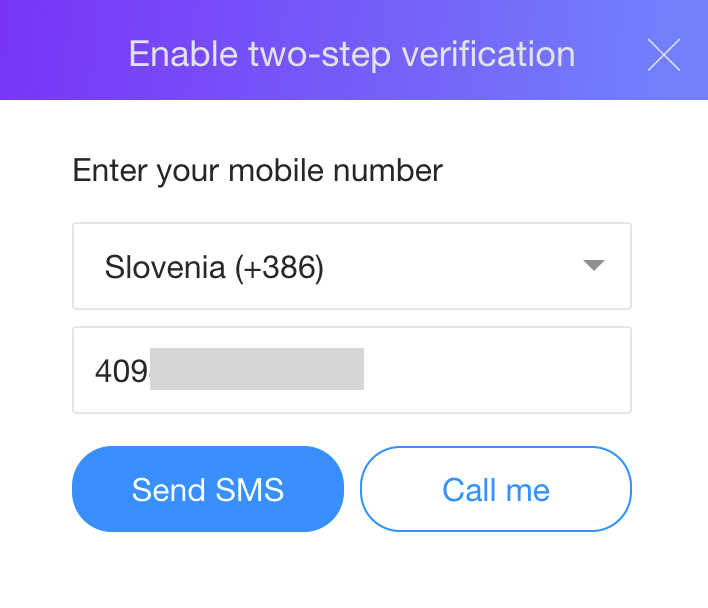
5. Insert the verification code you received via SMS and click Verify.