How to limit threads on the CPU?
UPDATED: 29.6.2023
In this blog post, we will show you how to limit your CPU threads when mining. This will allow you to continue to use your PC without lagging while mining.
What are CPU threads and how are they different to CPU cores?
The short answer is that CPU threads deliver work to CPU cores.
Only cores are the actual hardware, while threads are more like a virtual component that manages the tasks. Normally the "core vs. thread" ratio is 1:2. In modern CPUs, we can find two threads for each core.
When you launch NHM and start CPU mining, the program will use all of the threads available. In order for you to limit the intensity of the mining program, we need to limit the threads that will be used for mining.
We will use Ryzen 7 3700x 8-core processor with 16 threads. The miner will set the most optimal configuration based on CPU specs (in some cases this could be all threads e.g. 16 in our case). If we want to limit the CPU to 50%, we will only use 8 threads and 4 cores.
XMRig
To limit threads when mining with XMRig you have to follow these steps:
- Open the NiceHash Miner Settings-Advanced and enable Advanced mode. This will enable the Extra Parameters in NiceHash Miner
- Select the Extra Parameters tab and fully expand the XMRig section
- Enter the --threads=N command in the following form:
Flag: –threads
Delim.: =
Value: N (where N is the number of threads you want to use)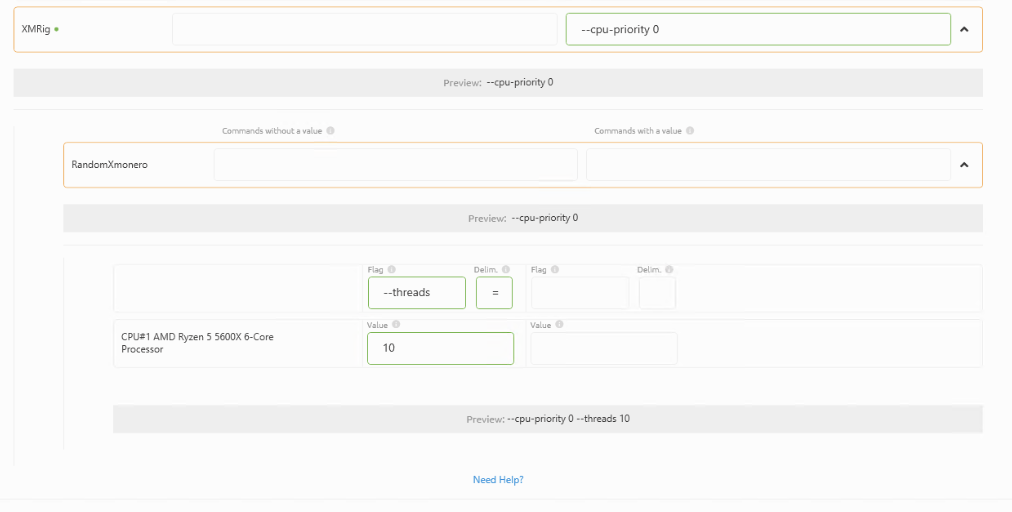
Mining RandomXmonero with NiceHash Miner and Excavator
To limit threads when mining RandomXmonero with NiceHash Miner and Excavator you have to follow these steps and modify the cmd_N.json file:
- Open the NiceHash Miner installation folder.
The default location is: C:\Users\Example\AppData\Local\Programs\NiceHash Miner - Navigate to the miner_plugins folder until you find the cmd_N.json file.
The default location is: C:\Users\Example\AppData\Local\Programs\NiceHash Miner\miner_plugins\27315fe0-3b03-11eb-b105-8d43d5bd63be\bins\19.8\NHQM_v0.6.5.1 - Open the cmd_N.json file in Notepad (where N is a number) and locate the NTHREADS=0 command
- Change the NTHREADS=0 command to the number of threads you wish to use (for example NTHREADS=8 to select 8 threads)
- Close Notepad and Save the changes
- Restart mining
Mining RandomXmonero with Quick Miner and Excavator
To limit threads when mining RandomXmonero with Quick Miner and Excavator you have to follow these steps:
- Make sure Quick Miner is running
- Right-click on the Quick Miner icon
- Go into Settings and select Edit config file
- Change the NTHREADS=0 command to the number of threads you wish to use (for example NTHREADS=8 to select 8 threads)
- Close Notepad and Save the changes
- Restart mining