How to correctly uninstall and install GPU drivers?
When installing GPU drivers, it is always recommended to delete the current drivers first. You can do this with a free tool Display Driver Uninstaller (DDU). It is also recommended to disconnect the Internet when you install the drivers.
In this guide, we will cover 3 essential steps when re-installing GPU drivers:
- Downloading the drivers.
- Deleting the drivers with Display Driver Uninstaller.
- Installing the drivers.
Follow the steps below to successfully re-install your GPU drivers.
1. Downloading the drivers
You can download AMD drivers here and NVIDIA drivers here.
We recommend trying different driver versions. Some driver versions might cause issues when mining. Installing an older version could fix the issue.
- Select your GPU model.
- Select your operating system.
- Save the driver somewhere on your rig and proceed to Delete the drivers with Display Driver Uninstaller.
2. Deleting the drivers with Display Driver Uninstaller
Display Driver Uninstaller is a driver removal utility that can help you completely uninstall AMD/NVIDIA graphics card drivers and packages from your system, without leaving leftovers behind (including registry keys, folders, and files, driver store).
- Download the DDU from here. Scroll down and select a download mirror.
- Extract and run the DDU.
- Select AMD/NVIDIA drivers from the drop-down menu.
- Disconnect the LAN cable from the rig.
- Click Clean and Restart.
3. Installing the new drivers
Once DDU deletes the drivers and restarts your rig, make sure that the LAN cable is still not connected to your rig. Then locate the drivers previously downloaded and install them.
Follow these steps to install GPU drivers:
- Run the downloaded driver file.
- Use the Express or Custom installer option (we prefer Custom and disable all additional unnecessary stuff except the drivers itself).
- Restart the rig no matter if the installation does not require it.
- Connect the LAN cable back to your rig.
Make sure drivers were installed properly
After the installation of the drivers is complete, you should verify whether the installation was successful. It is best to use GPU-Z for this purpose. You should see the following picture:
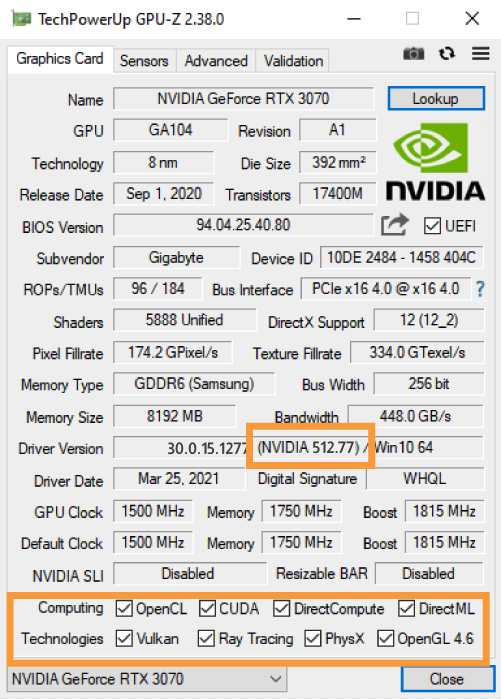
GPU-Z has special features listed for each GPU at the bottom. Usually, when the installation of drivers fails, most of the checkboxes are not checked. When you see (almost) all checkboxes checked, you know that drivers were installed successfully. GPU-Z can also tell you the driver version and whether the driver is DCH or non-DCH. In the above example, we have installed 465.89 non-DCH drivers. If you were to install DCH drivers, you would see DCH somewhere in the Driver Version field.
That's it! Feel free to join our Discord server where our team members and other users will be happy to assist you!