How to access your browser console?
When you experience issues with login or any other similar web issues, our support staff might ask you for a screenshot of the console window. Here are the instructions on how to create such a screenshot.
Chrome
1. Navigate to the website that has issues.
2. Press F12.
3. Select CONSOLE.
4. Take a screenshot of the console window.
- On Windows: press shift + windows + S to create a screenshot.
- On a Mac: press command + shift + 4 to create a screenshot.

Firefox
1. Navigate to the website that has issues.
2. Press F12.
3. Select CONSOLE.
4. Take a screenshot of the console window.
- On Windows: press shift + windows + S to create a screenshot.
- On a Mac: press command + shift + 4 to create a screenshot.

Opera
1. Navigate to the website that has issues.
2. Press CTRL+Shift+I.
3. Select CONSOLE.
4. Take a screenshot of the console window.
- On Windows: press shift + windows + S to create a screenshot.
- On a Mac: press command + shift + 4 to create a screenshot.

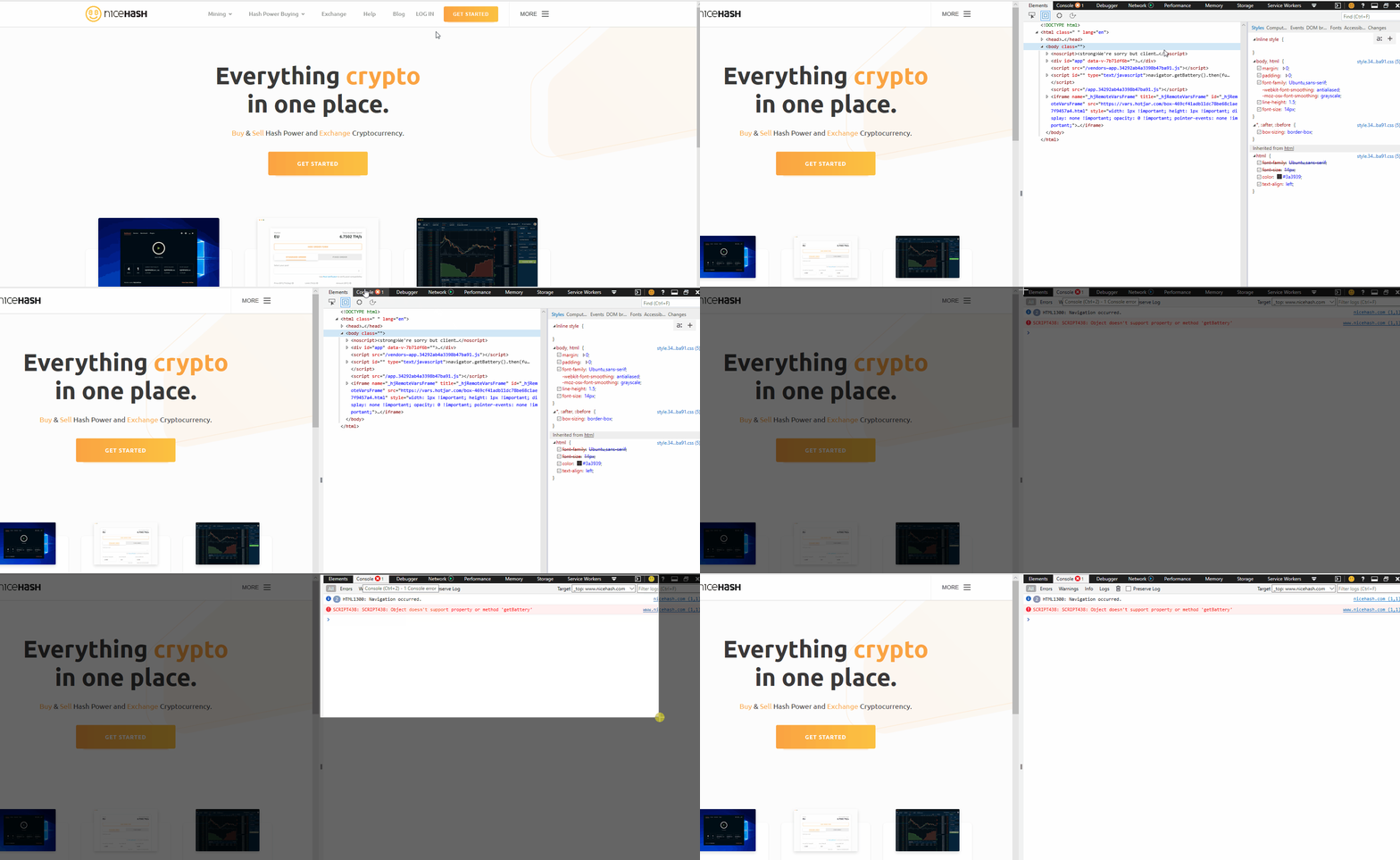
Edge
1. Navigate to the website that has issues.
2. Press F12.
3. Select CONSOLE.
4. Take a screenshot of the console window.
- On Windows: press shift + windows + S to create a screenshot.
- On a Mac: press command + shift + 4 to create a screenshot.
Safari
1. First, you need to enable developer mode.
2. Navigate to Safari > Preferences.
3. Click Advanced.
4. Select “Show Develop menu in the menu bar”.
5. Press option + command + C to open a console window.
6. Take a screenshot of the console window.
- You can press command + shift + 4 on Mac to create a screenshot.